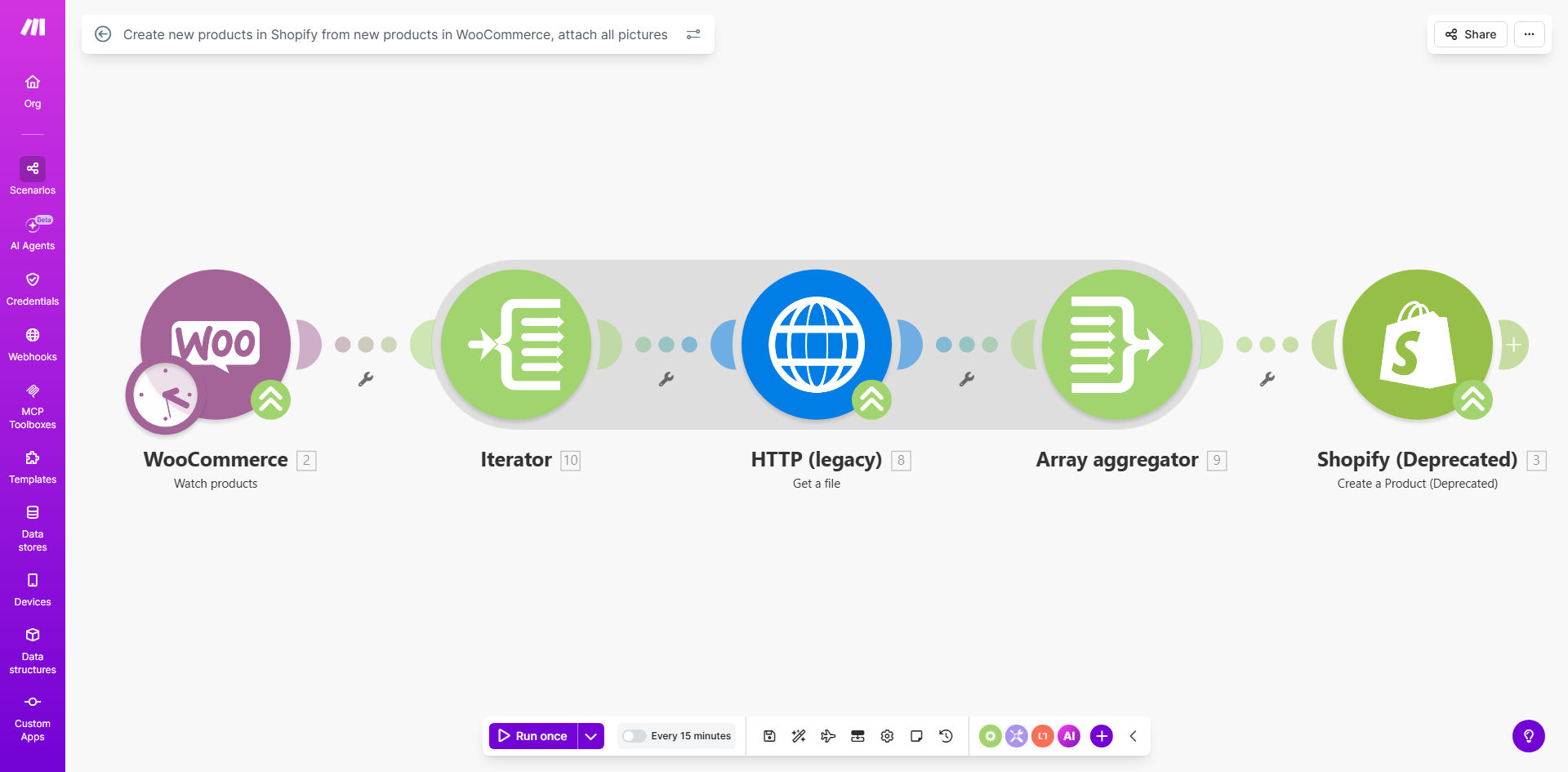
What This Workflow Does
Managing products across multiple e-commerce platforms is a common headache for growing businesses. If you use WooCommerce for one sales channel and Shopify for another, you face the tedious, error-prone task of manually recreating every new product listing. This includes copying titles, descriptions, prices, variants, and—most time-consuming of all—uploading all product images. This workflow solves that problem completely.
It acts as a silent bridge between your stores. The moment a new product is published in your WooCommerce store, this automation detects it, gathers all its data and images, and creates an identical product in your Shopify store. It ensures brand consistency, eliminates human error, and frees you and your team from repetitive administrative work, allowing you to focus on growth and customer engagement instead of data entry.
How It Works
The automation follows a logical, step-by-step process to ensure a perfect copy of your product lands in Shopify.
Step 1: Monitor for New Products
The workflow is triggered on a schedule (e.g., every hour) or instantly via a webhook. It checks your WooCommerce store for any newly created or published products that haven't yet been synced to Shopify.
Step 2: Gather Complete Product Data
For each new product found, the automation retrieves all relevant information. This includes the product title, full HTML description, SKU, regular and sale prices, inventory status, weight, categories, tags, and any custom metadata.
Step 3: Fetch and Prepare All Images
It then locates every image associated with the WooCommerce product—main featured image and all gallery images. The automation downloads these images or prepares their URLs to be uploaded to Shopify's media library, ensuring visual fidelity is maintained.
Step 4: Create the Product in Shopify
Using the gathered data, the workflow calls the Shopify API to create a new product. It maps all the WooCommerce fields to their Shopify equivalents, sets the product type and vendor, and applies the relevant tags and collections.
Step 5: Attach Images and Finalize
Finally, it attaches all the prepared images to the newly created Shopify product, setting the correct image order. The workflow can then log the successful sync or notify you via email, completing the seamless transfer.
Pro tip: Use this automation as a foundation. You can extend it to also sync inventory levels back from Shopify to WooCommerce, creating a true two-way sync that keeps stock accurate across all your sales channels.
Who This Is For
This automation is ideal for e-commerce merchants, agencies, and brands operating a multi-channel sales strategy. It's perfect for businesses that have migrated partially to Shopify but maintain a WooCommerce store, those testing a new market on Shopify, or brands that use WooCommerce for wholesale/B2B and Shopify for direct-to-consumer retail. If your team spends more than a few hours a week on product uploads, this workflow will deliver immediate ROI.
What You'll Need
- A Make.com account (free or paid plan) to host and run the automation.
- Admin access to your WooCommerce store with API keys (Consumer Key and Consumer Secret) generated.
- Admin access to your Shopify store with a private app created and API credentials (Admin API access token and store URL).
- The products in WooCommerce should have clear, accessible image URLs for the automation to process.
Quick Setup Guide
- Clone the Template: Click "Get This Workflow" and duplicate the scenario into your Make.com account.
- Connect WooCommerce: In the first module, add your WooCommerce store URL and API credentials to establish the connection.
- Connect Shopify: In the "Create Product" module, add your Shopify store URL and private app access token.
- Configure the Trigger: Set how often the automation should check for new products (e.g., every 15 minutes).
- Test with a Draft Product: Create a draft product in WooCommerce with a test image, run the scenario once, and verify it appears correctly in your Shopify draft products.
- Activate: Once testing is successful, schedule the scenario to run automatically and turn it on.
Key Benefits
Eliminate 5–10 hours of manual work per month. For businesses adding 20-30 new products monthly, the time saved on copying data and uploading images is substantial, allowing staff to focus on higher-value tasks.
Ensure 100% data accuracy and consistency. Automated transfers remove the risk of typos, incorrect pricing, missing images, or forgotten variants, providing a reliable customer experience on both stores.
Accelerate your time-to-market. New products can go live on Shopify simultaneously with WooCommerce, or shortly after, ensuring you capture demand on all channels without delay.
Create a scalable operational foundation. As your product catalog grows into the hundreds or thousands, this process scales effortlessly without requiring additional manpower or introducing bottlenecks.
Reduce operational costs and errors. By automating a routine task, you lower the labor cost associated with product management and virtually eliminate the financial impact of listing errors and stock discrepancies.