Make.com ClickUp MakePlans Automation Client Onboarding

Create ClickUp tasks for new MakePlans bookings

Automatically create ClickUp tasks from new MakePlans appointments. Streamline client onboarding and project management.

Get This Workflow → Make.com · Free Template
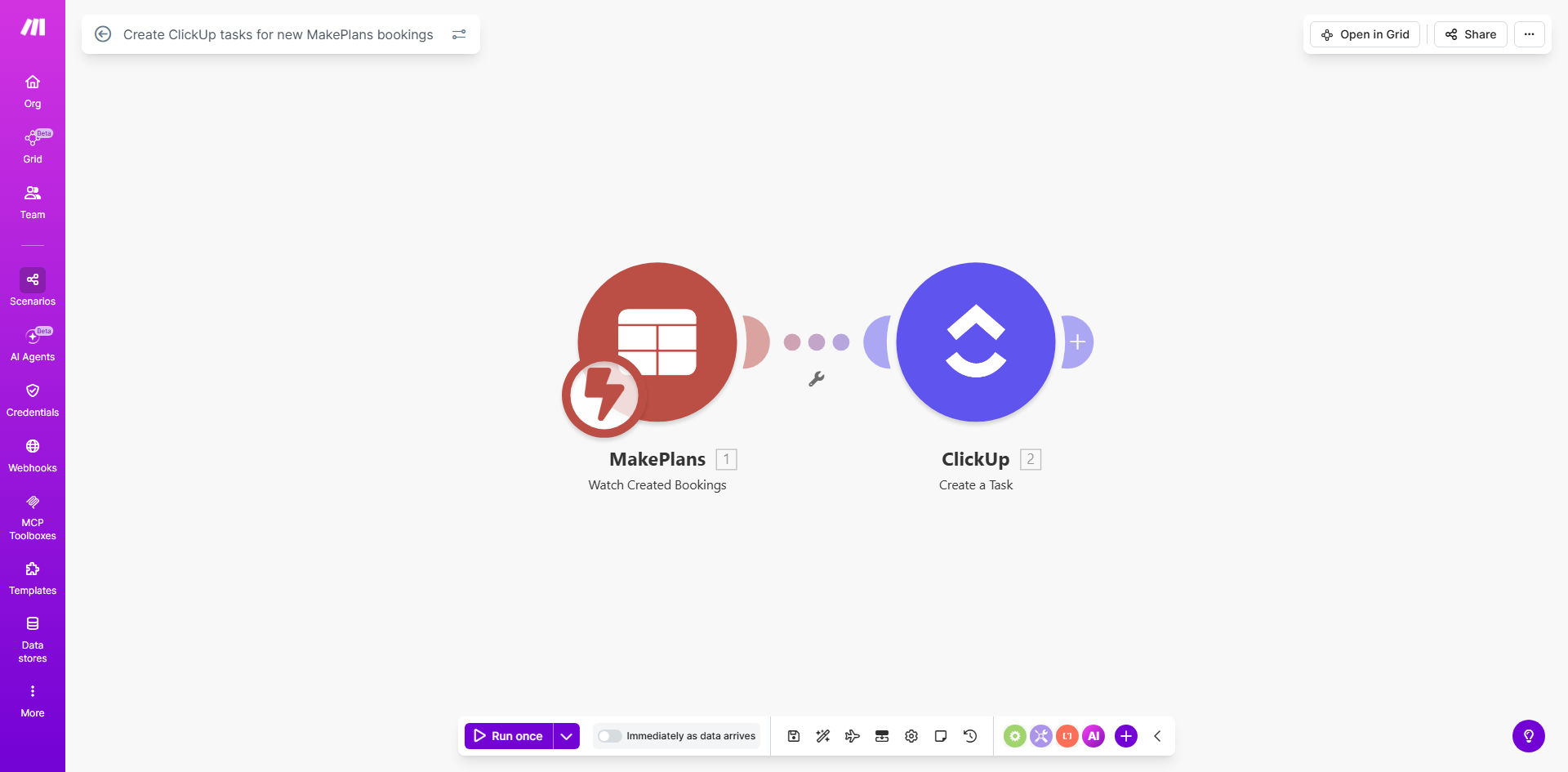
Visual diagram of the Make.com automation connecting MakePlans bookings to ClickUp task creation

What This Workflow Does

This automation solves a critical bottleneck for service businesses: the manual gap between a client booking an appointment and your team starting the corresponding work. When a new appointment is scheduled in MakePlans, this workflow instantly creates a tailored task in your ClickUp project list. It bridges your scheduling calendar with your project execution platform, turning a booked time slot into an actionable work item without any human intervention.

The business value is immense. It eliminates the risk of missed follow-ups, ensures every booked client immediately enters your workflow, and drastically reduces the administrative time your team spends copying data from one system to another. For consultancies, agencies, clinics, or any appointment-based service, this means faster project kickoffs, improved client satisfaction, and more billable hours focused on actual service delivery rather than data entry.

Pro tip: This template is especially powerful for businesses offering multi-step services. A booked initial consultation can automatically generate a full project plan in ClickUp, complete with assigned team members and deadline reminders.

How It Works

The workflow operates on a simple trigger-action principle, orchestrated by Make.com.

Step 1: New Booking Detection

The Make.com scenario monitors your MakePlans calendar. Whenever a new appointment is booked by an invitee, it captures the event as a trigger. It pulls all relevant details: client name, email, service type, appointment date and time, and any custom notes added during booking.

Step 2: Data Mapping & Transformation

The captured data is formatted and prepared for ClickUp. You can map fields directly—for example, the client's name becomes the ClickUp task name, the appointment date becomes the due date, and the service type can be added as a tag or custom field. This step ensures the information is usable and structured within your project management system.

Step 3: Automated Task Creation

Make.com then uses the ClickUp module to create a new task in your specified list. The task is populated with the mapped data. You can configure it to assign the task to a specific team member, set a priority level, add it to a particular folder, or even attach a pre-defined checklist template based on the service booked.

Pro tip: You can extend this workflow to also send a confirmation email to the client from ClickUp's data, creating a fully automated onboarding sequence from booking to first communication.

Who This Is For

This automation is ideal for any business or professional whose revenue depends on scheduled appointments and subsequent project work.

  • Consulting Firms & Agencies: Automatically create project tasks for new client strategy calls or discovery sessions.
  • Health & Wellness Clinics: Turn patient bookings into treatment plan tasks assigned to the relevant practitioner.
  • Financial Planners & Coaches: Generate follow-up action items immediately after a client schedules a review meeting.
  • Creative Services (Design, Writing): Kick off a creative brief task in ClickUp as soon as a client books a project consultation.
  • Internal Operations Teams: Use for internal meeting bookings that require pre-work or post-meeting deliverables.

What You'll Need

To implement this template successfully, you'll need the following accounts and basic configurations:

  1. A Make.com account (free tier available).
  2. A MakePlans account with an active calendar where appointments are booked.
  3. A ClickUp account with at least one Space, Folder, and List where you want the tasks to be created.
  4. Understanding of the specific data fields you want to transfer (e.g., client name, email, service type, date).
  5. Optional: A predefined ClickUp task template for different service types to ensure consistency.

Quick Setup Guide

Follow these steps to get your automation running in minutes:

  1. Click the "Get This Workflow" button to open the template on Make.com.
  2. Create a new scenario in Make.com and select this template.
  3. Connect your MakePlans account to the scenario and select the specific calendar to monitor.
  4. Connect your ClickUp account and choose the destination List (and optional Folder/Space).
  5. Map the data fields: Configure which MakePlans booking details (like "Invitee Name") correspond to which ClickUp task fields (like "Task Name").
  6. Test the workflow by creating a dummy booking in MakePlans to see if a task appears correctly in ClickUp.
  7. Activate the scenario. Your automation is now live, creating tasks for every new real booking.

Key Benefits

Zero Manual Handoff: Eliminates the need for a team member to manually check the calendar and create a task, saving 5-15 minutes per booking and preventing human error.

Instant Project Kickoff: Reduces the time between a client booking and work commencement from hours or days to seconds, dramatically improving client perception and service agility.

Centralized Work Visibility: Ensures all work stemming from bookings is immediately visible in your primary project hub (ClickUp), giving your team a unified and real-time view of new incoming work.

Scalable Service Delivery: Allows your business to handle a higher volume of appointments without increasing administrative overhead, supporting growth seamlessly.

Enhanced Client Experience: Provides a professional, responsive feel as the client's booking instantly translates into organized action within your company, building trust and reliability.

Frequently Asked Questions

Common questions about appointment-to-task automation and integration

You can automate client onboarding by connecting your booking system (like MakePlans) to your project management tool (like ClickUp). When a new appointment is booked, the automation instantly creates a task in ClickUp with the client's details, ensuring your team starts work immediately without manual data entry.

This creates a seamless pipeline from inquiry to execution. For example, a booked consulting session automatically generates a project task containing the client's goals, assigned consultant, and a pre-meeting checklist. This eliminates the administrative gap and ensures a structured, prompt start to the service.

  • Map key booking fields like service type and client notes to your task template.
  • Use the automation to also trigger welcome emails or internal notifications.
  • Test with different booking types to ensure all data flows correctly.

Linking booking calendars with task management eliminates manual handoffs, reduces errors, and accelerates project kickoff. It ensures every booked appointment automatically triggers the next steps in your workflow, improving team responsiveness and client satisfaction by removing delays between scheduling and action.

The primary benefit is operational efficiency. In a marketing agency, a booked client call no longer requires a manager to manually create a brief; it happens instantly. This reduces missed opportunities, ensures consistent process execution, and frees your team to focus on high-value work instead of administrative transfers.

  • Benefit: Eliminates data entry errors and missed bookings.
  • Benefit: Provides real-time visibility into new incoming work.
  • Tip: Choose a task management tool that supports custom fields for rich data transfer.

Integrations like MakePlans to ClickUp transform service businesses by creating a seamless pipeline from inquiry to execution. They prevent missed follow-ups, provide real-time visibility into new work, and allow teams to prioritize tasks based on actual bookings, directly boosting operational efficiency and revenue.

For a therapy clinic, a new patient booking instantly creates a treatment file task for the assigned therapist, with all patient details pre-filled. This reduces administrative workload, ensures prompt care, and improves the patient experience by demonstrating organized, responsive service from the first interaction.

  • Improves client satisfaction through immediate action.
  • Increases team capacity by removing manual steps.
  • Enables scaling service volume without adding admin staff.

Manual transfer leads to data entry errors, missed bookings, and delayed project starts. Team members might forget to create a task, copy incorrect client details, or duplicate efforts. This results in poor client experience, internal confusion, and lost billable time due to administrative friction.

A common scenario is a busy consultant forgetting to create a project after a booking, leading to a last-minute scramble before the meeting. Or an assistant mistyping the client's email, causing communication failures. These small errors accumulate, damaging reliability and wasting time that should be spent on service delivery.

  • Problem: Delays cause clients to feel neglected.
  • Problem: Errors require time-consuming corrections.
  • Solution: Automation ensures 100% consistency and instant action.

Best practices include mapping all data fields (client name, service type, date) from the booking to the task, setting up notifications for the team, and creating standardized task templates in your project tool. Test the automation with dummy bookings to ensure data flows correctly before full deployment.

Start by defining what a "perfect task" looks like for each service type. Then, configure the automation to populate that template exactly. Add a notification step—like a Slack message to the team—so everyone knows a new task has arrived. Finally, run several test bookings to verify the output matches your expectations.

  • Practice: Use consistent naming conventions for mapped fields.
  • Practice: Include a quality check step in the initial test phase.
  • Practice: Document the workflow so your team understands the automated process.

Consultancies, agencies, and health clinics use MakePlans and ClickUp together to automate service delivery. After a client books a consultation, a project task is created with pre-defined checklists, assigned to the relevant specialist, and scheduled in ClickUp's timeline, ensuring a structured and timely service process.

A digital marketing agency might use it to automatically create a campaign brief task when a prospect books a strategy call. A physiotherapy clinic could generate a patient assessment task with the booked time slot as the due date. This integration turns a simple calendar event into a fully orchestrated work item within the team's operational system.

  • Use case: Automating creative project initiation from client inquiries.
  • Use case: Streamlining patient care workflows in healthcare.
  • Use case: Managing internal workshop preparations from meeting bookings.

Yes, GrowwStacks specializes in building custom automations that connect your unique booking platform to your project management system. We tailor the workflow to your specific data fields, team structure, and business rules, ensuring a seamless, error-free pipeline from client booking to task execution.

We analyze your current booking and project management tools, design a tailored integration that maps all necessary data, and implement it with testing and support. Whether you use Calendly, Acuity, or a custom booking system, and connect to Asana, Trello, or Jira, we build the automation that fits your exact operational needs.

  • We handle the entire integration, from design to deployment.
  • We ensure the automation aligns with your team's workflow.
  • We provide ongoing support and optimization as your needs evolve.

Need a Custom Appointment-to-Task Automation?

This free template is a starting point. Our team builds fully tailored automation systems for your specific business needs.