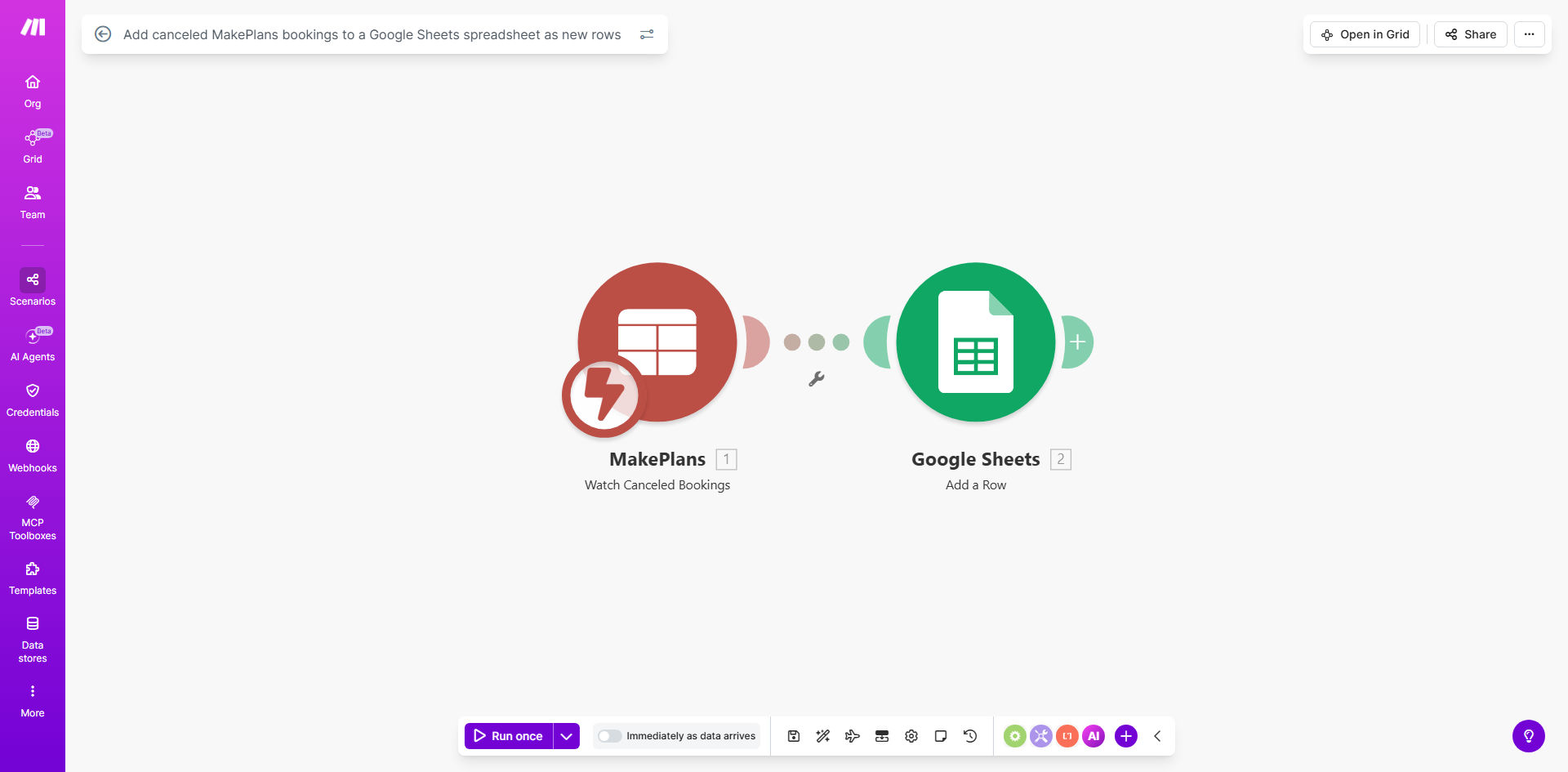
What This Workflow Does
For businesses using MakePlans for appointments, classes, or services, cancellations are an inevitable part of operations. However, when cancellations are scattered and unlogged, you lose critical data. This workflow solves that by creating a seamless, automated bridge between MakePlans and Google Sheets.
Every time a customer cancels a booking in your MakePlans account, this automation instantly captures that event. It pulls key details—like the booking ID, customer information, service type, cancellation reason, and timestamp—and appends them as a new row in your designated Google Sheets spreadsheet. This transforms isolated cancellation events into a structured, searchable database that you can analyze to improve your business.
Pro tip: Use the captured cancellation reason field to identify common pain points. If "Price too high" appears frequently, it might be time to review your value proposition or offer discounts.
How It Works
The automation runs on Make.com, acting as a smart middleman between your MakePlans account and Google Sheets. It's set up to listen for specific events and act on them without any manual intervention.
Step 1: Trigger on New Cancellation
The workflow is triggered the moment a booking status changes to "canceled" in MakePlans. Make.com's MakePlans module watches for this update in real-time or on a scheduled poll, ensuring no cancellation slips through.
Step 2: Gather Booking Data
Once triggered, the workflow fetches all relevant data from that specific booking. This typically includes the customer's name and contact details, the booked service or resource, the original date and time, the cancellation reason (if provided by the customer), and any internal notes.
Step 3: Format and Prepare Data
The raw data from MakePlans is then formatted for clean entry into Google Sheets. This step might involve calculating the lost revenue (original booking price), converting timestamps to your local time zone, or parsing the cancellation reason into a standardized category.
Step 4: Add Row to Google Sheets
The final step is to take the prepared data bundle and add it as a new row at the bottom of your specified Google Sheets spreadsheet. The connection is secure and authenticated, so your data is transferred safely. The sheet now contains a complete, timestamped record of the cancellation.
Who This Is For
This automation is a game-changer for any business that relies on bookings and needs to understand why customers cancel.
- Fitness Studios & Gyms: Track class cancellations to optimize schedules and instructor allocation.
- Health Clinics & Salons: Monitor appointment no-shows and late cancellations to implement effective policies and fill last-minute slots.
- Consultants & Coaches: Understand client scheduling issues to improve communication and service packages.
- Event & Workshop Organizers: Analyze cancellation trends for different events to improve marketing and pricing strategies.
- Business Managers & Owners: Anyone who needs data-driven insights into operational efficiency and customer behavior.
What You'll Need
- A Make.com account (free tier available) to host and run the automation.
- An active MakePlans account with bookings and administrator access to set up the connection.
- A Google Sheets spreadsheet set up with column headers for the data you want to capture (e.g., Date, Customer, Service, Reason, Revenue Lost).
- Basic familiarity with navigating Make.com's visual editor to paste the template and connect your accounts.
Quick Setup Guide
You can have this automation running in under 15 minutes.
- Get the Template: Click the "Get This Workflow" button above. It will open the template in your Make.com account.
- Connect MakePlans: In the Make.com editor, click the MakePlans module. You'll be prompted to log into your MakePlans account and authorize the connection.
- Connect Google Sheets: Click the Google Sheets module. Authorize Make.com to access your Google account and select the specific spreadsheet and worksheet where you want the data to go.
- Test the Flow: Use the "Run once" function in Make.com. You can simulate a cancellation or use an existing one from your history to see a row appear in your sheet.
- Activate & Schedule: Turn the scenario "ON." Set the schedule (e.g., check for new cancellations every 15 minutes) and the automation will run continuously in the background.
Key Benefits
Eliminate Manual Data Entry: Save 2-5 hours per week that your staff would spend checking for and logging cancellations. This time can be reinvested into customer service or growth activities.
Gain Instant Visibility: See your cancellation rate and trends in real-time. A live spreadsheet dashboard gives you and your team immediate insight into a key business metric.
Improve Decision-Making: Data reveals truths. Identify if a particular service has a 30% cancellation rate, or if Mondays have the most no-shows. Use this to adjust offerings, staffing, or policies proactively.
Enhance Customer Retention: By analyzing cancellation reasons, you can address common complaints. Follow up with customers who canceled due to "scheduling conflict" to offer a more flexible time.
Create a Reliable Audit Trail: Maintain a permanent, searchable record of all cancellations for financial reconciliation, reporting to stakeholders, or reviewing disputes.