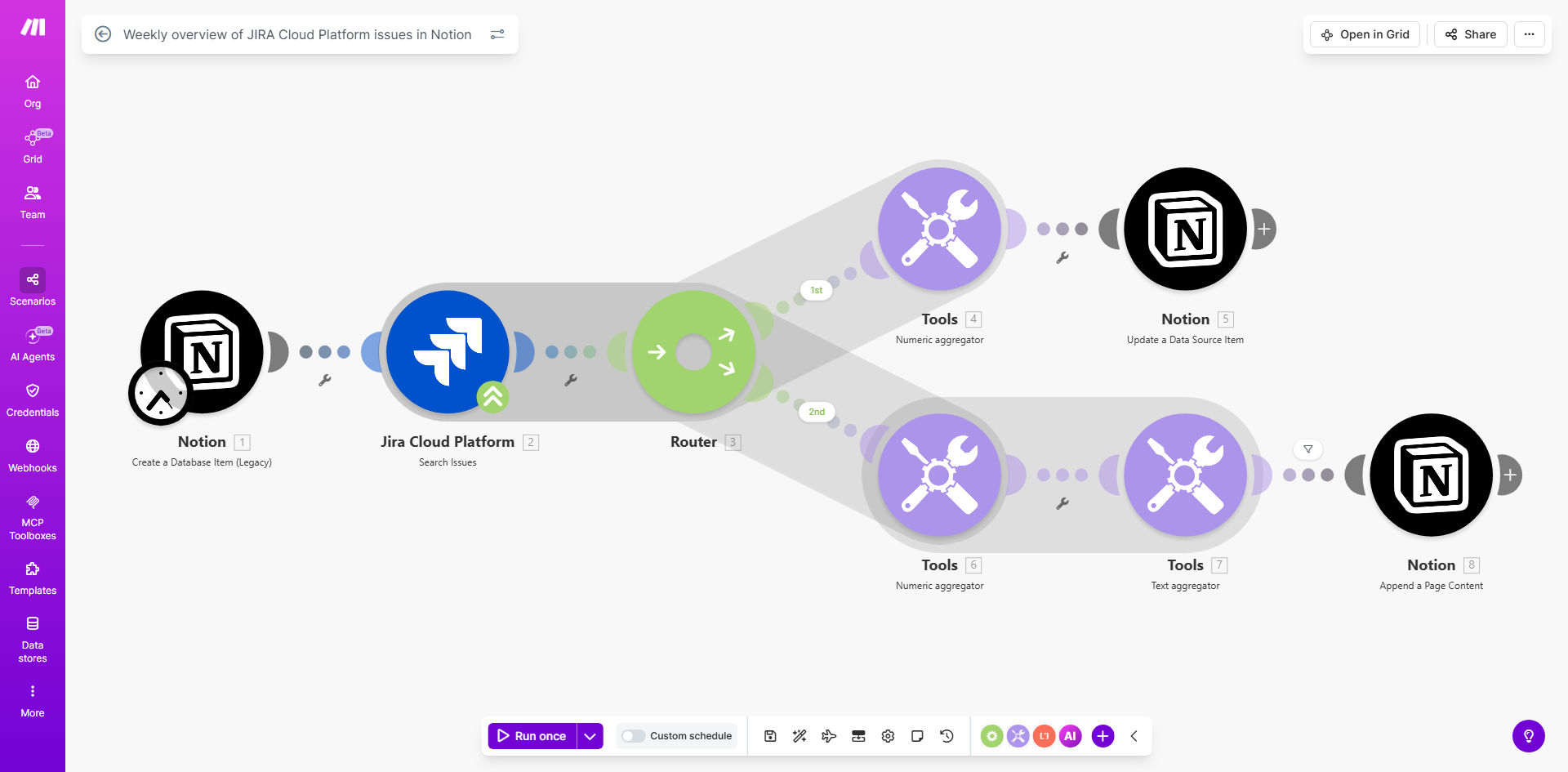
What This Workflow Does
For development teams using JIRA and collaborative teams using Notion, there's a constant friction: manually compiling status updates. Product managers, team leads, and stakeholders waste hours every week copying issue counts, checking assignee progress, and formatting reports just to answer the simple question, "What got done this week?" This manual process is error-prone, inconsistent, and pulls valuable time away from strategic work.
This automated workflow solves that by acting as your dedicated reporting assistant. Every Friday afternoon (or any schedule you choose), it connects to your JIRA Cloud project, fetches all relevant issues, and performs two critical actions automatically. First, it creates a new page in your designated Notion database with a high-level summary grouped by issue status—Done, In Progress, and To Do. Second, it appends a detailed breakdown to that same page, showing progress per assignee. The result is a clean, timestamped report in Notion that everyone can access, giving instant visibility into sprint health and individual contributions without ever opening JIRA.
How It Works
The workflow is built on Make.com and operates on a scheduled trigger, executing a precise sequence to transform raw JIRA data into an insightful Notion report.
Step 1: Scheduled Trigger & Data Fetch
A scheduler module triggers the scenario every week. Immediately, the workflow authenticates with your JIRA Cloud account via API and fetches all issues from your specified project(s) that were active within the past week. It filters and prepares this dataset for analysis.
Step 2: High-Level Status Aggregation
In the first route, the workflow groups the fetched issues by their current status (e.g., Done, In Progress, To Do). It counts the number of issues in each category, calculating the week's progress at a glance. This aggregated data is then sent to Notion, where it creates a new database item (page). The page properties are populated with the status counts and the report date, providing the executive summary.
Pro tip: You can easily modify the JQL (JIRA Query Language) filter in the first module to report on specific issue types, sprints, or labels, tailoring the report to your team's exact needs.
Step 3: Detailed Assignee Breakdown
The second route takes the same dataset and performs a more granular analysis. It groups issues first by assignee and then by the status within each assignee's workload. This creates a clear picture of what each team member completed, is working on, and has queued. This detailed text summary is formatted and appended as page content to the very Notion page created in Step 2.
Step 4: Delivery & Completion
The workflow handles API limits and errors gracefully. Once the detailed overview is successfully added to the Notion page, the scenario completes. Your team now has a comprehensive, two-layered report automatically waiting in Notion, ready for Monday's stand-up or stakeholder review.
Who This Is For
This automation is a game-changer for any organization that uses JIRA for development tracking and Notion for internal documentation and collaboration. It's ideal for Product Managers who need to report progress to executives, Engineering Team Leads who want to streamline sprint retrospectives, Scrum Masters facilitating agile ceremonies, and Agile Coaches promoting transparency. Agencies managing client projects in JIRA can also use this to automatically generate client-facing status updates in a clean Notion shareable.
What You'll Need
- A Make.com account (free or paid plan) to host and run the automation scenario.
- Admin or API access to a JIRA Cloud instance, with the project key or ID you wish to report on.
- A Notion account and a pre-existing Notion database set up to receive the reports. You'll need the database ID and a connected integration (internal or public).
- Basic familiarity with connecting APIs in Make.com (providing API keys/tokens for JIRA and Notion).
Quick Setup Guide
You can have this report running in under 20 minutes by following these steps:
- Clone the Template: Click "Get This Workflow" to open the template on Make.com and create a copy in your own account.
- Connect Your Apps: In the first JIRA module, click to add a connection. Use your JIRA Cloud site URL and an API token for authentication. Repeat the process for the Notion module, connecting your Notion integration.
- Configure the Source: In the JIRA "Search Issues" module, update the JQL query to match your project (e.g., `project = "YOURPROJECT" AND updated >= -7d`).
- Set the Destination: In the Notion "Create a Database Item" module, paste the ID of your target Notion database. Map the aggregated status counts (Done, In Progress, To Do) to the correct database properties.
- Adjust the Schedule: Click the clock icon on the Schedule module. Change the day and time (e.g., Friday at 4:00 PM) to match your reporting cadence.
- Test and Activate: Run the scenario once manually to ensure connections work and data flows correctly into Notion. Then, turn the scenario on. It will now run automatically on your schedule.
Key Benefits
Save 2-4 hours of manual reporting work every single week. This automation completely eliminates the tedious process of manually querying JIRA, counting issues, and formatting updates, freeing your team leads for more valuable strategic activities.
Improve stakeholder transparency with consistent, on-time reports. By automating the delivery, you guarantee that a progress snapshot is always available in Notion at the same time each week, building trust with executives and clients who expect reliable updates.
Gain deeper insights with assignee-level workload visibility. The second layer of the report moves beyond simple status counts to show who is working on what, helping with capacity planning, identifying bottlenecks, and facilitating fairer workload distribution.
Create a searchable historical record of project progress. Every report is a new page in your Notion database, creating an automated audit trail of your project's weekly health that you can reference during quarterly reviews or planning sessions.
Enhance team focus by reducing context-switching. Developers and managers can stay in their flow state without being interrupted to compile data for reports, as the information is automatically synthesized and delivered to where the broader team needs it.