What This Workflow Does
Many businesses use Notion as a flexible workspace for planning, collaboration, and capturing ideas—from sales leads and project briefs to content calendars. However, when it's time to act on that data, you often need it in a more structured, operational system like Tadabase, which powers customer portals, internal apps, and databases.
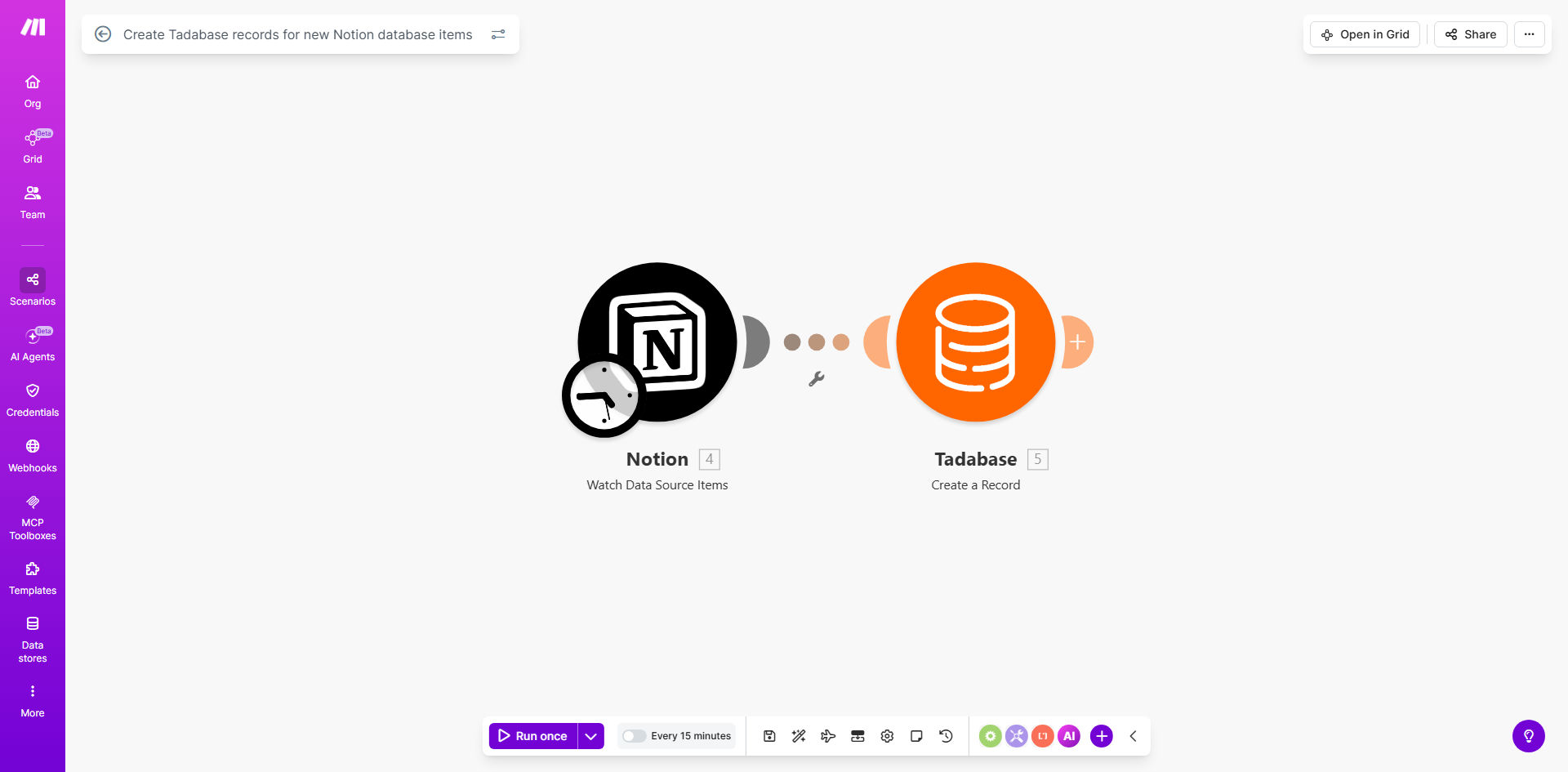
This automation solves the frustrating and error-prone process of manually copying data from Notion to Tadabase. It creates a seamless, real-time bridge between the two platforms. Whenever a new item is logged in your designated Notion database, this Make.com workflow triggers instantly, reads all the relevant details, and creates a perfectly formatted record in your Tadabase application. It turns a multi-step manual task into a zero-touch background process.
How It Works
The workflow operates on a simple but powerful trigger-action principle, ensuring data flows in one direction: from Notion (the source) to Tadabase (the destination).
Step 1: Monitoring the Notion Database
The workflow starts by watching a specific Notion database for new entries. Make.com checks for updates at regular intervals or can use webhooks for instant triggering. When a new row appears—whether added manually, via a form, or through an integration—the workflow captures the entire row's data, including all its properties.
Step 2: Processing and Mapping Data
Make.com then processes the captured information. It maps each Notion property (like "Name," "Status," "Date," "Assignee") to the corresponding field in your Tadabase table. This step ensures data types align correctly—text stays as text, dates as dates, and person fields can be mapped to email or name fields in Tadabase.
Pro tip: Use Make's filter module to ignore test entries or specific statuses. For example, you can set a rule to only proceed if the Notion row's "Status" is not "Draft," preventing incomplete data from syncing.
Step 3: Creating the Tadabase Record
Finally, the workflow uses the Tadabase module to create a new record. It sends the mapped data to your specified Tadabase application and table. Upon success, you can optionally log the action, send a confirmation to Slack, or even update the original Notion item with a "Synced" status, closing the loop.
Who This Is For
This automation is ideal for teams and businesses that leverage Notion for internal planning but rely on Tadabase for operational workflows and customer-facing applications.
- Sales & Marketing Teams: Automatically turn Notion-captured leads into Tadabase contact records for immediate follow-up.
- Project Managers: Sync new project tasks or client requests from Notion boards into a Tadabase project management app for resource allocation.
- Product Teams: Move new feature ideas or bug reports from a Notion roadmap into a Tadabase development tracking system.
- Small Business Owners: Eliminate double data entry between a Notion content calendar and a Tadabase client portal for published work.
- Operations Managers: Ensure inventory updates or order details logged in Notion are instantly reflected in the operational Tadabase database.
What You'll Need
- A Make.com account (free tier sufficient for basic sync).
- A Notion account with a database you want to monitor. You'll need the database ID and an integration token.
- A Tadabase account with an existing application and a table ready to receive records. You'll need your API credentials.
- Clear understanding of which fields/properties in your Notion database should map to which fields in your Tadabase table.
Quick Setup Guide
- Clone the Template: Click "Get This Workflow" to open the template in your Make.com account and create a copy.
- Connect Notion: In the first module, authorize Make to access your Notion workspace and select the specific database to watch.
- Connect Tadabase: In the Tadabase module, authorize Make with your Tadabase API key and select the target application and table.
- Map the Fields: Carefully map each Notion property output to the correct Tadabase field. Pay attention to field types (text, number, date).
- Test and Activate: Add a test row to your Notion database. Run the scenario once to verify a record appears correctly in Tadabase. Then turn on the schedule for automatic operation.
Key Benefits
Eliminate manual data entry and human error. Your team will never again forget to transfer a new lead or task, and there's zero risk of typos or missed fields during copy-paste.
Accelerate operational response times from hours to seconds. Data becomes actionable the moment it's conceived in Notion, speeding up processes like lead engagement or task assignment.
Maintain a single source of truth across platforms. While data originates in Notion, your operational Tadabase app is always up-to-date, ensuring all teams work with current information.
Free up valuable employee time for strategic work. Automating this repetitive task can save several hours per week per employee, which can be redirected to analysis, customer service, or innovation.
Scalable foundation for more complex automations. This simple sync can be extended to include updates, deletions, or trigger downstream actions in other tools like email or Slack.