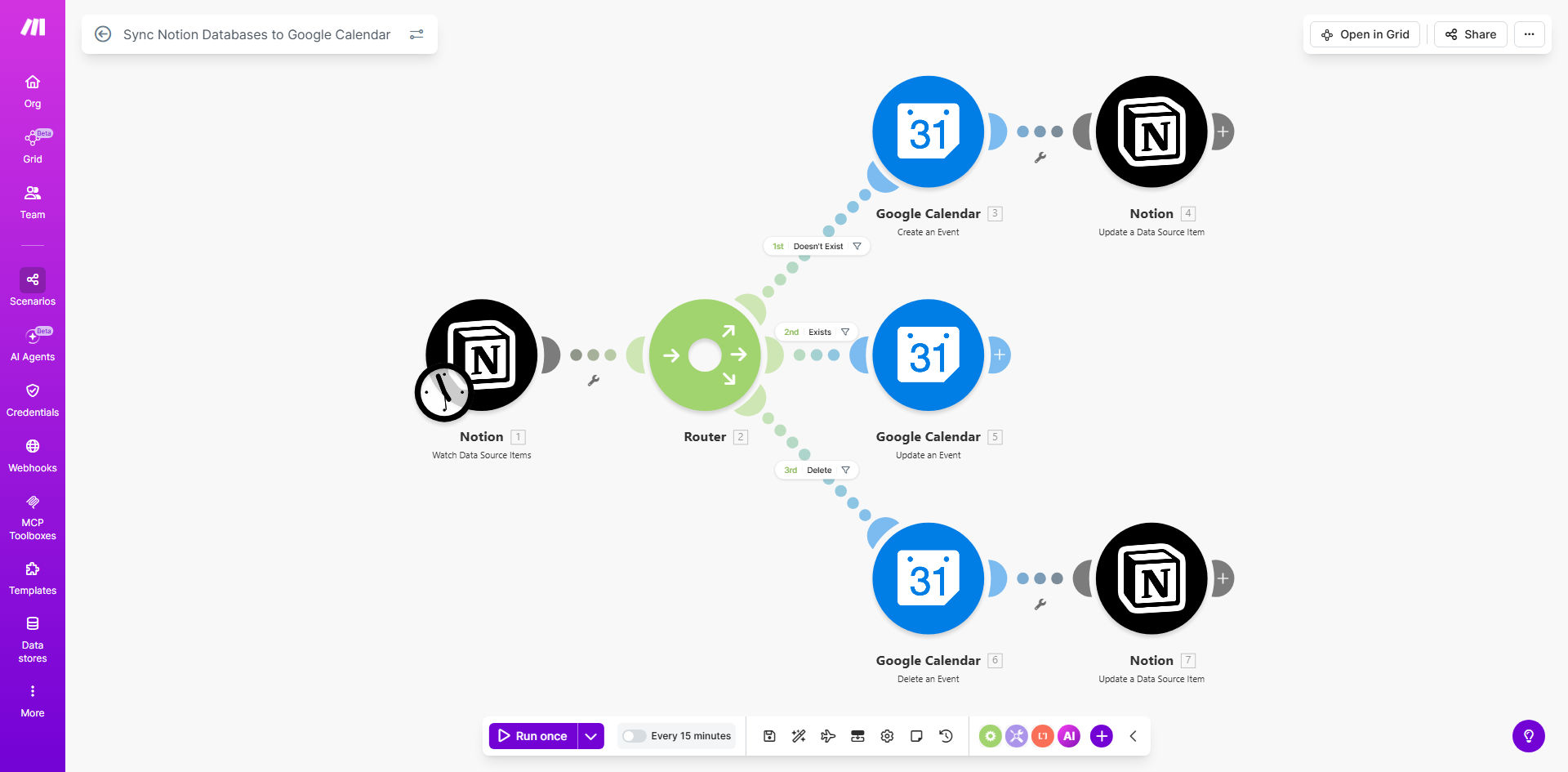
What This Workflow Does
If you manage meetings and appointments in a Notion database, you likely face the tedious task of manually copying each one into Google Calendar. This double entry is not only time-consuming but also error-prone. A missed meeting or an incorrect time can damage client relationships and disrupt team productivity.
This automation solves that problem by creating a live, two-way sync between your Notion database and Google Calendar. Whenever a new meeting is added to your Notion database, the workflow instantly creates a corresponding event in the calendar. If the meeting details change—like the time, title, or attendees—the calendar event is updated automatically. And if a meeting is cancelled or deleted in Notion, the calendar event is removed, keeping everyone's schedule clean and accurate.
The result is a single source of truth for all scheduling. Your team can continue planning in the flexible environment of Notion, while enjoying the reliability and notifications of Google Calendar, without any manual work in between.
How It Works
The workflow runs on Make.com, acting as a smart bridge between Notion and Google Calendar. It periodically checks your database for changes and performs the necessary actions to keep both systems in sync.
Step 1: Watch for New or Updated Database Items
The automation starts by monitoring your specified Notion database. Using the "Watch Database Items" module, it triggers whenever a new page is created or an existing page is updated. This ensures the workflow catches every change in real-time.
Step 2: Extract and Map Meeting Details
For each triggered item, the workflow reads the relevant properties from the Notion page. Key details like the meeting title, date, start/end time, description, and attendee emails are extracted. These values are then formatted to match Google Calendar's expected input structure.
Pro tip: Structure your Notion database with clear property names like "Meeting Date", "Start Time", and "Attendee Emails" to make the field mapping process simple and reliable.
Step 3: Create or Update the Calendar Event
The workflow checks if a Google Calendar event already exists for this Notion item (often using a unique ID stored in a Notion property). If not, it creates a new event. If an event does exist, it updates the existing event with the new details. This step handles all the API calls to Google Calendar.
Step 4: Handle Deletions and Cancellations
If a meeting page is deleted in Notion or a status property is set to "Cancelled", the workflow identifies this change and proceeds to delete the corresponding event from Google Calendar. This prevents ghost events from cluttering your schedule.
Who This Is For
This automation is ideal for any team or individual that uses Notion for project management and Google Calendar for daily scheduling.
Consultants & Freelancers: Keep client call schedules perfectly synced between your client database and your calendar.
Remote Teams: Ensure all team meetings, stand-ups, and reviews from the project Notion workspace appear on everyone's calendar automatically.
Startups & Small Businesses: Maintain a professional scheduling system without paying for expensive dedicated tools. Use Notion's flexibility and Google's reliability.
Event Planners & Coordinators: Manage a pipeline of events or sessions in a Notion database and have them instantly appear on a shared public or team calendar.
What You'll Need
- A Make.com account (free tier available).
- A Notion account with a database where you track meetings. You must have integration access to this database.
- A Google account with access to Google Calendar (personal, Workspace, or Gmail).
- A Notion database with the following recommended properties: Title (Page title), Date, Start Time, End Time, Description, and Attendees (as email or text).
Quick Setup Guide
Follow these steps to deploy this automation in under 15 minutes.
- Get the Template: Click "Get This Workflow" above to copy the template to your Make.com account.
- Connect Notion: In the first module, authenticate your Notion account and select the specific database you want to sync.
- Connect Google Calendar: Authenticate your Google account in the Calendar modules and select the target calendar (e.g., "Primary").
- Map Your Fields: Adjust the router and mapper modules to match your Notion property names to the correct Google Calendar event fields (summary, start, end, description, attendees).
- Set a Unique ID: Configure a property (like a "Calendar Event ID") in your Notion database for the workflow to track and update events correctly.
- Test & Activate: Run the scenario once to test with a sample meeting. If it works, schedule it to run every 15-30 minutes for near real-time sync.
Key Benefits
Save 2-3 hours per week per team member by eliminating the manual transfer of meeting details from Notion to calendar. This time can be reinvested in productive work instead of administrative data entry.
Reduce scheduling errors and missed meetings by 100% because the calendar is always an accurate reflection of your Notion plan. Automatic updates mean last-minute changes are never forgotten.
Improve team alignment and visibility by giving everyone instant access to the latest meeting schedule directly in the tool they use daily (Google Calendar), while maintaining detailed planning in Notion.
Create a scalable scheduling system that grows with your business. As you add more meetings or team members, the automation handles the increased load without any additional effort from you.
Enhance professionalism with reliable calendar management. Clients and partners receive accurate calendar invites and updates automatically, building trust and reliability.