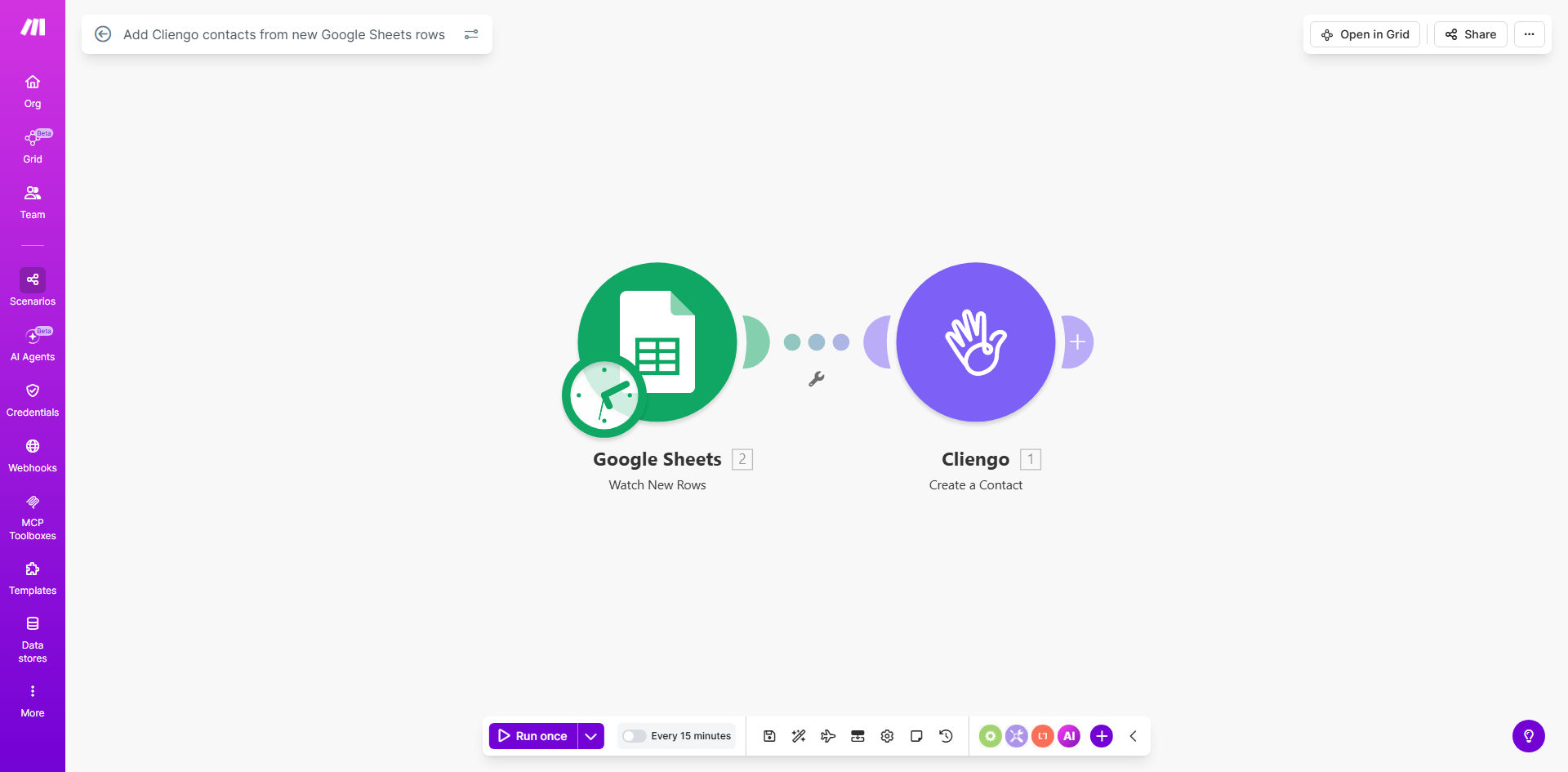
What This Workflow Does
For businesses using chatbots like Cliengo to capture and qualify website leads, managing the contact list can become a manual, time-consuming chore. Leads often come from various sources—contact forms, webinar sign-ups, downloadable content—and end up in a Google Sheets spreadsheet. Someone then has to manually copy and paste each new lead's details into Cliengo, a process prone to delays and errors.
This free Make.com template solves that problem completely. It creates a seamless, real-time bridge between your Google Sheets and Cliengo. Every time a new row is added to your designated spreadsheet—whether it's one lead or a hundred—the workflow automatically triggers, extracts the contact information, and creates a corresponding new contact in your Cliengo account. This ensures your chatbot can start engaging with leads instantly, without any human intervention.
The business value is clear: faster lead response times, zero manual data entry errors, and the ability to scale your lead capture efforts without adding administrative overhead. Your sales and marketing teams can focus on high-value conversations instead of repetitive copy-paste tasks.
How It Works
The automation follows a simple, reliable sequence. Once set up, it runs silently in the background, keeping your Cliengo contact list perfectly synchronized with your master lead sheet.
Step 1: Monitor Your Google Sheet
The workflow starts by watching a specific Google Sheets spreadsheet for changes. It is configured to trigger whenever a new row is added. You can use an existing lead list or the provided example template. The trigger efficiently identifies the new data without scanning the entire sheet.
Step 2: Extract the New Lead Data
Make.com captures all the data from the new row. This typically includes the lead's name, email address, phone number, source, and any other custom fields you've set up in your sheet columns, such as "Interest" or "Company."
Step 3: Create a Contact in Cliengo
The workflow then takes this bundle of data and uses the Cliengo API module within Make.com to create a new contact. It maps the columns from your Google Sheet (e.g., "Email") to the corresponding fields required by Cliengo. The contact is added to your Cliengo account immediately, ready for segmentation or automated messaging sequences.
Pro tip: Add a "Lead Source" column in your sheet. This allows you to tag contacts in Cliengo based on where they came from (e.g., "Facebook Ad," "Ebook Download"), enabling more personalized follow-up chatbot flows.
Who This Is For
This automation is ideal for marketing teams, sales operations, small business owners, and agencies that use Cliengo for lead generation and want to streamline their data flow.
Digital Marketing Agencies: Manage multiple client lead sheets and ensure all captured leads are instantly fed into respective chatbot campaigns.
E-commerce Businesses: Automatically add customer inquiries from contact forms or post-purchase survey sheets to a support/nurture chatbot sequence.
B2B SaaS Companies: Sync trial sign-ups or demo request leads from a central spreadsheet into a qualification and onboarding chatbot flow in Cliengo.
Event Organizers: Instantly add webinar or workshop registrants from a sign-up sheet to a pre-event information and engagement chatbot.
What You'll Need
To clone and use this template, you will need the following accounts and assets ready:
- A Make.com account (free tier is sufficient to start).
- A Google account with access to Google Sheets (the sheet containing your leads).
- An active Cliengo account with API access enabled.
- Your Google Sheets spreadsheet formatted with clear column headers (e.g., "Name," "Email," "Phone").
- Your Cliengo API credentials (available from your Cliengo dashboard settings).
Quick Setup Guide
Getting the automation live takes about 10-15 minutes. Follow these steps after clicking "Get This Workflow."
- Clone the Template: In Make.com, click the provided link and create a copy of the scenario in your own workspace.
- Connect Google Sheets: In the first module, click to add your Google account and select the specific spreadsheet and worksheet that contains your lead list.
- Connect Cliengo: In the Cliengo module, click to add a new connection. You will be prompted to log into your Cliengo account and authorize Make.com to access it.
- Map Your Data Fields: The template has pre-set mappings. Verify that the column names from your sheet (e.g., "emailAddress") correctly correspond to the Cliengo contact fields. Adjust if your column headers are different.
- Test and Activate: Turn on the scenario scheduler or set it to watch for new rows. Add a test row to your Google Sheet and verify that a new contact appears in your Cliengo dashboard within moments.
Key Benefits
Eliminate 100% of manual contact entry. This automation removes the need for any team member to ever manually transfer data from Sheets to Cliengo again, saving 5-10 hours per month per employee on this task.
Engage leads in seconds, not hours. By adding contacts to Cliengo the moment they hit your sheet, you can trigger immediate automated welcome messages, dramatically increasing conversion rates and lead satisfaction.
Ensure perfect data accuracy. Automated data transfer eliminates human typos, missed rows, or incorrect field mapping, leading to a cleaner, more reliable contact database for all your marketing campaigns.
Scale your lead capture effortlessly. Whether you receive 10 leads a day or 1,000, the automation handles the volume instantly without any additional effort or cost, allowing your business to grow without operational friction.
Centralize lead management. Use Google Sheets as your single source of truth for all incoming leads, with the confidence that every entry will automatically populate your primary engagement tool (Cliengo), creating a seamless tech stack.