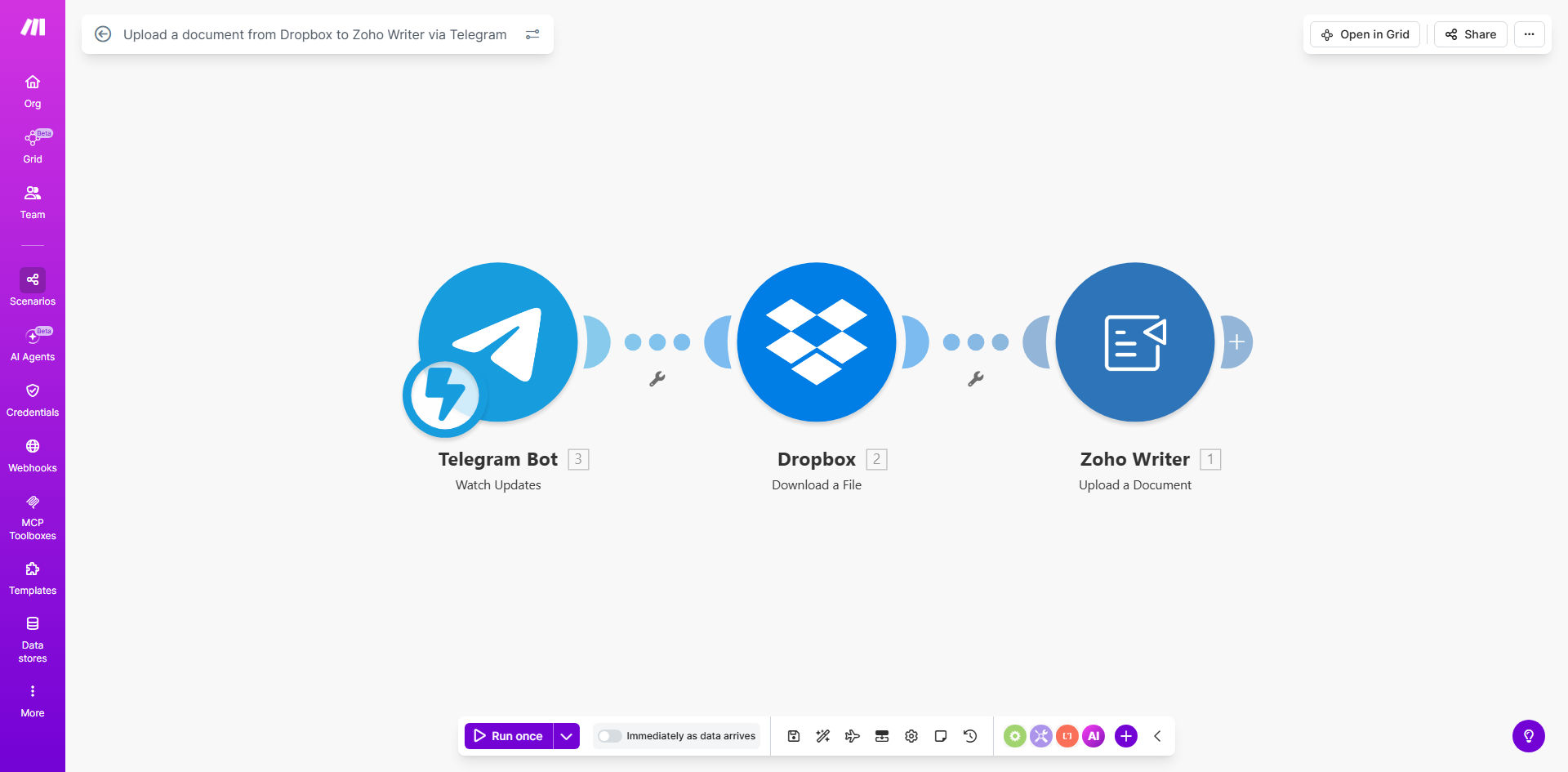
What This Workflow Does
For writers, content managers, and remote teams, the process of moving documents from cloud storage to an editing suite is a repetitive, time-consuming chore. You finish a draft in Dropbox, then must manually download it, navigate to Zoho Writer, upload the file, and organize it—stealing focus from actual creative work. This friction disrupts workflow and introduces the risk of uploading the wrong version or losing files in the shuffle.
This automation solves that by creating a seamless bridge between your storage, your communication tool, and your writing platform. With this Make.com workflow, you simply send a Telegram message containing the file path. The automation instantly locates the document in your Dropbox, retrieves it, and uploads it directly into your specified Zoho Writer account. It turns a multi-step, minute-long task into a single command that executes in seconds, reliably and without error.
How It Works
The workflow is an elegant three-step process that mimics the action you would take manually, but with perfect consistency and speed.
Step 1: Trigger via Telegram Message
The automation sits idle until it receives a specific command in a designated Telegram chat or from an authorized user. You send a message like “/upload /ClientProjects/Q3Report.docx”. The workflow instantly captures this text, parsing it to identify the command and the crucial file path within your Dropbox.
Step 2: Fetch the File from Dropbox
Using the parsed file path, Make.com securely connects to your Dropbox account via API. It locates the exact document you referenced, downloads its content, and prepares it for the next step. This happens in the background, with no need for you to open Dropbox or manually share a link.
Step 3: Upload & Create in Zoho Writer
The final module takes the file data and uses Zoho Writer's API to create a new document directly in your Zoho workspace. It uploads the content, sets the document title (often based on the original filename), and places it in your desired folder. You receive a confirmation, and the document is immediately ready for editing, collaboration, or publishing.
Pro tip: Use a dedicated private Telegram channel or bot for this workflow. This keeps your automation commands separate from personal or team chats, adding security and reducing the chance of accidental triggers.
Who This Is For
This template is a productivity powerhouse for anyone who regularly moves content between storage and editing platforms. Freelance writers and bloggers can instantly port drafts from their archive into their writing suite. Marketing teams can streamline the process of getting campaign briefs from shared storage into the collaborative editing phase. Project managers and virtual assistants can efficiently handle document logistics for their teams or clients without tedious manual work. Essentially, it's for any knowledge worker who values reclaiming time and ensuring a flawless document handoff.
What You'll Need
- A Make.com account (free or paid plan) to build and run the automation.
- A Dropbox account with the documents you wish to transfer stored in it.
- A Zoho Writer account (part of Zoho Workplace or a standalone subscription) as the destination.
- A Telegram account and the Telegram app installed on your phone or computer.
- The file path(s) for the documents in your Dropbox you intend to transfer.
Quick Setup Guide
Getting started is straightforward. Follow these steps to configure your automated pipeline.
- Clone the Template: Click the "Get This Workflow" button above to open the template in your Make.com account and create a copy.
- Connect Your Apps: In the Make.com scenario editor, authorize the three modules. Connect your Telegram account (via a bot), your Dropbox account, and your Zoho Writer account by following the on-screen OAuth steps.
- Configure the Trigger: Set up the Telegram module to watch for messages in a specific chat or from your user ID. Define the command keyword (e.g., "/upload").
- Map the Data Path: Ensure the module that parses your Telegram message correctly extracts the Dropbox file path from your message text.
- Set the Destination: In the Zoho Writer module, specify the default folder where new documents should be created. You can also map the document title from the original filename.
- Test and Activate: Send a test Telegram message with a safe file path. Turn on the scenario and verify a document appears in your Zoho Writer. Your automation is now live!
Key Benefits
Save 5-15 minutes per document transfer. What was a manual process involving multiple app switches now happens in the time it takes to send a text message, reclaiming hours per month for strategic work.
Eliminate manual upload errors. The automation cannot misclick, upload to the wrong folder, or select an outdated file version, guaranteeing data integrity and consistency every single time.
Enable workflow initiation from anywhere. As long as you have Telegram on your phone, you can trigger a document transfer from a coffee shop, a client meeting, or during your commute, decoupling the process from your desktop.
< strong>Create a seamless content pipeline. This workflow bridges three critical tools—communication, cloud storage, and content creation—into a single, fluid system that accelerates project timelines and improves team collaboration.
Scale your document management effortlessly. The process that works for one document works identically for one hundred. This consistency is key for growing businesses and teams handling increasing volumes of content.