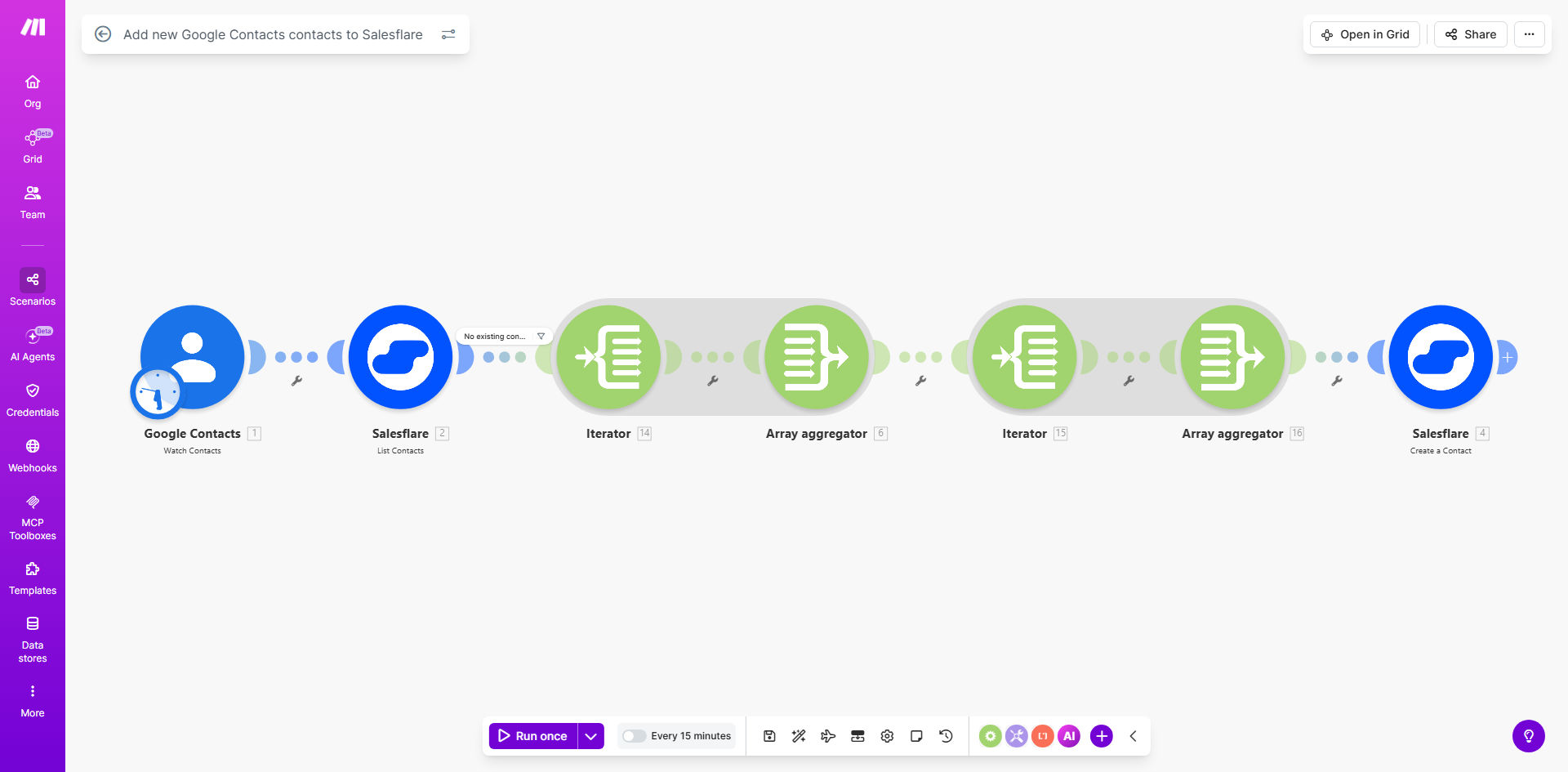
What This Workflow Does
For sales and business development teams, contact data often lives in silos. You meet a potential client, add them to your personal Google Contacts, but then that lead gets stuck there, invisible to your sales CRM. This disconnect creates missed opportunities, delays in follow-up, and forces your team to waste hours on manual copy-paste tasks.
This automated workflow solves that problem permanently. It acts as a real-time bridge between Google Contacts and Salesflare. Whenever you or anyone in your organization adds a new contact to a designated Google Contacts list, the automation instantly captures that information and creates a corresponding contact record in Salesflare. This ensures your sales team always has the freshest leads to work with, directly within their primary sales tool.
The business value is clear: faster lead response times, elimination of human error in data entry, and the ability to immediately trigger Salesflare's native automation sequences (like welcome emails or task assignments) based on a new contact's arrival. It turns a fragmented process into a seamless, efficient pipeline.
How It Works
The automation follows a simple but powerful sequence, orchestrated by Make.com.
Step 1: Monitoring Google Contacts
The workflow starts by watching a specific Google Contacts list for any new additions. Make.com polls this list at regular intervals you define (e.g., every 15 minutes or instantly via webhook if configured). When a new contact is detected, the automation proceeds.
Step 2: Extracting Contact Details
Make.com retrieves all relevant data from the new Google Contact entry. This typically includes the contact's full name, email addresses, phone numbers, company, job title, and any notes. This data is structured and prepared for the next step.
Pro tip: Use Google Contact Groups to control which contacts sync. For instance, create a group called "Sales Leads" and configure the automation to watch only that group, preventing personal contacts from cluttering your CRM.
Step 3: Creating the Contact in Salesflare
The workflow then authenticates with your Salesflare account and uses its API to create a new contact. The data from Google Contacts is mapped to the corresponding fields in Salesflare. The contact is instantly added to your Salesflare database, ready for your sales team to engage.
Step 4: Optional Enrichment & Notification
You can extend the workflow to add more intelligence. For example, you could add a step to enrich the contact data with a service like Clearbit before saving to Salesflare, or send a Slack notification to your sales channel announcing a new high-potential lead has been added.
Who This Is For
This automation is ideal for any business that uses Google Contacts for initial lead capture and Salesflare as their primary CRM. It's particularly valuable for sales teams, business development representatives, founders, and marketing agencies managing client pipelines. If your team frequently attends networking events, receives referrals via email, or collects business cards, this workflow ensures none of those valuable contacts fall through the cracks.
What You'll Need
- A Make.com account (free tier available).
- A Google account with Contacts populated.
- An active Salesflare subscription with API access enabled.
- Administrator access to both Google and Salesflare to authenticate the connection.
- (Recommended) A dedicated Google Contact group/list for contacts you intend to sync to Salesflare.
Quick Setup Guide
Follow these steps to deploy this template in under 10 minutes.
- Get the Template: Click the "Get This Workflow" button above to open the template in your Make.com account.
- Create a Copy: In Make.com, click "Copy" to create your own version of the scenario.
- Connect Google Contacts: In the first module, click to add a connection. Authenticate with your Google account and select the specific Contact list you want to monitor.
- Connect Salesflare: In the second module, click to add a connection. Authenticate with your Salesflare API credentials.
- Map the Data Fields: Review the data mapping between Google Contacts fields and Salesflare fields. Adjust if necessary (e.g., map "Company" in Google to "Account" in Salesflare).
- Test & Activate: Run a single test by adding a dummy contact to your Google list. Verify it appears correctly in Salesflare. Once confirmed, turn the scenario ON.
Key Benefits
Save 5–10 hours per month on manual data entry. Eliminate the tedious, error-prone task of transferring contact information between systems, freeing your team for high-value sales activities.
Improve lead response time from days to minutes. New contacts are instantly available in Salesflare, allowing for immediate follow-up, which significantly increases the likelihood of conversion.
Ensure 100% data capture and CRM hygiene. No lead is ever forgotten in a personal address book. Your Salesflare CRM becomes the single source of truth for all prospect and customer information.
Enable scalable sales processes. As your team grows and you collect more leads, this automation scales effortlessly, handling hundreds of contact syncs without any additional manual effort.
Create a foundation for advanced sales automation. With contacts flowing automatically into Salesflare, you can easily trigger automated email sequences, task assignments, and lead scoring, building a sophisticated, hands-off sales machine.