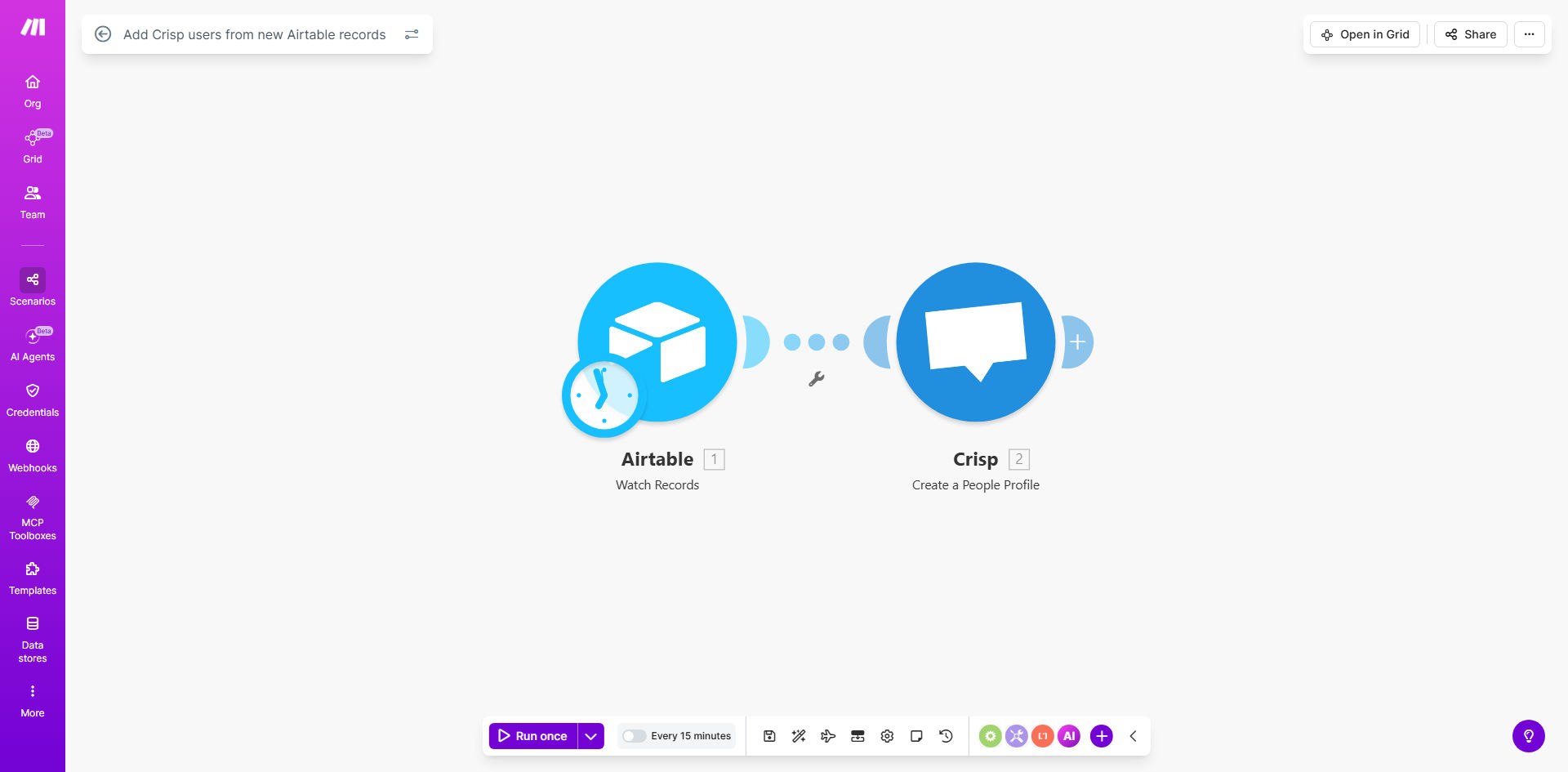
What This Workflow Does
For businesses using Airtable as a source of truth for leads, customers, or event attendees, manually transferring this data to your live chat platform like Crisp is a tedious and error-prone task. This disconnect creates delays in customer support, missed opportunities for engagement, and inconsistent data across your tools.
This automated workflow solves that by creating a seamless, real-time bridge between Airtable and Crisp. Every time a new record is added to your specified Airtable table—whether from a form submission, an import, or manual entry—Make.com instantly captures it and creates a corresponding contact in your Crisp account. The contact is populated with all relevant details, making them immediately visible and actionable for your support or sales team.
The business value is clear: you save hours per week on administrative data entry, eliminate the risk of human error, and empower your team to respond to new contacts with context and speed. This turns your contact list from a static database into a dynamic, actionable asset.
How It Works
The automation follows a simple but powerful trigger-action sequence, managed entirely by Make.com without any manual intervention.
Step 1: Monitor Airtable for New Records
The workflow starts by watching a specific Airtable base and table. Make.com polls the table at regular intervals (e.g., every 15 minutes) or uses a webhook for instant detection. When it finds a new record that matches your criteria, it immediately proceeds to the next step.
Pro tip: Use Airtable views or filters in the trigger module to only watch for records with a specific status (like "Confirmed" or "New Lead"). This prevents syncing incomplete or test data.
Step 2: Map and Format the Contact Data
Make.com extracts the relevant fields from the Airtable record, such as name, email, phone, company, and any custom notes. This data is then mapped to the corresponding fields required by Crisp's "Create a people" API. You can easily transform data here—for example, combining first and last name fields into a single full name for Crisp.
Step 3: Create the Contact in Crisp
The formatted data is sent to Crisp via a secure connection. Crisp creates a new contact in your workspace with all the provided information. The contact is instantly available in your Crisp dashboard, complete with any tags or metadata you've configured to pass along from Airtable.
Step 4: Handle Errors and Log Results
The workflow includes basic error handling. If a contact already exists (duplicate email) or if data is missing, the scenario can be configured to send an alert, update the Airtable record with a status, or simply skip the operation. This ensures reliability and provides an audit trail.
Who This Is For
This automation is ideal for any business that collects contact information in Airtable and uses Crisp for live chat, support, or engagement.
- Startups & SaaS Companies: Automatically add new free trial signups or demo request leads from Airtable forms into Crisp for immediate follow-up.
- E-commerce Stores: Sync new customer purchases or newsletter subscribers to enable personalized support and post-purchase engagement.
- Event Organizers & Coaches: Instantly add webinar or course registrants to Crisp to send automated reminders and answer pre-event questions via chat.
- Marketing & Sales Teams: Ensure every new lead from a campaign landing page in Airtable becomes a contact for targeted outreach sequences in Crisp.
What You'll Need
- A Make.com account (free tier available).
- An Airtable account with a base containing the contact data you want to sync.
- A Crisp account with admin or sufficient permissions to create contacts via API.
- API keys or OAuth access for both Airtable and Crisp, which you'll securely connect within Make.com.
- A clear understanding of which Airtable fields (e.g., Email, Name) map to which Crisp contact properties.
Quick Setup Guide
- Clone the Template: Click "Get This Workflow" to copy the template into your Make.com account.
- Connect Your Apps: In the Make scenario, click the Airtable module and connect your account. Repeat for the Crisp module.
- Configure the Trigger: Select your Airtable base, table, and optionally a view. Set the watch mode (e.g., "Watch records").
- Map the Data: In the Crisp "Create a people" module, map the Airtable fields to the Crisp fields. Ensure the email field is correctly mapped, as it's the unique identifier.
- Test and Activate: Run the scenario once to test with an existing Airtable record. Verify the contact appears correctly in Crisp. Then, activate the scenario to run automatically.
Pro tip: Start by setting the scenario to run every hour. Once you confirm it's working flawlessly, you can increase the frequency for near real-time sync.
Key Benefits
Save 5–10 hours per month on manual data entry. Eliminate the need for an employee to copy-paste information between apps, freeing them for higher-value tasks like customer engagement.
Improve first-response time by up to 80%. When a new lead comes in, your support team sees their full profile in Crisp immediately, allowing for personalized, context-rich conversations from the very first message.
Achieve 100% data accuracy and consistency. Automated sync removes typos, forgotten updates, and missed entries, ensuring your Crisp contact list is always a perfect mirror of your Airtable source.
Scale your operations without adding overhead. Whether you add 10 or 1,000 new contacts a day, the automation handles the workload instantly and reliably, supporting business growth seamlessly.
Enable sophisticated segmentation and campaigns. With clean, automatically populated data in Crisp, you can create precise audience segments based on Airtable data (like "Plan Type" or "Lead Score") for targeted broadcasts and automated messaging.