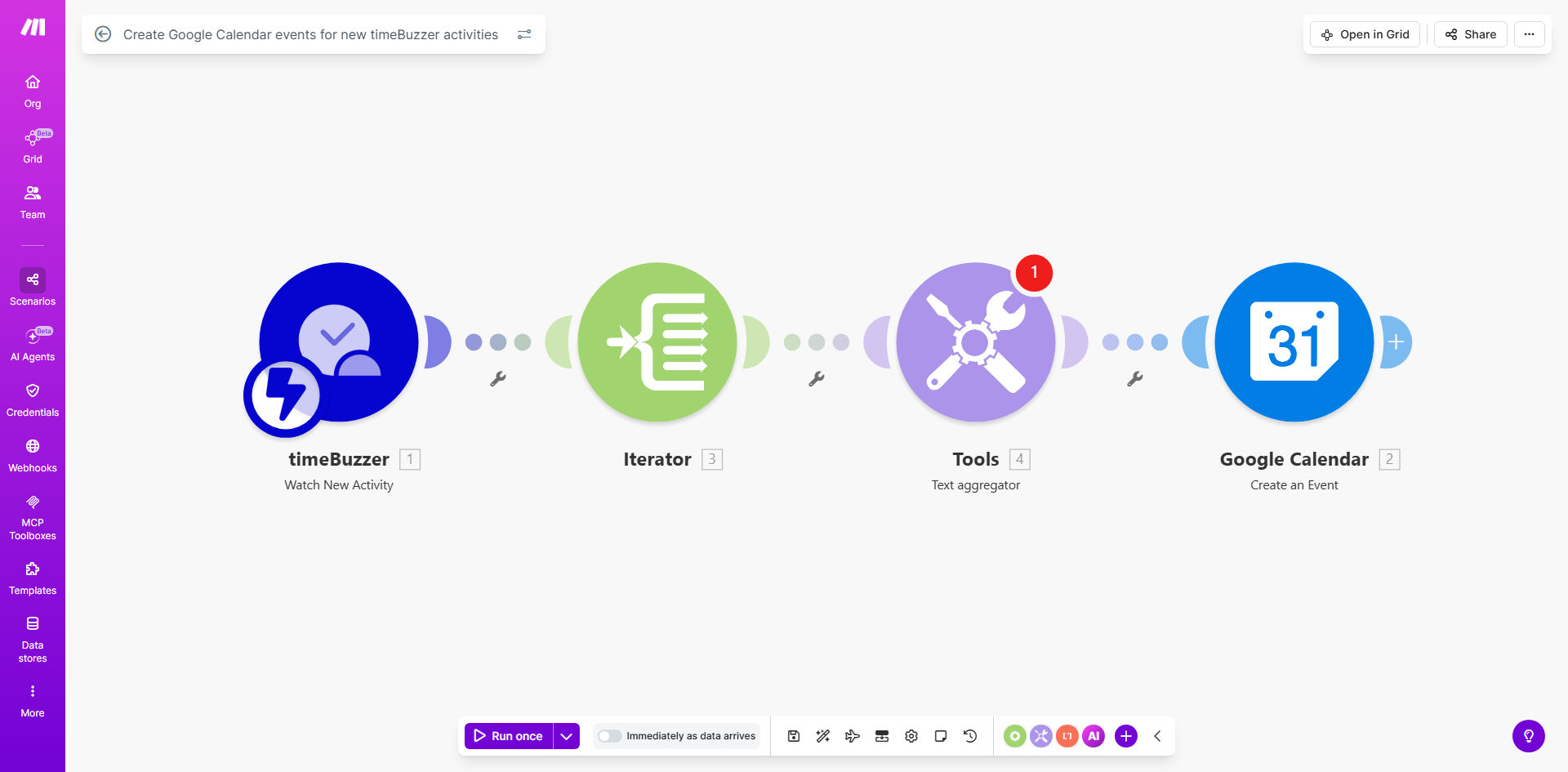
What This Workflow Does
For project managers, consultants, and remote teams, manually transferring tasks from a project management tool like timeBuzzer into a personal calendar is a repetitive, error-prone chore. This disconnect often leads to missed deadlines, scheduling conflicts, and a fragmented view of your actual workload versus your planned schedule.
This automation solves that by creating a seamless bridge between timeBuzzer and Google Calendar. Every new activity you log—whether it's a client call, a development task, or a review deadline—is instantly transformed into a scheduled event on your calendar. The workflow captures key details like the activity title, description, due date, and estimated duration, placing them directly into your daily view. This ensures your calendar is always an accurate, real-time reflection of your committed work, without any manual effort.
The business value is clear: it reclaims administrative time, reduces the risk of human error in scheduling, and provides a unified system for time tracking and calendar management. Teams gain transparency, individuals gain clarity, and projects gain reliability because deadlines are visually tracked and automatically respected.
How It Works
Step 1: Trigger on New Activity
The workflow is initiated whenever a new activity is created within your timeBuzzer account. The automation platform monitors timeBuzzer for this event, capturing the full data packet associated with the task.
Step 2: Map Task Data to Calendar Fields
The system then maps the relevant activity information to the corresponding fields in a Google Calendar event. The activity title becomes the event title, the description populates the event details, the start date/time is set, and the duration is calculated or applied.
Step 3: Create Event in Selected Calendar
Using your authenticated Google Calendar connection, the workflow creates a new event in a specific calendar you've designated (e.g., your primary work calendar). It sets the visibility, reminders, and any other default settings you've configured.
Step 4: Confirm and Log
Finally, the automation can send a confirmation to another app (like a log in Slack or an email) or simply mark the process as complete. The event now lives in your calendar, synchronized with your project management tool.
Pro tip: Use this automation to create separate calendars for different project types or clients. Filter activities in timeBuzzer by project code or tag, and direct them to specific calendars for ultra-organized scheduling.
Who This Is For
This workflow is ideal for any professional or team that uses timeBuzzer for task management and Google Calendar for daily scheduling. It's particularly valuable for:
- Consultants & Freelancers: Who need to track billable tasks and client deadlines visually in their calendar.
- Remote & Distributed Teams: Where managers need visibility into team members' scheduled work without manual updates.
- Project Managers: Who oversee multiple deliverables and want to ensure personal and team calendars align with the project plan.
- Small Business Owners: Who juggle operational tasks and client work and need a single, automated view of all commitments.
What You'll Need
- A timeBuzzer account with activities that you want to sync.
- A Google Calendar account (Google Workspace or personal Gmail) where events will be created.
- Access to an automation platform like Make.com to deploy the template.
- Basic understanding of how to connect apps (modules) within your automation platform.
Quick Setup Guide
- Access the template on Make.com using the link above.
- Create a new scenario and import the template.
- Connect your timeBuzzer account to the first module. You may need an API key or OAuth connection.
- Connect your Google Calendar account to the second module. Standard Google OAuth is used.
- Configure the mapping: specify which timeBuzzer activity fields correspond to which Google Calendar event fields (title, description, start date, end date/duration).
- Choose the specific Google Calendar where new events should be placed.
- Turn the scenario on. Create a test activity in timeBuzzer and verify the event appears correctly in your calendar.
Key Benefits
Saves 1-2 hours per week per person: Eliminates the manual process of copying task details from one app to another. This reclaimed time can be redirected to higher-value work.
Reduces scheduling errors by ~90%: Manual entry is prone to mistakes like wrong dates, missed tasks, or incorrect times. Automation ensures 100% accuracy and consistency between your task list and your calendar.
Improves project visibility and accountability: When tasks are visually scheduled, it's easier for individuals and managers to see workload distribution, spot potential bottlenecks, and ensure deadlines are met.
Creates a unified system for time tracking and planning: Breaks down the silo between task management (what you need to do) and calendar management (when you plan to do it). This integration provides a holistic operational view.
Scalable for teams: Once set up, the same workflow can be applied across an entire team, synchronizing everyone's calendars with a central project plan without multiplying administrative overhead.