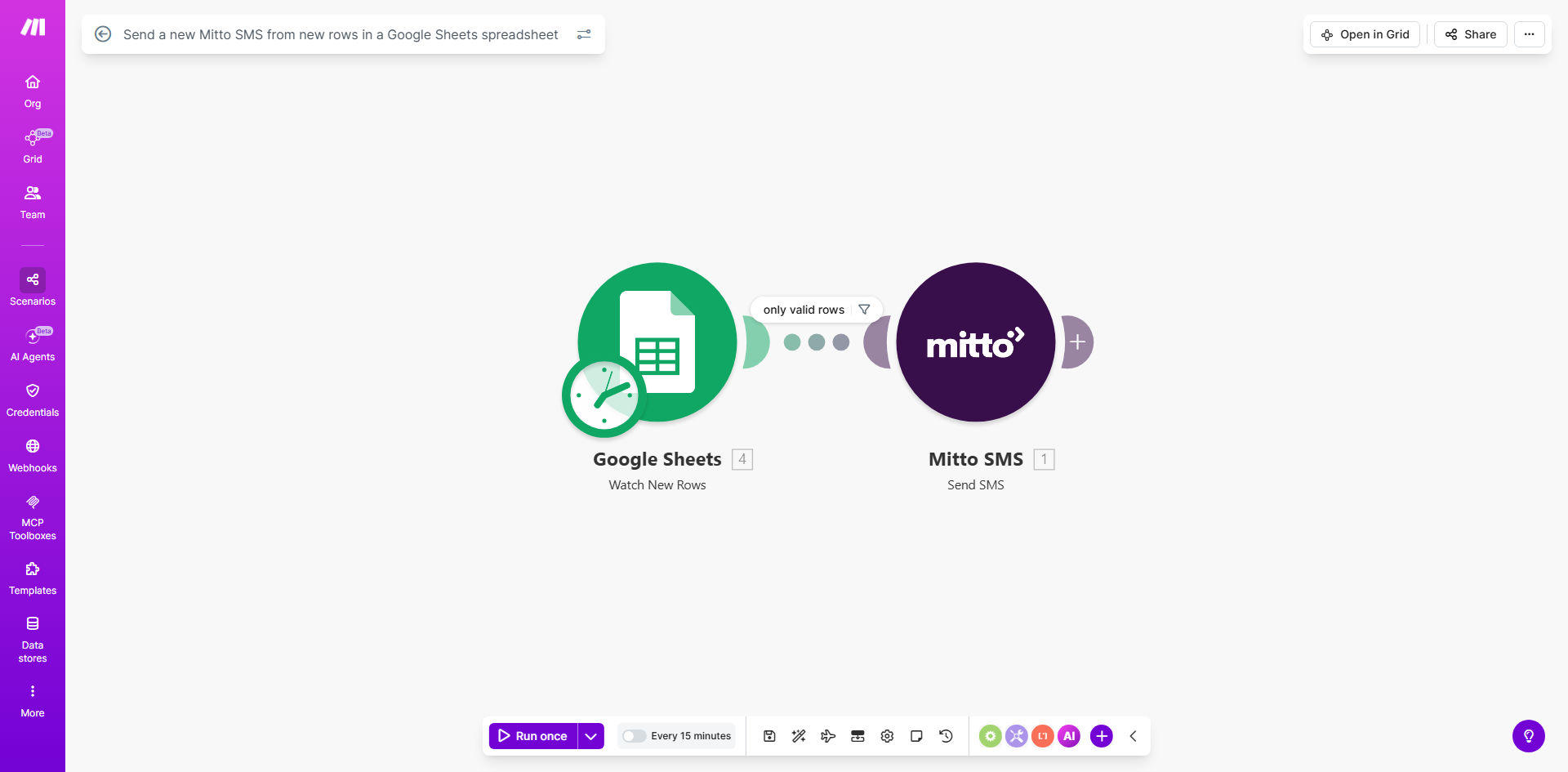
What This Workflow Does
Manually sending SMS messages from a list in a spreadsheet is a tedious, error-prone task that wastes valuable employee time. Whether you're notifying customers of a delivery, reminding clients of an appointment, or sending out marketing offers, the process of copying phone numbers and messages, then sending them one by one, doesn't scale.
This automated workflow solves that by connecting Google Sheets directly to the Mitto SMS platform. It periodically checks your designated spreadsheet for new rows of data. Each time a new row is added—containing a phone number, message, and any other relevant details—the automation instantly triggers and sends a personalized SMS via Mitto. This turns your spreadsheet into a real-time communication engine, ensuring no contact is missed and every message is sent the moment the data arrives.
The business value is clear: you eliminate hours of manual work each week, guarantee timely communication, and remove the risk of human error. Your team can focus on higher-value tasks while your customers receive fast, reliable updates directly from your operational data.
How It Works
The automation runs on a reliable, scheduled cycle using Make.com's powerful integration platform.
Step 1: Monitor Google Sheets for New Rows
The workflow is set to check your specified Google Sheets spreadsheet at a regular interval (e.g., every 15 minutes). It looks for any rows that have been added since the last check. A common method is to use a timestamp column or simply monitor the last row number to identify new entries accurately.
Step 2: Process the Row Data
For each new row found, the automation extracts the necessary data. This typically includes the recipient's phone number (from one column), the message content (from another), and any variables for personalization like a customer name or order ID that can be inserted into the message template.
Pro tip: Structure your Google Sheet with clear, consistent column headers like 'Phone', 'Message', and 'Status'. This makes mapping the data in the automation foolproof and easy to maintain.
Step 3: Send SMS via Mitto
The workflow then passes the extracted phone number and composed message to the Mitto module. Mitto's API sends the SMS instantly. The automation can log the result (e.g., 'Sent' or 'Failed') back to the spreadsheet, providing a clear audit trail of all communication attempts.
Step 4: Handle Errors and Completion
The workflow includes basic error handling. If a send fails—for example, due to an invalid number—the automation can mark the row accordingly or send an alert to an admin. Once processing is complete, the cycle resets, waiting for the next scheduled check.
Who This Is For
This automation is a game-changer for any business or team that relies on timely, bulk SMS communication sourced from data. It's ideal for:
- Healthcare Clinics & Salons: Send appointment confirmations and reminders from a daily bookings sheet.
- E-commerce & Logistics Companies: Automate delivery status updates and tracking links from an order fulfillment spreadsheet.
- Marketing Teams: Execute SMS marketing campaigns by sending offers to lists uploaded to Sheets.
- Field Service Managers: Dispatch job details or safety alerts to technicians based on a schedule in Sheets.
- Educational Institutions: Send urgent announcements or class updates to students and parents.
If your team currently uses spreadsheets to manage contacts and tasks that require communication, this template will save you immense time and improve reliability.
What You'll Need
To set up this workflow, you will need the following accounts and assets ready:
- A Make.com account (free tier available). This is the automation platform that orchestrates the workflow.
- A Google account with access to Google Sheets. You'll need edit permissions for the source spreadsheet.
- A Mitto account with an active API key and sufficient SMS credits for sending messages.
- A Google Sheets spreadsheet structured with columns for at least the phone number and the message content. You can use the provided sample template as a starting point.
Quick Setup Guide
You can have this automation running in under 15 minutes by following these steps:
- Get the Template: Click the "Get This Workflow" button above to copy the template into your Make.com account.
- Prepare Your Sheet: Duplicate the sample spreadsheet or adapt your own. Ensure your column headers are clear.
- Connect Google Sheets: In the Make.com scenario, authenticate and select your prepared spreadsheet and worksheet.
- Connect Mitto: Add your Mitto API credentials to the SMS module to establish the connection.
- Map Your Data: Drag and drop the column references from Google Sheets into the Mitto module's fields for 'To' (phone number) and 'Text' (message).
- Set the Schedule: Configure how often the workflow should run (the default is every 15 minutes). You can adjust this to hourly, daily, or in real-time with a webhook.
- Test & Activate: Run a single test cycle by adding a new row to your sheet. Verify the SMS is received correctly. Then, turn the scenario on to start automating.
Key Benefits
Save 5–10 hours per week on manual messaging tasks. What used to require an employee to copy, paste, and send is now fully automated, freeing them for strategic work that drives growth.
Ensure 100% timely delivery of critical notifications. Messages go out the moment data is entered, eliminating delays that can lead to missed appointments, frustrated customers, or operational hiccups.
Eliminate costly human errors like wrong numbers or missed rows. The automation processes every new row precisely as configured, providing consistent, reliable communication every time.
Gain a clear audit trail. By optionally logging send status back to the sheet, you have a complete record of all communications for compliance and customer service reference.
Scale your outreach effortlessly. Whether you need to send 10 or 10,000 messages, the workflow handles the volume without any additional effort from your team, allowing your business to grow without communication bottlenecks.