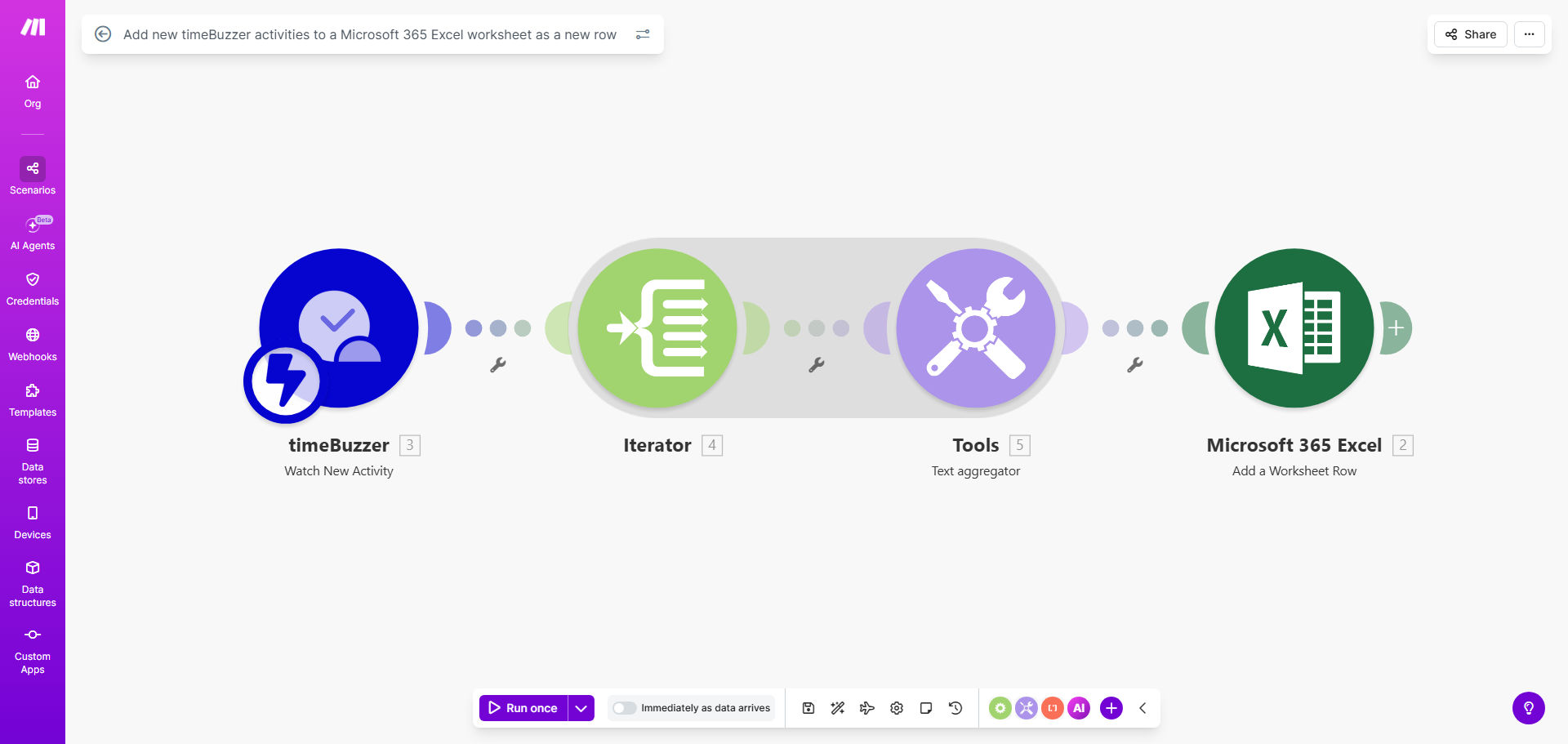
What This Workflow Does
For agencies, consultants, and remote teams, tracking billable hours is crucial for profitability. However, the process of manually copying time entries from a tracking app like timeBuzzer into a spreadsheet for reporting, invoicing, or analysis is tedious, error-prone, and wastes valuable time. This manual gap often leads to lost revenue from unbilled hours and delays in project insights.
This automation solves that problem completely. It creates a seamless, real-time bridge between your timeBuzzer account and a Microsoft 365 Excel workbook. Every time a team member logs a new activity—whether it's client work, internal meetings, or project tasks—the workflow instantly captures that data and appends it as a new, structured row in your designated Excel worksheet. This turns your spreadsheet into a live, centralized log of all time tracking data without any human intervention.
How It Works
The workflow is a simple yet powerful one-way sync, triggered by new data in timeBuzzer and resulting in a new record in Excel.
Step 1: Monitor timeBuzzer for New Activities
The automation starts with a "Watch Activities" module in Make.com, which polls your timeBuzzer account at regular intervals. The moment a new activity is created—containing details like project name, task description, start/end time, and duration—it triggers the workflow.
Step 2: Structure the Data for Excel
Make.com then maps the incoming data from timeBuzzer into the correct format for your Excel sheet. It organizes the information into specific columns, such as Date, Employee, Client, Project, Task Description, Duration, and Billable Status. This ensures the data lands in your spreadsheet cleanly and consistently, ready for analysis.
Step 3: Add a New Row to Your Excel Worksheet
Finally, the workflow uses the "Add a Row" action for Microsoft 365 Excel. It connects to your specific Excel file in OneDrive or SharePoint, selects the correct worksheet, and inserts the newly formatted time entry as the next available row. The process is complete in seconds, providing an up-to-the-minute audit trail.
Pro tip: Use a dedicated "Raw Data" sheet in Excel for this automation. You can then use other sheets for PivotTables, dashboards, and summaries that reference this master log, keeping your reporting dynamic and your source data intact.
Who This Is For
This template is ideal for any business that relies on accurate time tracking for operations or revenue.
- Digital Agencies & Freelancers: To automate client billing and project profitability reporting.
- Consulting Firms: To maintain a precise, automated record of consultant hours across multiple clients.
- Remote & Distributed Teams: To streamline time reporting for payroll and productivity analysis without manual follow-ups.
- Project Managers: To gain real-time visibility into time spent on various tasks and identify budget overruns early.
- Accountants & Bookkeepers: To create a clean, automated feed of billable hours for easier reconciliation and invoicing.
What You'll Need
To use this template, you'll need active accounts and a few minutes for setup:
- A Make.com account (free tier available).
- A timeBuzzer account with existing projects and activities.
- A Microsoft 365 (Office 365) account with access to Excel Online.
- An Excel workbook in OneDrive/SharePoint with a worksheet ready to receive data (define your column headers first).
Quick Setup Guide
You can have this automation running in under 10 minutes:
- Clone the Template: Click "Get This Workflow" and duplicate the scenario into your Make.com account.
- Connect timeBuzzer: In the first module, authorize Make.com to access your timeBuzzer account.
- Connect Microsoft 365: In the Excel module, authorize Make.com to access your Microsoft 365 account.
- Configure the Excel Action: Select your target Excel file and worksheet. Map the timeBuzzer data fields (like "Description", "Duration") to the corresponding columns in your Excel sheet.
- Turn it On: Activate the scenario. Create a test activity in timeBuzzer to see it instantly appear in your Excel sheet.
Key Benefits
Eliminate Manual Data Entry: Save 2-5 hours per week per team member previously spent copying and pasting time logs, freeing them for higher-value work.
Ensure 100% Data Accuracy: Remove human error from the transfer process. Every decimal of billable time is captured exactly as logged, protecting your revenue.
Real-Time Reporting & Billing: With data flowing in instantly, you can run up-to-date reports, monitor project budgets daily, and generate invoices faster, improving cash flow.
Create a Centralized Audit Trail: Your Excel worksheet becomes a single source of truth for all time tracking data, invaluable for client queries, internal reviews, and compliance.
Scale Effortlessly: As your team grows, the automation handles the increased volume of time entries without any additional administrative overhead or cost.