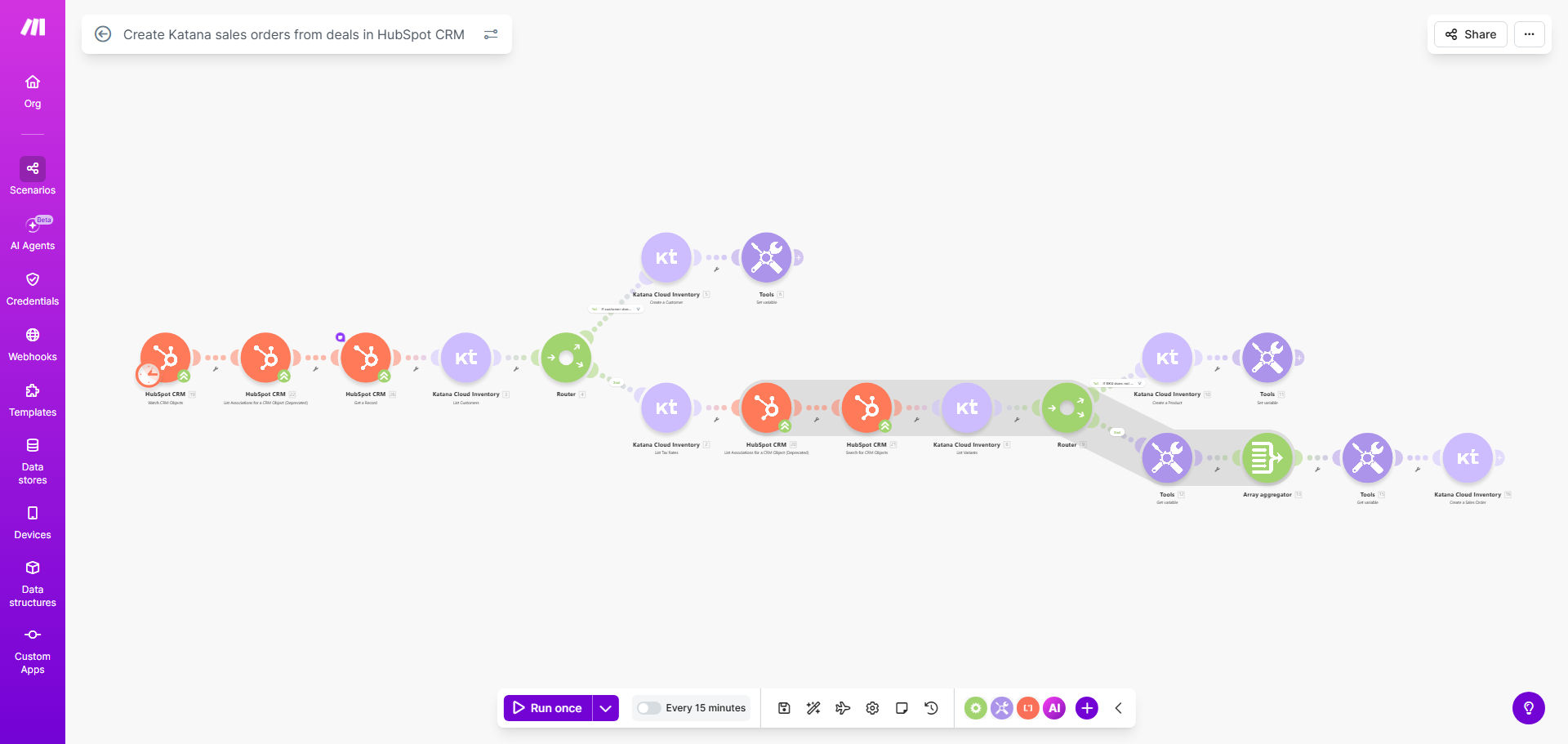
What This Workflow Does
For businesses using HubSpot for sales and Katana for manufacturing or inventory management, a critical gap often exists between closing a deal and starting production. Sales teams celebrate a win in HubSpot, but then must manually re-enter all the order details—customer information, products, quantities, and notes—into Katana. This process is slow, prone to errors, and delays fulfillment, leading to frustrated customers and operational bottlenecks.
This automation template solves that problem entirely. It acts as a intelligent bridge between your CRM and your ERP. The moment a deal is marked as "Won" in HubSpot, the workflow springs into action. It fetches all relevant deal data, checks for existing customers and products in Katana, and then creates a precise, ready-to-process sales order. If a customer or product isn't found, it can create them on the fly, ensuring the process is seamless and never gets stuck. This transforms a multi-step, error-prone manual task into a flawless, instantaneous digital handoff.
How It Works
Step 1: Trigger on a Won Deal
The workflow is activated by a webhook or scheduled check from Make.com that monitors your HubSpot pipeline for any deal whose stage changes to "Closed Won." It captures the entire deal record, including associated company/contact details and all line items.
Step 2: Validate and Prepare Customer Data
The automation takes the company or contact from the HubSpot deal and searches for a matching customer in Katana using identifiers like email or company name. If a match is found, it retrieves the Katana customer ID. If not, it uses the HubSpot data to create a new customer record in Katana first, ensuring the sales order has a valid recipient.
Step 3: Process Product Line Items
For each product or service listed on the HubSpot deal, the workflow searches the Katana product catalog. Matching products are added to the order with their correct SKUs and quantities. For new products not yet in Katana, the workflow can be configured to create a placeholder product entry or use a default item, keeping the order moving forward.
Step 4: Create the Sales Order in Katana
With the customer and product data prepared, the workflow assembles and sends a complete sales order to Katana. This includes the customer reference, order date, all line items, prices, and any special notes from the HubSpot deal. Katana receives this as a native sales order, ready for scheduling, picking, or production.
Step 5: Confirm and Log (Optional)
After successful creation, the workflow can log the new Katana sales order number back to the HubSpot deal as a custom property, creating a perfect audit trail. It can also send a notification to your operations team or to a Slack/Teams channel, confirming that a new order has entered the system.
Pro tip: Use HubSpot deal custom properties to pass critical production instructions (e.g., "Rush Order," "Special Packaging") to Katana. Map these properties to the Katana sales order's "notes" or a custom field to give your ops team full context automatically.
Who This Is For
This automation is ideal for product-based businesses, manufacturers, and wholesalers who use HubSpot to manage sales pipelines and Katana to manage production, inventory, and shop floor operations. It's perfect for sales managers tired of manual order handoffs, operations directors seeking to reduce lead times, and business owners wanting to eliminate errors between sales and fulfillment. If your team wastes time copying data from CRM to ERP or if order inaccuracies are causing production delays, this workflow is your solution.
What You'll Need
- A Make.com account (free or paid plan).
- An active HubSpot CRM account with deals and products set up.
- A Katana subscription with API access enabled.
- API keys or OAuth connections for both HubSpot and Katana, ready to connect in Make.com.
- Basic understanding of your deal stages in HubSpot (specifically which stage means "Won").
- Your product SKUs or names should be consistent between HubSpot and Katana for smooth matching.
Quick Setup Guide
- Get the Template: Click "Get This Workflow" to copy the template into your Make.com account.
- Connect Your Apps: In the Make.com scenario, authorize the HubSpot and Katana modules by logging into your accounts and granting API permissions.
- Configure the Trigger: Set the HubSpot module to watch for deals changing to your specific "Closed Won" stage. You may specify a particular pipeline.
- Map Data Fields: Review the data mapping between HubSpot deal properties and Katana sales order fields. Adjust as needed for your custom fields (e.g., map HubSpot's "Shipping Notes" to Katana's order comments).
- Set Up Error Handling: Decide what should happen if a product isn't found. You can choose to create a new product, use a default, or send an alert.
- Test with a Live Deal: Turn on the scenario and change a test deal in HubSpot to "Won." Verify that a sales order appears correctly in Katana.
- Go Live: Once testing is successful, activate the scenario. Your automation is now live, processing won deals automatically.
Key Benefits
Eliminate manual data entry and reduce errors by 100%. The workflow transfers data digitally, removing typos, missed items, and misinterpretations that happen when humans re-key information between systems.
Cut order processing time from hours to seconds. What used to be a task for the end of the day or week now happens the moment a deal is won, accelerating your entire fulfillment cycle and improving customer satisfaction.
Ensure perfect synchronization between sales and operations. Your production team in Katana works from the exact, latest information the sales team closed in HubSpot, eliminating confusion and misaligned priorities.
Automatically maintain clean master data. The workflow's ability to create missing customers and products in Katana ensures your databases stay in sync and grow together, improving long-term data integrity.
Gain full visibility and audit trails. By logging the Katana order ID back to HubSpot, you create a closed-loop system where anyone can trace the journey from sales opportunity to production order instantly.