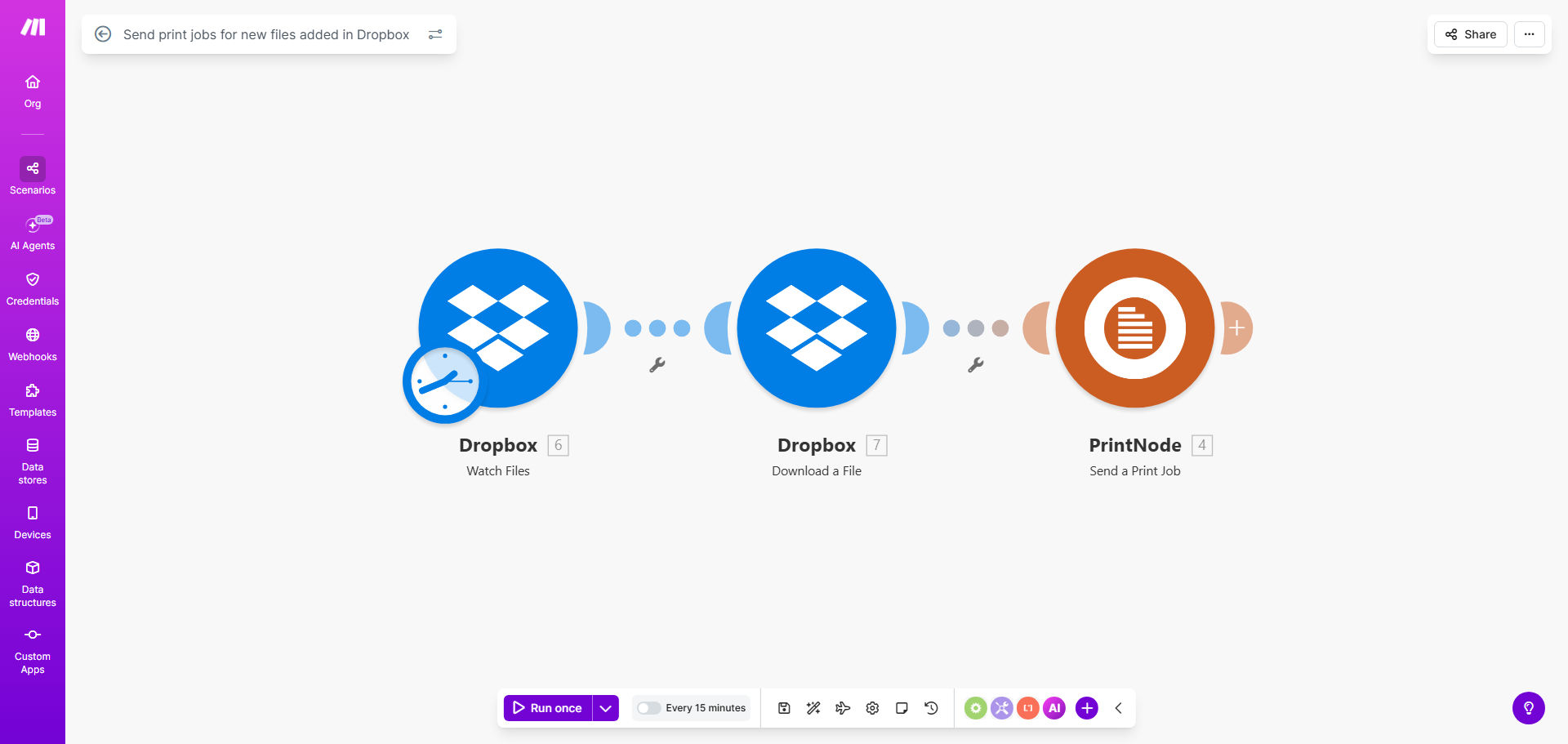
What This Workflow Does
Manually printing documents from cloud storage is a common time-waster in offices. Someone must remember to check a shared folder, download the file, open it, select the printer, and hit print. This workflow solves that by creating a fully automated bridge between your Dropbox and your office printer.
Every time a new file is added to a specific Dropbox folder, this Make.com scenario instantly captures it and sends it as a print job via Printnode—a service that connects to printers on your local network. The result is a physical document waiting for you without any human intervention, perfect for time-sensitive materials like signed contracts, invoices, or shipping labels.
How It Works
The automation follows a simple but powerful sequence, turning a digital event into a physical action.
Step 1: Monitoring Dropbox
The workflow starts with a Make.com module that watches a designated folder in your Dropbox account. It triggers instantly when any new file is added, whether it's uploaded via the web, desktop app, or a mobile device.
Step 2: Processing the File
Once triggered, Make.com retrieves the new file. You can set up filters here—for example, only printing PDFs or files with specific names—to ensure only the correct documents are sent to the printer.
Step 3: Sending the Print Command
The file data is then passed to Printnode. Make.com instructs Printnode which printer to use (from your pre-configured list) and sends the file. Printnode's client software, installed on a computer connected to the target printer, receives the command and executes the print job.
Pro tip: Use this for a dedicated "To-Print" folder. Train your team to drag files there instead of printing manually. This creates a clear, organized queue and prevents accidental prints.
Who This Is For
This automation is ideal for any business or professional who regularly needs physical copies of digital documents. Law firms can automatically print signed client agreements. Accounting departments can have invoices printed as soon as they are finalized. E-commerce operations can instantly generate packing slips in the warehouse. Remote teams can send documents to a central office printer from anywhere. Essentially, if your workflow involves the step "download and print," this template can eliminate it.
What You'll Need
- A Make.com account (free tier available).
- A Dropbox account with files stored in it.
- A Printnode account and the Printnode client installed on a computer that is always on and connected to your target printer.
- The printer must be correctly set up and shared via the Printnode client software.
Quick Setup Guide
You can have this automation running in under 15 minutes.
- Get the Template: Click "Get This Workflow" to copy the scenario to your Make.com account.
- Connect Dropbox: In the first module, authorize Make.com to access your Dropbox and select the specific folder you want to monitor.
- Connect Printnode: In the Printnode module, log in to your Printnode account and select the printer you've set up in their client.
- Test It: Turn on the scenario and upload a test file (like a PDF) to your chosen Dropbox folder. Watch as it automatically appears at your printer.
- Refine: Add filters if needed—for example, set the workflow to only process files ending in ".pdf" to avoid printing images or other unintended files.
Key Benefits
Save 5–10 minutes per print job. Eliminate the repetitive process of downloading, opening, selecting printer options, and waiting for the dialog. The automation handles it in seconds.
Eliminate human error and forgetfulness. Critical documents are printed the moment they are ready, ensuring nothing gets missed because someone forgot to check the folder or was away from their desk.
Enable remote and hybrid work. Team members can add files to Dropbox from anywhere in the world, and they will print at your office, warehouse, or home base instantly, keeping physical workflows moving.
Create a clear audit trail. Make.com logs every trigger and action, so you can always see what file was printed and when, providing accountability for document handling.
Scale your operations without added overhead. As your document volume grows, this automated system handles the increased load effortlessly, requiring no additional staff time.