What This Workflow Does
Manually managing email lists is a silent productivity killer for marketers and business owners. Every time you collect a new lead from a website form, event, or purchase, you face the tedious task of opening a spreadsheet, copying the email and name, and then pasting it into your email marketing platform. This process is not only slow but also highly error-prone, leading to missed subscribers, typos in email addresses, and delayed campaign outreach.
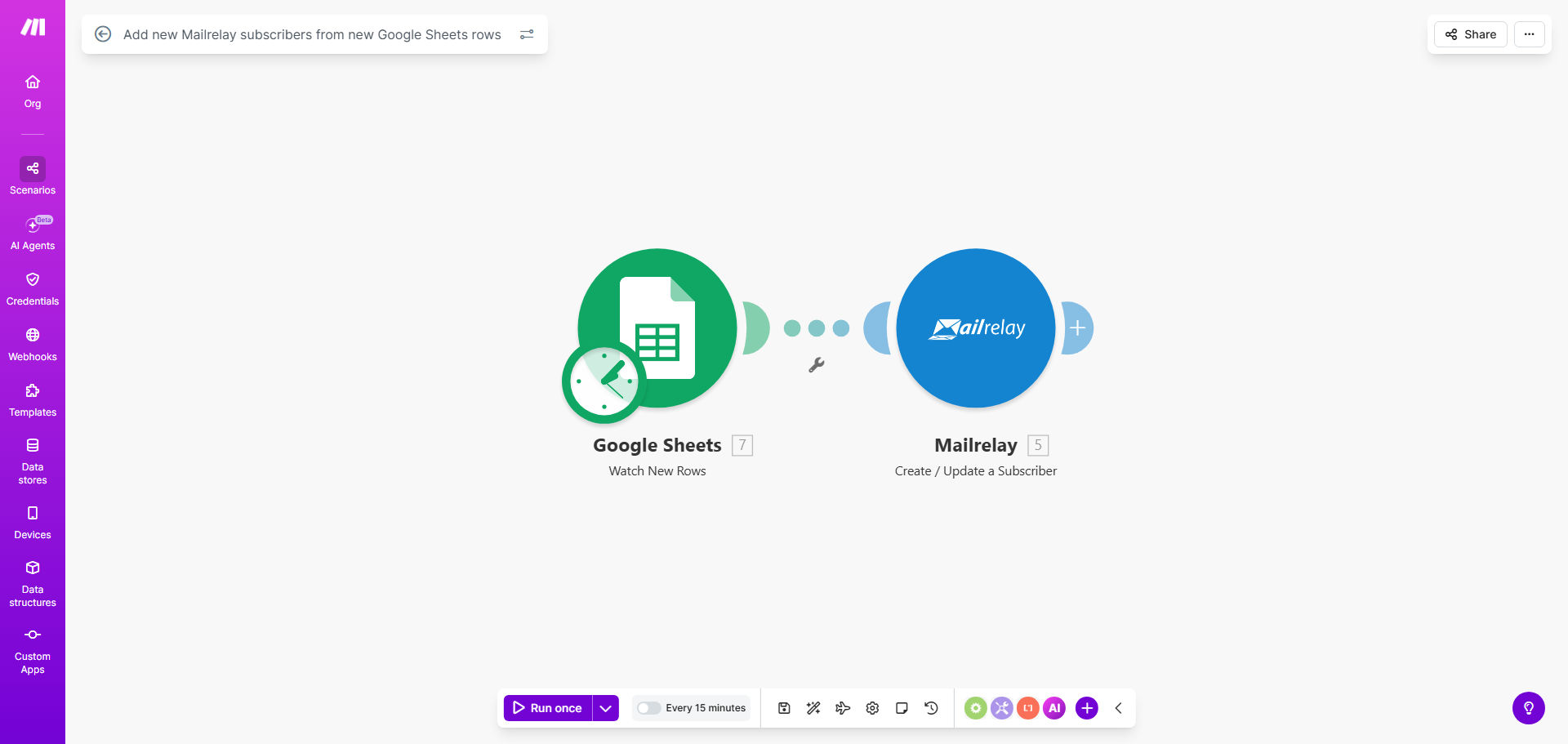
This automation solves that problem by creating a seamless bridge between Google Sheets and Mailrelay. Whenever a new row is added to your designated Google Sheet—whether by a form submission, a team member, or another app—the workflow automatically triggers. It reads the new contact details and adds them as a subscriber to your specified Mailrelay list. The result is a real-time, accurate, and hands-free way to grow your audience, ensuring no lead is ever forgotten in a spreadsheet again.
How It Works
The workflow runs on Make.com, monitoring your Google Sheet and acting as a smart connector to Mailrelay. Here’s the step-by-step process:
Step 1: Monitor the Google Sheet
The scenario starts by watching a specific Google Sheet for new rows. You define the spreadsheet and worksheet where your contact data is collected. The trigger is set to activate instantly when a new row is added.
Step 2: Extract the New Contact Data
Once triggered, the workflow captures the data from the new row. This typically includes the subscriber's email address, first name, last name, and any other columns you've configured, such as custom fields or tags for segmentation in Mailrelay.
Pro tip: Structure your Google Sheet with clear column headers (e.g., 'Email', 'First Name', 'Last Name'). This makes mapping the data to Mailrelay fields straightforward and error-free.
Step 3: Add Subscriber to Mailrelay
The core action: the workflow sends an API call to your Mailrelay account. It uses the captured data to create a new subscriber in your chosen list. The process respects Mailrelay's subscription rules and can handle basic field mapping automatically.
Step 4: Log the Result (Optional)
For reliability, you can add a module to log the outcome—success or failure—to another sheet or a notification app. This gives you visibility into the automation's performance and helps troubleshoot any issues, like an invalid email format.
Who This Is For
This template is ideal for small to medium-sized businesses, digital marketers, coaches, and course creators who use Mailrelay for email marketing and collect leads in Google Sheets. It's perfect if you gather contacts through Google Forms, have a team manually inputting leads, or use other tools that export data to Sheets. If you're tired of the copy-paste routine and want to ensure your email list is always up-to-date, this automation is for you.
What You'll Need
- A Make.com account (free tier available).
- A Google Sheets spreadsheet with your contact data. You can use the provided example template or your own.
- A Mailrelay account with an active mailing list ready to receive new subscribers.
- API access for both services (connected via OAuth in Make.com, which is a simple click-to-authorize process).
- Basic understanding of your Google Sheet's column structure to map data correctly.
Quick Setup Guide
You can have this automation running in under 10 minutes. Follow these steps after clicking "Get This Workflow":
- Copy the Template: On the Make.com template page, click "Copy" to create your own scenario.
- Connect Your Apps: Authorize Make.com to access your specific Google Sheet and your Mailrelay account when prompted.
- Configure the Trigger: Select the exact Google Sheet and worksheet that contains your subscriber list.
- Map the Data: In the Mailrelay module, map the columns from your sheet (e.g., column A for email) to the corresponding subscriber fields in Mailrelay.
- Choose the List: Select the Mailrelay mailing list where new subscribers should be added.
- Test and Activate: Run a test by adding a dummy row to your sheet. Check if the subscriber appears in Mailrelay. Once confirmed, turn the scenario ON.
Key Benefits
Eliminate Manual Entry & Reduce Errors: Save 1-2 hours per week previously spent on data transfer and completely avoid typos or missed entries that hurt campaign performance.
Real-Time List Growth: New leads become subscribers within seconds, not days, allowing you to engage them immediately with a welcome sequence while their interest is highest.
Improved Data Hygiene: By automating the flow from a single source of truth (your Sheet), you maintain consistent data formatting and reduce duplicate entries across platforms.
Scalable Foundation: This workflow is a building block. You can easily extend it to include data filtering, add tags based on source, or trigger follow-up actions in other tools.
Focus on Strategy, Not Admin: Free up your marketing team's time to focus on crafting effective campaigns and analyzing results, rather than managing spreadsheets.