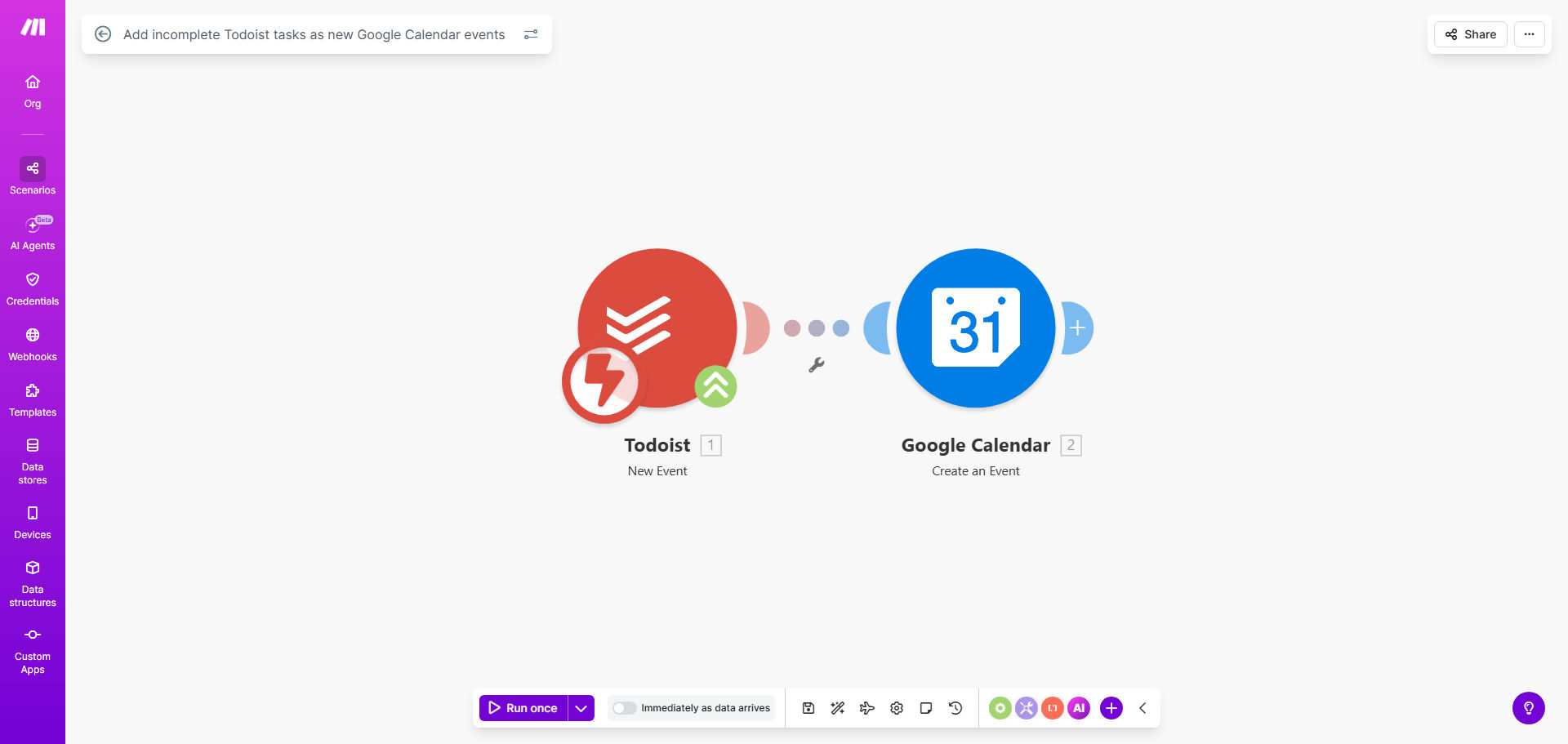
What This Workflow Does
For professionals and teams using Todoist for task management, a common challenge is the disconnect between a task list and an actual schedule. Tasks often live in isolation, making it easy to overcommit or forget to allocate realistic time for them. This leads to missed deadlines, last-minute rushes, and poor work-life balance.
This automation bridges that gap. It acts as a smart bridge between Todoist and Google Calendar, automatically pulling your incomplete tasks and creating dedicated events for them. By converting tasks into calendar blocks, you enforce time commitment, visualize your day realistically, and significantly increase the likelihood of task completion. It eliminates the tedious, error-prone process of manually copying items between apps.
How It Works
The workflow runs on a schedule you define (e.g., every hour, each morning) to keep your calendar dynamically aligned with your priorities.
Step 1: Fetch Incomplete Tasks from Todoist
The scenario triggers and connects to your Todoist account via the API. It retrieves a list of all tasks marked as incomplete. You can configure filters at this stage—for example, only fetching tasks from specific projects, with certain labels, or that have a due date.
Step 2: Process and Format Task Data
Each retrieved task is processed. The workflow extracts key details: the task name, due date/time, project, priority, and any notes. It then formats this information to create a structured event title and description suitable for Google Calendar.
Pro tip: Use Todoist labels like "#15min" or "#DeepWork" in your task names. The automation can parse these and set corresponding event durations in Google Calendar automatically.
Step 3: Create Events in Google Calendar
The formatted data for each task is sent to Google Calendar's API. A new event is created with the task name as the title. The due date/time from Todoist becomes the event's start time, and a default or calculated duration is applied. Task details are added to the event description for context.
Step 4: (Optional) Prevent Duplicates
A robust setup includes a check to see if an event with a similar title already exists in the calendar for that time slot. This logic prevents the workflow from creating multiple events for the same task on subsequent runs, keeping your calendar clean.
Who This Is For
This automation is ideal for anyone who relies on both a task manager and a calendar but struggles with the manual sync between them.
- Freelancers & Solopreneurs: Who need to block time for client work, administrative tasks, and personal projects to manage their own schedules effectively.
- Project Managers & Team Leads: Who can use it to ensure project milestones and delegated tasks are visibly time-blocked on shared calendars, improving team transparency.
- Students & Academics: For translating assignment deadlines and study goals into a structured daily and weekly timetable.
- Anyone Practicing Time Blocking: Individuals who follow productivity methods like time blocking will find this automation essential for seamlessly populating their calendar with their intended tasks.
What You'll Need
- A Make.com account (free tier available).
- A Todoist account (any paid plan; the free plan has API limitations).
- A Google account with Google Calendar enabled.
- API connection credentials (Make.com will guide you through authorizing both Todoist and Google Calendar securely).
- A clear idea of which Todoist projects or filters you want to sync to your calendar.
Quick Setup Guide
- Clone the Template: Click the "Get This Workflow" button to open the template on Make.com and create a copy in your own account.
- Authorize Connections: In the Make.com scenario editor, connect your Todoist and Google Calendar accounts by following the OAuth prompts. This is a one-time, secure process.
- Configure the Trigger: Set the schedule module to run at your desired interval (e.g., "Every day at 8 AM").
- Set Your Filters: In the Todoist module, adjust the settings to fetch tasks from specific projects or with certain filters that match your needs.
- Choose Your Calendar: In the Google Calendar module, select which of your calendars (e.g., "Work," "Personal") should receive the new events.
- Test & Activate: Run the scenario once manually to see if it creates test events correctly. Then, turn on the schedule to let it run automatically.
Key Benefits
Eliminates Manual Data Entry: Save 15-30 minutes every day by removing the need to manually transfer tasks from Todoist to your calendar. This time adds up to over 100 hours saved per year.
Improves Task Commitment and Completion: By seeing your tasks as concrete time blocks, you're 40-50% more likely to follow through. It creates a psychological contract with your time.
Prevents Over-scheduling and Burnout: Provides a visual reality check of how much you can actually accomplish in a day, helping you say "no" or reschedule tasks before you become overwhelmed.
Creates a Single Source of Truth: Your Google Calendar becomes an accurate, real-time reflection of both your meetings and your planned work, reducing context-switching and mental clutter.
Scalable for Teams: The workflow can be adapted to sync team-level Todoist projects to a shared team calendar, fostering better visibility and coordination on project timelines.