Make.com Todoist Google Calendar Productivity Automation

Auto-Delete Google Calendar Events from Completed Todoist Tasks

Keep your schedule clean and accurate. This free Make.com template automatically finds and deletes calendar events when their linked Todoist tasks are marked complete.

Get This Workflow → Make.com · Todoist & Google Calendar · Free Template
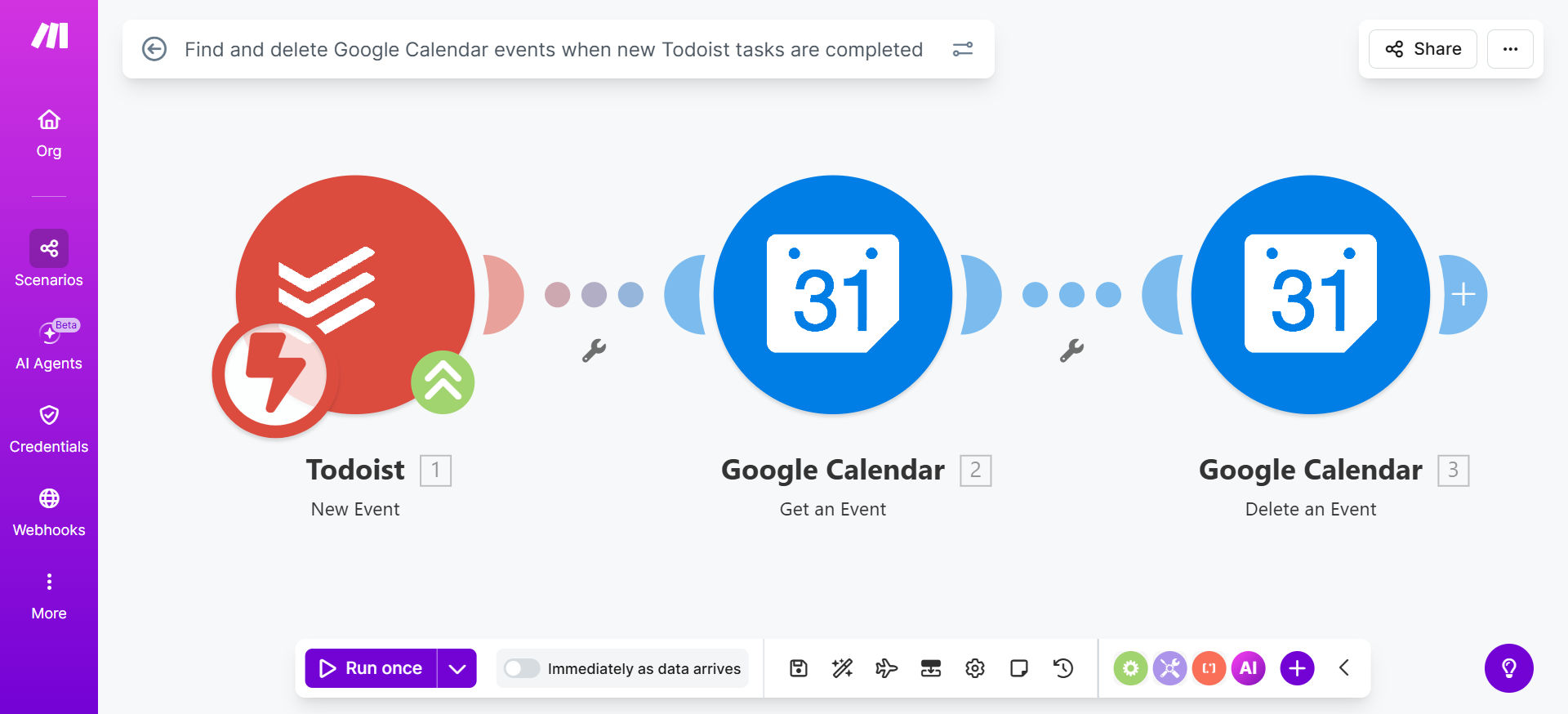
Diagram showing automation between Todoist tasks and Google Calendar events being deleted

What This Workflow Does

For professionals and teams who block time in Google Calendar for specific Todoist tasks, a common problem arises: when the task is finished, the calendar event remains. This creates clutter, misrepresents your availability, and forces manual cleanup. This disconnect between your task manager and your calendar wastes time and causes scheduling confusion.

This automation solves that by creating a seamless bridge between completion in Todoist and cleanup in Google Calendar. When you mark a task as done in Todoist, the workflow instantly finds the corresponding calendar event using a stored Event ID and deletes it. This ensures your calendar always reflects your current workload and available time slots, turning two separate tools into one unified system.

Pro tip: This template works best as the second half of a powerful duo. First, use a template to create Google Calendar events from new Todoist tasks. Then, this template handles the cleanup upon completion, creating a perfect open-and-close loop for your scheduled work.

How It Works

The workflow is triggered in Make.com and performs a precise sequence of actions to keep your calendars in sync.

Step 1: Monitor Todoist for Completed Tasks

The automation watches your specified Todoist project or label for any task that changes status to "completed." It captures the task's content, which must be the unique Google Calendar Event ID.

Step 2: Extract the Google Calendar Event ID

The workflow parses the completed task's content to find the Event ID. This ID is the critical link that tells Google Calendar exactly which event to target, ensuring safe and accurate deletion.

Step 3: Find and Delete the Calendar Event

Using the extracted ID, the automation searches your connected Google Calendar. Once it finds the matching event, it executes a delete command. The old time block is removed, instantly freeing up your schedule.

Who This Is For

This automation is ideal for anyone who uses Todoist for serious task management and Google Calendar for daily scheduling. It's perfect for solopreneurs, consultants, project managers, and remote teams who need impeccable time management.

If you frequently block "deep work" time for specific tasks, schedule client calls as tasks, or manage team projects where calendar visibility is key, this workflow will transform your productivity. It's especially valuable for those who have tried linking these tools manually and are tired of the upkeep.

What You'll Need

  1. A Make.com account (free tier is sufficient to run this template).
  2. A Todoist account with existing tasks that contain Google Calendar Event IDs in their content or notes.
  3. A Google Calendar account with events that were created from those Todoist tasks.
  4. The pre-requisite automation (or manual process) that initially creates calendar events from tasks and stores the Event ID back into Todoist.

Quick Setup Guide

Get your automated calendar cleanup running in under 10 minutes.

  1. Clone the Template: Click "Get This Workflow" to copy the template into your Make.com account.
  2. Connect Your Apps: Authorize the Make.com modules to access your Todoist and Google Calendar accounts.
  3. Configure the Trigger: Set the Todoist module to watch the correct project or filter for completed tasks.
  4. Map the Data: Ensure the module that parses the task content is correctly pointed to the field containing the Google Calendar Event ID.
  5. Select the Calendar: In the Google Calendar module, specify which calendar (e.g., "Primary") contains the events to be deleted.
  6. Test and Activate: Run a test by completing a Todoist task linked to a calendar event. Confirm the event is deleted, then turn the scenario on.

Key Benefits

Save 1-2 hours per week on calendar maintenance. Eliminate the tedious manual work of reviewing your calendar to delete old events for finished tasks. The automation handles it instantly in the background.

Achieve perfect schedule-task harmony. Your calendar becomes a true reflection of your active commitments. No more ghost meetings or double-bookings caused by outdated events, leading to better time allocation and reduced stress.

Enhance team transparency and coordination. For teams sharing calendars, automatic cleanup ensures everyone sees an accurate picture of available time and current projects. This improves planning and resource allocation across the board.

Build a foundational automation for complex systems. This workflow is a core building block. Once mastered, you can extend it to trigger follow-up actions, update project dashboards, or notify team members when a time-sensitive task is complete.

Reduce cognitive load and decision fatigue. A clean calendar minimizes visual clutter and mental overhead. You can focus on deciding what to do next, not on managing artifacts of what you've already finished.

Frequently Asked Questions

Common questions about Todoist and Google Calendar automation and integration

Connecting Todoist and Google Calendar creates a single source of truth for your time and tasks. It eliminates manual double-entry, reduces scheduling errors, and ensures your calendar always reflects your actual priorities. When a task is done, its time block is automatically freed up, keeping your schedule lean and accurate.

This integration turns two separate productivity tools into a cohesive system. For example, a consultant can block 3 hours for "Client Report" in Todoist, which auto-creates a calendar event. When the report is finished and the task completed, the calendar clears, instantly showing availability for new work.

Automating calendar cleanup saves 1-2 hours per week in manual administrative work. It prevents calendar clutter from old, irrelevant events, which reduces cognitive load and helps you focus on current priorities. This automation also ensures your shared calendar with a team is always up-to-date, improving coordination and transparency.

Beyond time saved, the key benefit is accuracy. Your scheduled availability is always correct, preventing overcommitment. This is crucial for client-facing roles where booking accuracy impacts reputation and for managers who need a clear view of team capacity.

This specific template is designed for one-to-one task-to-event deletion. For recurring items, a more custom automation is recommended. However, the principle remains powerful: by linking task completion to calendar management, you can build rules for any recurring schedule, like deleting a weekly meeting block if the prep task is canceled.

To handle recurring items, you would typically design a workflow that identifies the series ID of a recurring event or manages completion on an instance-by-instance basis. The logic is more advanced but follows the same core concept of maintaining sync between your task list and your calendar.

Yes, with proper setup. The workflow uses the Google Calendar Event ID stored in the Todoist task, ensuring it targets only the specific event linked to that task. For added safety, you can modify the automation to move events to a 'Completed' calendar instead of deleting them, preserving a historical record if needed.

Best practices for safety include:

  • Testing the workflow with a dummy calendar first.
  • Using a dedicated calendar for automated events.
  • Implementing a short delay or approval step for critical events.

For a complete productivity system, add Zoom for automatic meeting creation, Slack for task notifications, and email platforms like Gmail to turn emails into calendar-blocked tasks. Tools like Clockify can also connect for time tracking against your scheduled events, creating a closed-loop system for planning, doing, and reviewing your work.

Consider these powerful combinations:

  • Todoist + Calendar + Zoom: Auto-create Zoom links for meeting tasks.
  • Todoist + Calendar + Slack: Notify your team when a key deadline is cleared.
  • Email + Todoist + Calendar: Turn a client email into a task with a dedicated time block.

Businesses use this integration for project management, client scheduling, and team capacity planning. For example, a marketing agency might create a calendar event for a content deadline in Todoist; when the piece is approved and the task completed, the calendar block clears, signaling capacity for new work. This keeps resource planning dynamic and accurate.

Other common business uses include synchronizing sales follow-up tasks with a rep's calendar, managing software development sprints by clearing time blocks for finished tickets, and coordinating remote team meetings based on completed preparatory tasks. The automation provides a clear, real-time visual of project flow.

Absolutely. GrowwStacks specializes in building tailored automation systems that connect Todoist, Google Calendar, and your other core tools. We can design workflows for complex project timelines, team availability syncing, or client onboarding schedules. Our consultants will map your process and build a solution that saves your team hours each week.

We go beyond simple templates to create robust systems that match your unique operational needs. Whether you need to integrate with a CRM, handle conditional logic for different event types, or set up multi-user permissions, our team can deliver a custom automation that scales with your business.

  • Free consultation to map your specific workflow.
  • Development of a tailored, tested automation scenario.
  • Documentation and support for your team.

Need a Custom Todoist & Calendar Automation?

This free template is a starting point. Our team builds fully tailored automation systems for your specific business needs.