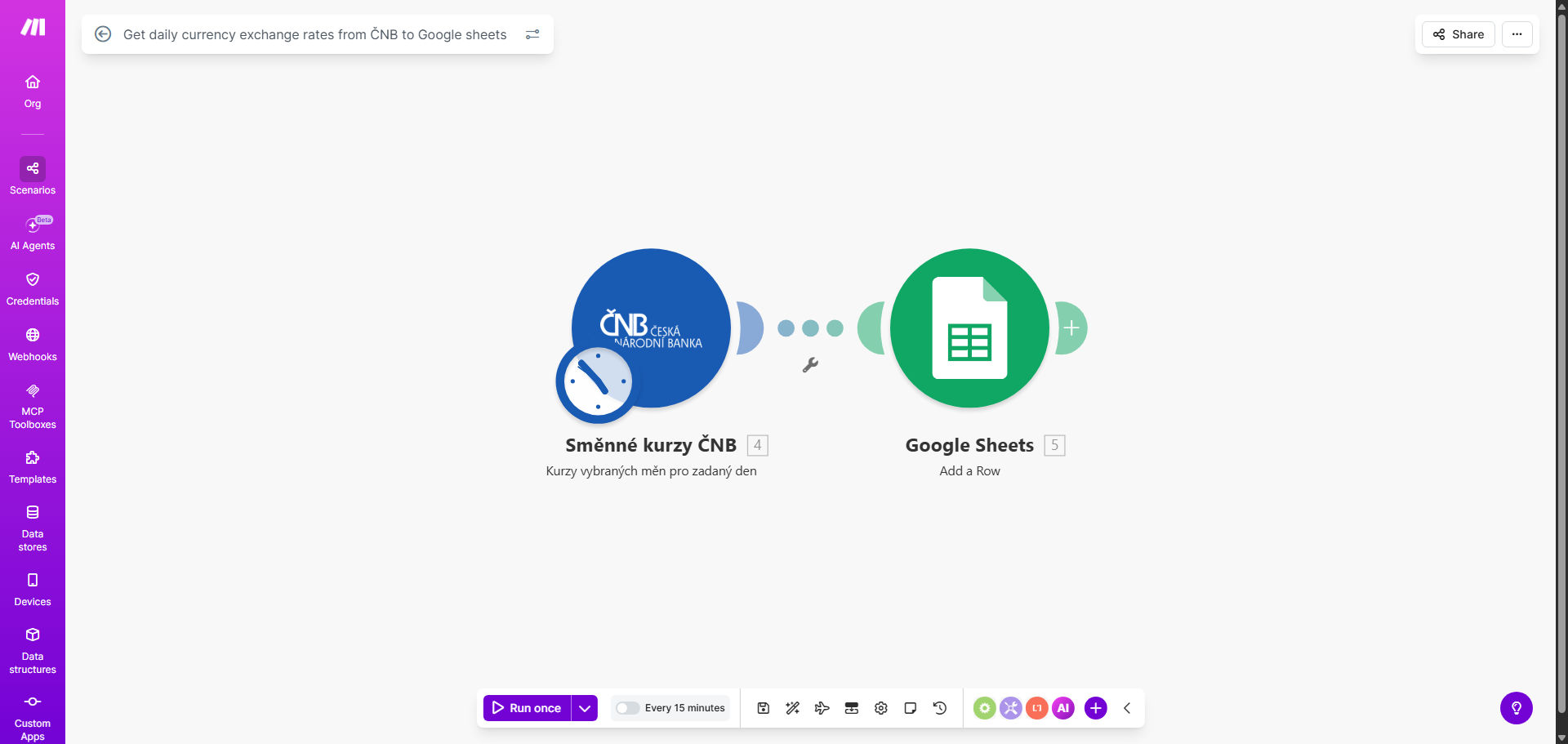
What This Workflow Does
For businesses operating in or with the Czech Republic, managing finances with accurate, up-to-date currency exchange rates is non-negotiable. Relying on manual checks of the Czech National Bank (ČNB) website is a time-consuming and error-prone process that can lead to pricing mistakes, inaccurate financial reporting, and wasted operational hours.
This automation solves that problem completely. It is a pre-built Make.com scenario that acts as a reliable bridge between the official ČNB data source and your Google Sheets. Once set up, it runs silently on a schedule you define—daily, weekly, or even multiple times a day—to fetch the latest exchange rates for the Czech koruna (CZK) against major currencies like EUR, USD, GBP, and more. It then structures this data and inserts it directly into your designated spreadsheet, creating a clean, timestamped historical record.
The value is immediate: your financial models, invoice calculations, cost reports, and pricing strategies are always powered by the correct, official rates without any human intervention. This transforms a routine administrative task into a flawless, automated system.
How It Works
The workflow follows a logical, reliable sequence to move data from a public API to your spreadsheet.
Step 1: Scheduled Trigger
The automation begins with a Schedule module in Make.com. You configure it to run at your preferred time—for example, every weekday afternoon after the ČNB publishes its official daily rates. This trigger kicks off the entire process automatically, ensuring you never miss an update.
Step 2: Fetch Data from ČNB API
Make.com sends a request to the Czech National Bank's public API endpoint. This API returns a structured data file (typically in XML or JSON format) containing the official middle exchange rates for the day. The workflow is built to parse this specific format reliably.
Step 3: Parse and Filter Currency Data
The raw API response is processed. The workflow extracts the relevant exchange rates you care about (e.g., EUR/CZK, USD/CZK). It can filter out unnecessary data, convert number formats, and prepare a clean dataset ready for insertion.
Step 4: Update Your Google Sheet
Finally, the workflow connects to your Google Sheets via the Google Sheets module. It locates your pre-configured sheet and adds a new row of data. This row typically includes the date, timestamp, and each currency pair with its corresponding rate. This builds a running log, perfect for creating charts or historical analysis.
Pro tip: Pair this automation with a simple Google Sheets formula or a connected dashboard tool like Looker Studio. You can instantly create a real-time currency dashboard for your team, showing trends and current rates at a glance.
Who This Is For
This template delivers outsized value to any business or individual dealing with Czech koruna transactions.
Finance Teams & Accountants: For companies with entities in the Czech Republic, this automation ensures month-end closing and financial reporting use the precise daily rates required for compliance and accurate consolidation.
E-commerce & Retail Businesses: Stores selling internationally can use the automated rates to dynamically adjust product prices in CZK based on EUR or USD costs, protecting profit margins from currency fluctuation without manual work.
Freelancers & Consultants: Professionals invoicing international clients in foreign currencies can automatically calculate the correct CZK equivalent, ensuring they are paid accurately according to the day's rate.
Import/Export Companies: Businesses that purchase goods in USD or EUR and sell in CZK can automate cost calculation and pricing updates, making their operations more responsive to market changes.
What You'll Need
- A Make.com account (free tier is sufficient to run this workflow).
- A Google account with access to Google Sheets.
- A Google Sheet prepared with the correct column headers (e.g., Date, Time, EUR, USD, GBP). A template structure is provided for guidance.
- Basic understanding of how to connect Make.com to your Google account (a simple OAuth process).
Quick Setup Guide
You can have this automation live in under 15 minutes.
- Get the Template: Click the "Get This Workflow" button to copy the scenario to your Make.com account.
- Prepare Your Sheet: Create a new Google Sheet or use an existing one. Set up columns for the data you want to capture (Date, Currency Codes).
- Connect Google Sheets: In the Make.com scenario, click the Google Sheets module and authorize the connection to your Google account. Then, select your prepared spreadsheet and worksheet.
- Set the Schedule: Configure the Schedule module to run at your desired frequency (e.g., "Every weekday at 15:00").
- Test & Activate: Run the scenario once manually to ensure it fetches data and writes to your sheet correctly. Then, turn the scenario "ON" to let it run automatically from now on.
Key Benefits
Save 2-3 hours per month per employee previously spent manually checking, copying, and pasting exchange rates. This time can be redirected to analysis and strategic tasks.
Eliminate 100% of manual data entry errors in your currency columns, ensuring your financial calculations and reports are consistently accurate and reliable.
Gain real-time financial visibility with a self-updating, timestamped record of exchange rates, making audit trails simple and financial analysis more dynamic.
Improve operational responsiveness by having the latest rates automatically feed into pricing models and cost calculations, allowing your business to react to currency movements.
Create a foundation for advanced automation by having clean, reliable currency data in Sheets, which can easily be connected to accounting software, BI tools, or custom alerts.