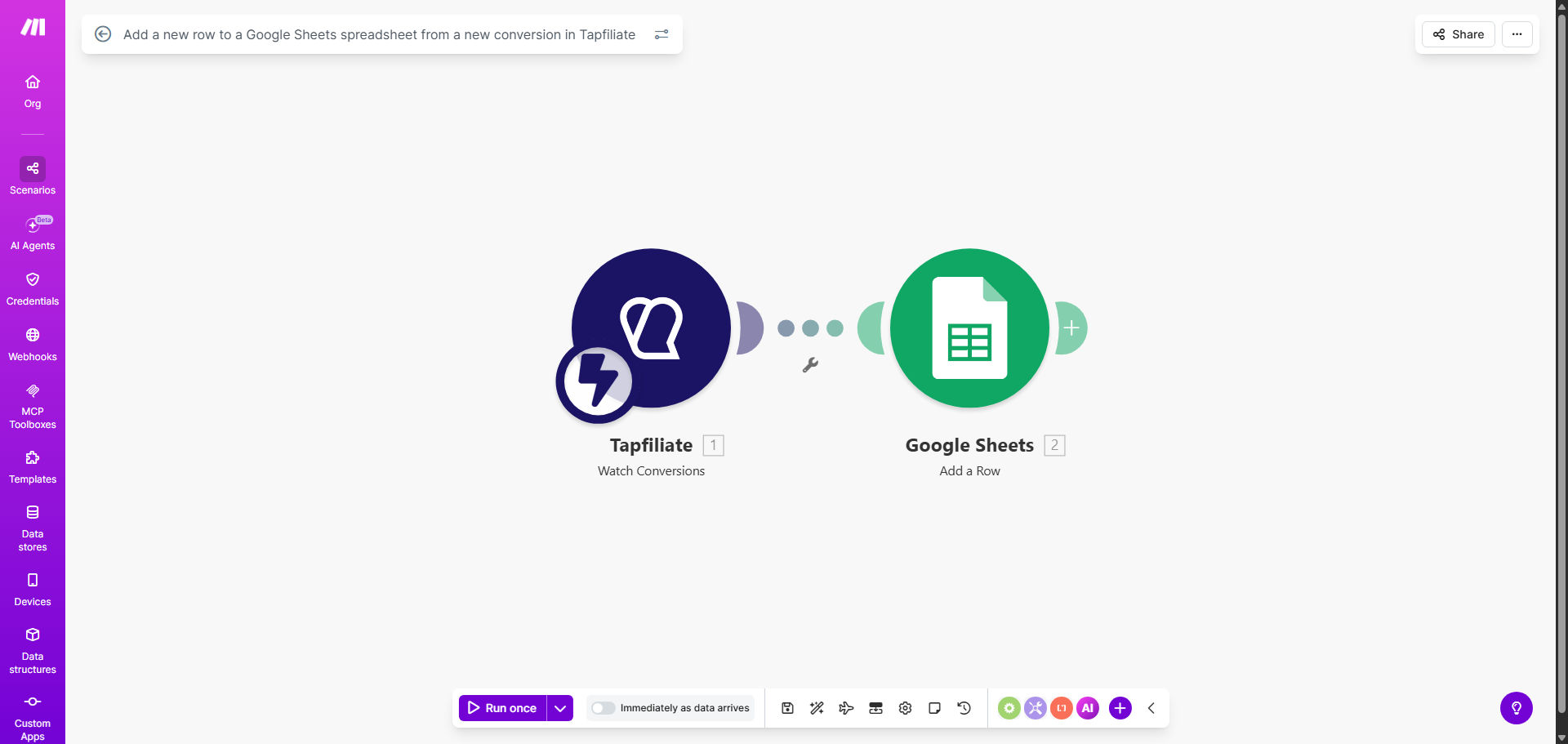
What This Workflow Does
If you run an affiliate or referral program with Tapfiliate, you know that tracking conversions is critical. However, relying solely on Tapfiliate's interface for reporting can be limiting. You might need to share data with your finance team, create custom commission reports, or combine affiliate data with other sales metrics. Manually exporting and copying this data is a tedious, error-prone task that wastes valuable time.
This automation solves that problem by creating a seamless bridge between Tapfiliate and Google Sheets. Every time a conversion is recorded in your Tapfiliate dashboard—whether it's a new sale, a lead, or a sign-up—this workflow triggers automatically. It captures all the essential details like the affiliate's name, commission amount, conversion date, customer information, and campaign source, then appends it as a new, organized row in your designated Google Sheets spreadsheet.
The result is a live, centralized log of all affiliate activity. This gives you a single source of truth that's easy to access, analyze, and share, transforming raw conversion data into actionable business intelligence without any manual effort.
How It Works
The automation is built on Make.com and operates in a simple, reliable sequence. Once set up, it runs silently in the background, ensuring your spreadsheet is always up-to-date.
Step 1: The Trigger – A New Conversion
The workflow is initiated by the "Watch Conversions" module in Make.com. It continuously monitors your Tapfiliate account for any new conversion event. This is an instant trigger, meaning the moment a conversion is logged in Tapfiliate, the automation process begins.
Step 2: Data Extraction & Mapping
Make.com receives the conversion payload from Tapfiliate. This contains a rich set of data points. The workflow is configured to map the most important fields, such as conversion ID, amount, affiliate name and ID, commission value, status, and custom referral data you might be tracking.
Pro tip: You can easily customize which data points are sent to Sheets. Add custom fields like "Promo Code Used" or "Product Category" to make your reports even more powerful.
Step 3: Writing to Google Sheets
The final step uses the "Add a Row" module for Google Sheets. The mapped data is formatted and inserted into the next available row of your specified spreadsheet. You define the column headers once during setup, and every subsequent conversion populates the correct columns automatically, maintaining perfect data structure.
Who This Is For
This automation is a game-changer for businesses and marketers who rely on affiliate programs. It's ideal for Affiliate Program Managers who need to streamline reporting and commission calculations. E-commerce Founders can use it to keep a simple, shareable record of referral sales alongside other business metrics. Marketing Agencies managing client affiliate programs benefit from having clean, exportable data for client reports. Finance Teams will appreciate the ready-made log for reconciling payouts. Essentially, anyone who wants to move from passive data viewing in Tapfiliate to active data utilization will find immense value in this setup.
What You'll Need
- A Make.com Account: A free or paid plan to build and run the automation.
- An Active Tapfiliate Account: With a running affiliate program and conversion tracking set up.
- A Google Sheets Spreadsheet: Created and ready to receive data. You'll need edit access.
- API Connections: The ability to connect your Tapfiliate and Google accounts to Make.com via secure OAuth (a simple click-to-authorize process).
Quick Setup Guide
You can have this automation live in under five minutes by following these steps:
- Get the Template: Click the "Get This Workflow" button above to copy the ready-made template to your Make.com account.
- Connect Your Apps: In the Make.com scenario editor, authorize the connections to your Tapfiliate and Google Sheets accounts when prompted.
- Configure the Trigger: Select your Tapfiliate account in the "Watch Conversions" module. No further configuration is typically needed here.
- Set Up Your Sheet: In the Google Sheets "Add a Row" module, paste the URL of your target spreadsheet and select the specific worksheet (tab). Map the incoming Tapfiliate data fields to your desired column headers.
- Test & Activate: Run a single test conversion in Tapfiliate (or use a past one) to ensure data flows correctly into your sheet. Once confirmed, turn the scenario on. It will now run automatically.
Key Benefits
Eliminate 2-5 hours of manual data entry per week. This automation completely removes the need to export CSV files from Tapfiliate and copy-paste them into spreadsheets, freeing up significant time for strategic work.
Achieve 100% data accuracy and eliminate human error. Manual entry leads to mistakes in numbers, names, and dates. Automated data transfer ensures every figure and detail is captured exactly as recorded in Tapfiliate.
Gain real-time visibility into affiliate performance. Your Google Sheet updates within seconds of a conversion, allowing for immediate analysis and faster decision-making compared to waiting for periodic reports.
Create a unified data hub for cross-team collaboration. Sales, marketing, and finance teams can all access the same live data in a familiar format (Sheets), improving transparency and alignment on program performance.
Build a historical archive for long-term trend analysis. Over time, your automated sheet becomes a valuable database for analyzing seasonal trends, affiliate lifetime value, and the ROI of your referral program.