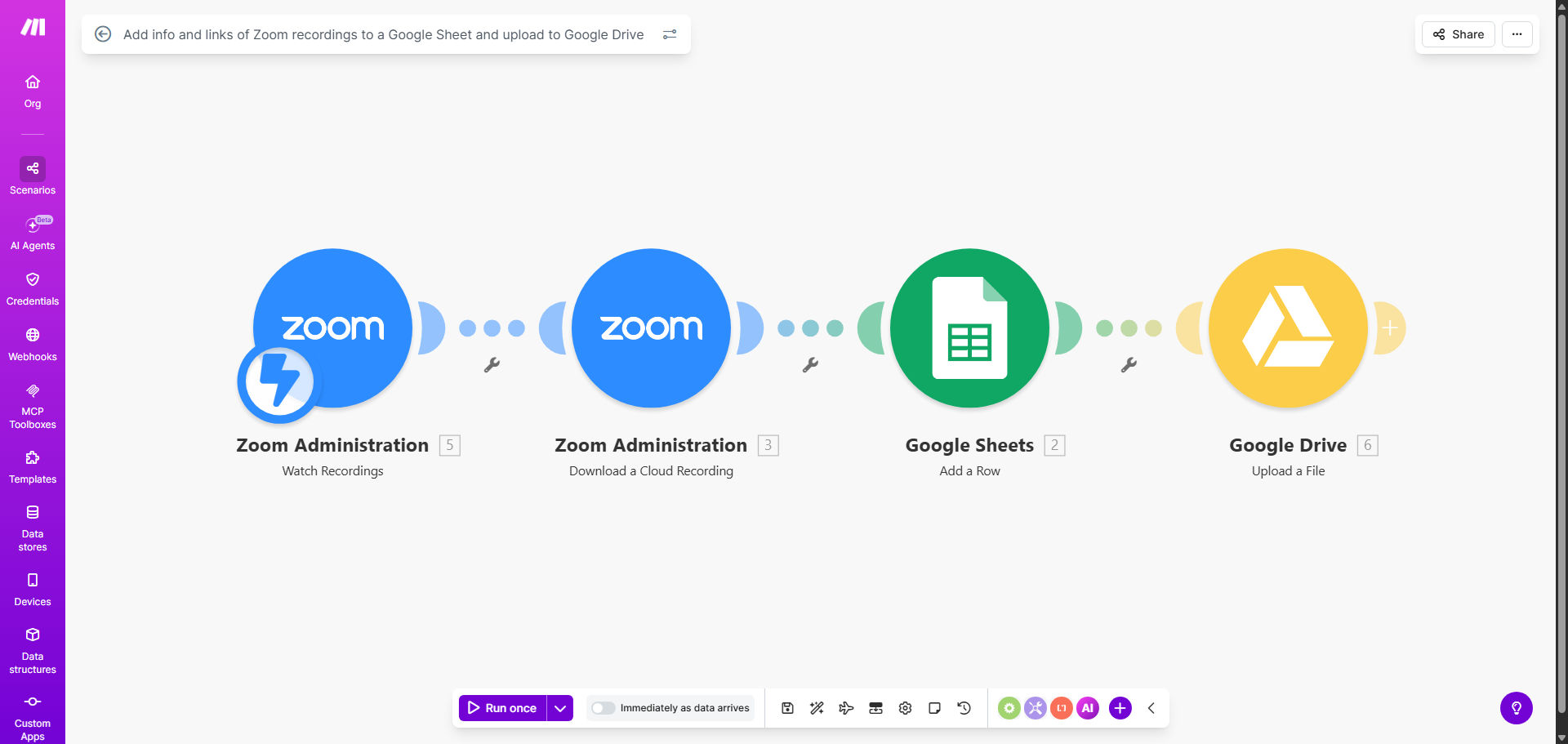
What This Workflow Does
For teams that rely on Zoom for client calls, training, or internal meetings, managing recordings is a tedious, error-prone chore. Someone has to remember to download the file, rename it, upload it to a shared drive, and then log the link and details in a spreadsheet. This process wastes valuable time and often leads to lost files or incomplete records.
This automation solves that problem completely. The moment a Zoom cloud recording is ready, this Make.com scenario springs into action. It captures all the meeting metadata—topic, date, duration, participants, and shareable links—and appends it as a new row in your designated Google Sheet. Simultaneously, it securely transfers the actual recording file (MP4, M4A, etc.) to a specified folder in your Google Drive. The result is a perfectly synchronized, searchable archive of all your meeting content, created automatically without any human effort.
How It Works
The workflow is a seamless, three-step pipeline that connects your Zoom account to your Google Workspace.
Step 1: Zoom Triggers the Workflow
The automation is triggered by the "Recording Completed" event in Zoom. As soon as Zoom finishes processing a cloud recording, it sends a notification to Make.com with all the recording's data payload.
Step 2: Data is Parsed and Prepared
Make.com receives the data and structures it. It extracts key information like the meeting ID, topic, start time, duration, share URL, and the download links for video, audio, and chat files. This data is formatted to fit neatly into your Google Sheet columns.
Pro tip: You can use Make's tools to filter recordings—for example, only processing meetings longer than 10 minutes or those from a specific host—to keep your log clean and relevant.
Step 3: Dual Action to Sheets and Drive
In the final step, two actions happen in parallel. First, a new row is added to your Google Sheet with all the parsed information. Second, the actual recording file is retrieved from Zoom's servers and uploaded to a predefined folder in your Google Drive. The Sheet can even be configured to include a clickable link directly to the file in Drive.
Who This Is For
This automation is a game-changer for any professional or team that records meetings regularly. It's ideal for consultants and agencies who need to archive client sessions for deliverables and compliance. Remote teams and managers can use it to maintain a knowledge base of important discussions. Educators and trainers can automatically catalog their webinar recordings. Legal and financial professionals benefit from the automatic, tamper-evident log of sensitive conversations. Essentially, if you find yourself drowning in a sea of Zoom links and files, this workflow is for you.
What You'll Need
- A Zoom account with Cloud Recording enabled.
- A Google Workspace or standard Google account (for Sheets and Drive).
- A Make.com account (free tier is sufficient to run this template).
- A prepared Google Sheet with column headers for the data you want to capture (e.g., Date, Topic, Host, Duration, Recording Link).
- A dedicated Google Drive folder where you want recordings to be saved.
Quick Setup Guide
You can have this automation running in under 15 minutes.
- Clone the Template: Click "Get This Workflow" to copy the scenario to your Make.com account.
- Connect Your Apps: In the Make scenario, authorize the Zoom and Google Sheets/Drive modules by logging into your accounts.
- Configure the Trigger: Select the specific Zoom account you want to monitor for recordings.
- Map Your Spreadsheet: Point the "Add Row to Sheet" module to your target Google Sheet and map the incoming Zoom data to the correct columns.
- Set Your Drive Folder: In the "Upload File" module, select the Google Drive folder where recordings should be saved.
- Test and Activate: Run a test with an existing recording to ensure data flows correctly, then turn the scenario on. It will now run automatically for all future recordings.
Key Benefits
Eliminate 2–5 hours of manual admin work per week. The time spent downloading, uploading, and logging recordings is completely saved, allowing your team to focus on high-value work instead of digital janitorial tasks.
Create a flawless, searchable meeting archive. With all data in a Google Sheet, you can instantly filter, sort, and search past meetings by date, topic, or participant. No more scrolling through endless emails or Zoom portals.
Ensure 100% compliance and no lost records. The automated process guarantees that every single recording is captured and stored. This is critical for client agreements, regulatory requirements, and internal audits.
Improve team collaboration and knowledge sharing. A centralized Drive folder with organized recordings and a corresponding log makes it easy for anyone on the team to find and reference past discussions, speeding up onboarding and decision-making.
Scale your meeting culture without administrative overhead. As your company grows and meetings multiply, this system scales effortlessly. You can record every important conversation without worrying about the logistical burden of managing the files.