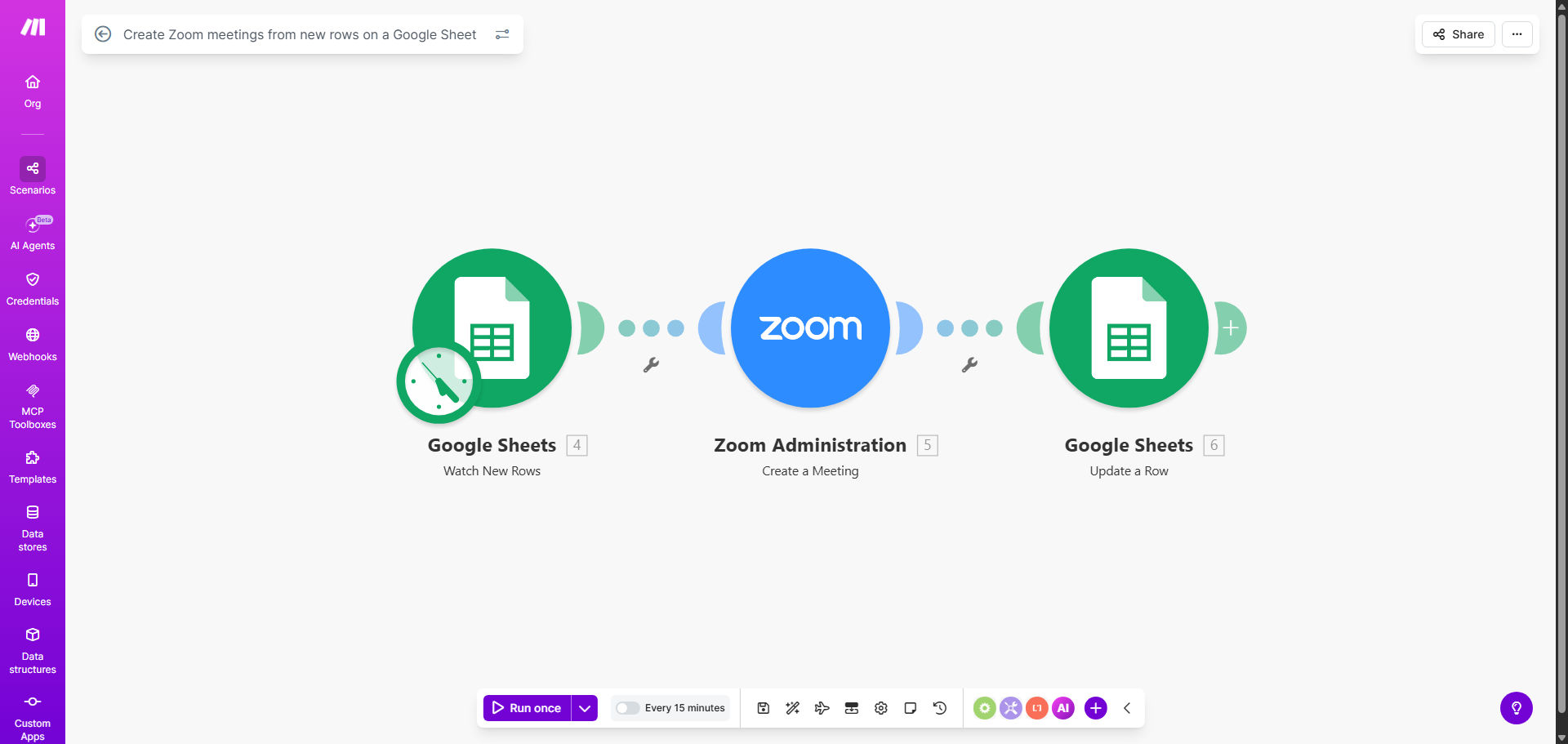
What This Workflow Does
Manually creating Zoom meetings from a list in a spreadsheet is a tedious, error-prone task. You have to copy-paste details like topic, date, time, and attendee emails, then manually distribute the join links back to the team or clients. This process wastes valuable time and often leads to missed meetings or incorrect details.
This automation solves that by creating a seamless bridge between Google Sheets and Zoom. Whenever a new row is added to your designated spreadsheet—for a client call, team meeting, or webinar—the workflow instantly creates a corresponding Zoom meeting with all the correct settings. It then completes the loop by writing the generated Join URL and Shareable Invite Link directly back into the sheet, creating a perfect, self-updating record.
How It Works
The workflow runs on a schedule or in real-time, acting as your automated meeting coordinator.
Step 1: Watch for New Sheet Entries
The automation starts by monitoring a specific Google Sheet for new rows. It can be triggered on a schedule (e.g., every 15 minutes) or configured to watch for changes instantly using Google Sheets' watch feature.
Step 2: Extract Meeting Details
For each new row, the workflow reads the relevant data from predefined columns. This typically includes the meeting topic, start date and time, duration, agenda, and email addresses of attendees.
Step 3: Create the Zoom Meeting
Using the Zoom API module, the workflow takes the extracted data and creates a scheduled meeting in your Zoom account. It applies all specified settings, such as password protection, waiting room, and automatic recording preferences.
Step 4: Update the Spreadsheet
Once Zoom returns the unique meeting details—most importantly the Join URL and the Share URL—the workflow writes these links back into the original row on the Google Sheet. This instantly provides everyone with access to the correct meeting link.
Pro tip: Use a dedicated "Status" column in your sheet (e.g., "Meeting Created", "Link Sent"). The automation can update this status, giving you a clear visual dashboard of all scheduled meetings and their current state.
Who This Is For
This automation is a game-changer for any business or professional that schedules multiple meetings from a central list. It's ideal for:
- Coaches & Consultants: Automate client session scheduling from a booking sheet.
- Sales Teams: Create discovery calls and demos directly from a CRM pipeline exported to Sheets.
- HR & Recruiters: Schedule interview rounds for candidates from an applicant tracking sheet.
- Project Managers: Set up recurring team syncs and client check-ins from a project plan.
- Event Organizers: Manage webinar and workshop sessions for registrants.
What You'll Need
To use this template, ensure you have the following set up and ready:
- A Google Sheets account and a spreadsheet structured with columns for meeting data (Topic, Date, Time, Duration, etc.).
- A Zoom account (Pro plan or higher is typically required for using the API to schedule meetings).
- A Make.com account (free tier available) to host and run the automation scenario.
- Basic permissions to connect these apps via OAuth within Make.com.
Quick Setup Guide
You can have this automation running in under 30 minutes by following these steps:
- Get the Template: Click "Get This Workflow" to clone the scenario into your Make.com account.
- Connect Your Apps: In the Make scenario, establish the connections (called "modules") to your specific Google Sheet and your Zoom account. This is a simple OAuth click-through process.
- Map Your Sheet: Point the Google Sheets module to your actual spreadsheet URL and specify the worksheet name. Ensure your column headers match what the automation expects.
- Configure Zoom Settings: Review the Zoom module settings. You can set default options like enabling a waiting room, requiring a passcode, or allowing automatic recording.
- Test & Activate: Run a test by adding a new row to your sheet. Check that a meeting is created in Zoom and that the links are written back correctly. Once verified, activate the scenario to run on your preferred schedule.
Key Benefits
Save 5–10 hours per month on administrative scheduling work. Eliminate the repetitive task of switching between your spreadsheet and Zoom, copying details, and sending links. The automation handles it all in seconds.
Eradicate human error from meeting scheduling. No more typos in meeting times, forgotten passcodes, or incorrect join links being sent. The data flows directly from the source sheet to Zoom and back, ensuring 100% accuracy.
Create a single source of truth for all meetings. Your Google Sheet becomes a live dashboard. You can see at a glance what meetings are scheduled, their details, and their join links—all automatically updated and always current.
Scale your meeting coordination effortlessly. Whether you're scheduling 5 meetings a week or 50, the process remains the same. This system allows you to handle increased volume without adding administrative overhead or needing extra staff.
Improve professionalism and client experience. Links are generated and recorded instantly, allowing for faster, more reliable communication with clients and attendees, enhancing their perception of your organization's efficiency.