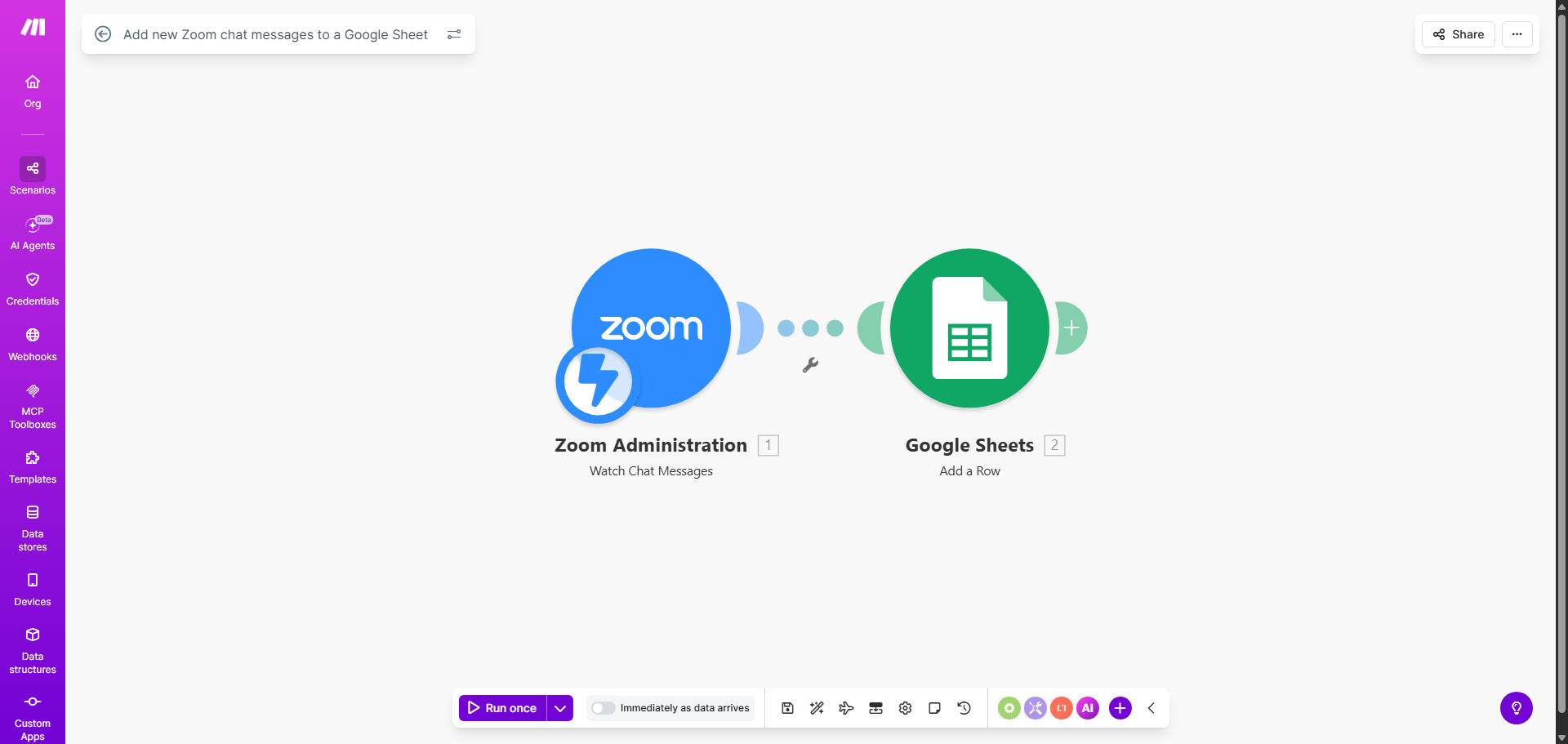
What This Workflow Does
In today's remote and hybrid work environments, Zoom meetings are central to collaboration. The chat feature is a vital channel for questions, feedback, shared links, and action items. However, once the meeting ends, that valuable chat history disappears or becomes difficult to access and analyze. Manually copying messages is tedious, error-prone, and often forgotten.
This automation solves that problem by creating a seamless bridge between Zoom and Google Sheets. It listens for new chat messages as they happen and instantly logs them into a structured spreadsheet. This turns transient conversation into permanent, searchable data. Business owners, team leaders, trainers, and compliance officers can now have an automatic record of every discussion point, enabling better follow-up, accountability, and insights.
The workflow uses a webhook to capture events from Zoom in real-time. When a participant sends a chat message during a meeting, the automation triggers, extracts the message details, and adds a new row to your designated Google Sheet. This happens automatically, without any manual intervention, ensuring no important comment is lost.
How It Works
The process is designed for reliability and simplicity, leveraging Make.com's powerful integration platform.
Step 1: Webhook Trigger from Zoom
The workflow starts with a webhook module configured to receive events from Zoom. When you set up the Zoom integration in Make.com, you specify which meeting or account to monitor. As chat messages are sent, Zoom pushes an event notification to this webhook, containing the message data, sender information, and timestamp.
Step 2: Data Parsing and Filtering
Make.com receives the webhook data and parses it. You can add optional filter modules here. For instance, you might choose to only log messages from specific participants, or messages that contain certain keywords like "urgent" or "question." This step ensures your sheet contains only the relevant data you need.
Pro tip: Use a filter to ignore system messages (like "xxx joined the meeting") to keep your log focused on human conversation.
Step 3: Formatting for Google Sheets
The parsed data is then mapped into a format suitable for Google Sheets. The workflow defines which pieces of data go into which columns: typically Message Text, Sender Name, Timestamp, and Meeting ID. You can customize this to include additional fields like sender email or message type.
Step 4: Adding a Row to Google Sheets
The final module is the Google Sheets "Add a Row" action. It connects to your specified spreadsheet and worksheet, and inserts the formatted data as a new row. Each new chat message creates a new entry, building a chronological log of the entire meeting's chat history.
Who This Is For
This automation is a powerful tool for any business or team that relies on Zoom meetings for communication and wants to enhance their documentation and analysis.
Team Leaders & Project Managers: Keep track of action items and questions raised in the chat to ensure follow-up and accountability.
Corporate Trainers & Educators: Archive student questions and feedback from training sessions for future reference and course improvement.
Customer Support Teams: Log questions and issues discussed during support calls with clients for ticket creation and knowledge base updates.
Compliance & Legal Departments: Maintain verifiable records of discussions held in meetings for audit and compliance purposes.
Remote & Hybrid Work Companies: Centralize meeting insights to share with absent stakeholders and improve transparency across the organization.
What You'll Need
To implement this workflow, you'll need the following accounts and setup:
- A Make.com account (free tier available).
- A Zoom account with admin access to configure webhooks or API connections.
- A Google Sheets spreadsheet ready to receive data. Create a sheet with columns like "Timestamp", "Sender", "Message", "Meeting ID".
- Basic understanding of how to create a webhook in Zoom (the template provides guidance).
- Permission to modify the Zoom meeting settings if capturing chat from specific scheduled meetings.
Quick Setup Guide
Follow these steps to get your automation running quickly using the provided template.
- Clone the Template: Click "Get This Workflow" to open the template on Make.com. Use the "Copy" function to create your own scenario.
- Connect Your Zoom: In your Make.com scenario, add your Zoom account connection. Follow the prompts to authenticate and set up the webhook trigger for chat events.
- Connect Your Google Sheets: Add your Google account and select the specific spreadsheet and worksheet where messages should be logged.
- Map the Data Fields: In the Google Sheets module, map the incoming data from Zoom (message, sender, time) to the corresponding columns in your sheet.
- Test and Activate: Run a test by sending a chat message in a Zoom meeting. Check if a new row appears in your sheet. Once confirmed, activate the scenario to run automatically.
Pro tip: Schedule your scenario to run "instantaneously" so it processes messages as they arrive, ensuring real-time logging.
Key Benefits
Saves 15–30 minutes per meeting: Eliminates the manual task of copying chat logs, freeing up team members to focus on the discussion itself.
Creates a searchable knowledge base: All chat messages are stored in a Google Sheet, allowing you to search for past decisions, questions, or links using simple filters.
Improves meeting accountability and follow-up: Action items mentioned in chat are now documented, making it easier to assign tasks and track completion after the meeting ends.
Enables data analysis and reporting: With chat data structured in a spreadsheet, you can analyze participation trends, common topics, and meeting engagement over time.
Ensures compliance and record-keeping: Provides a permanent, timestamped record of meeting communications for industries requiring detailed audit trails.