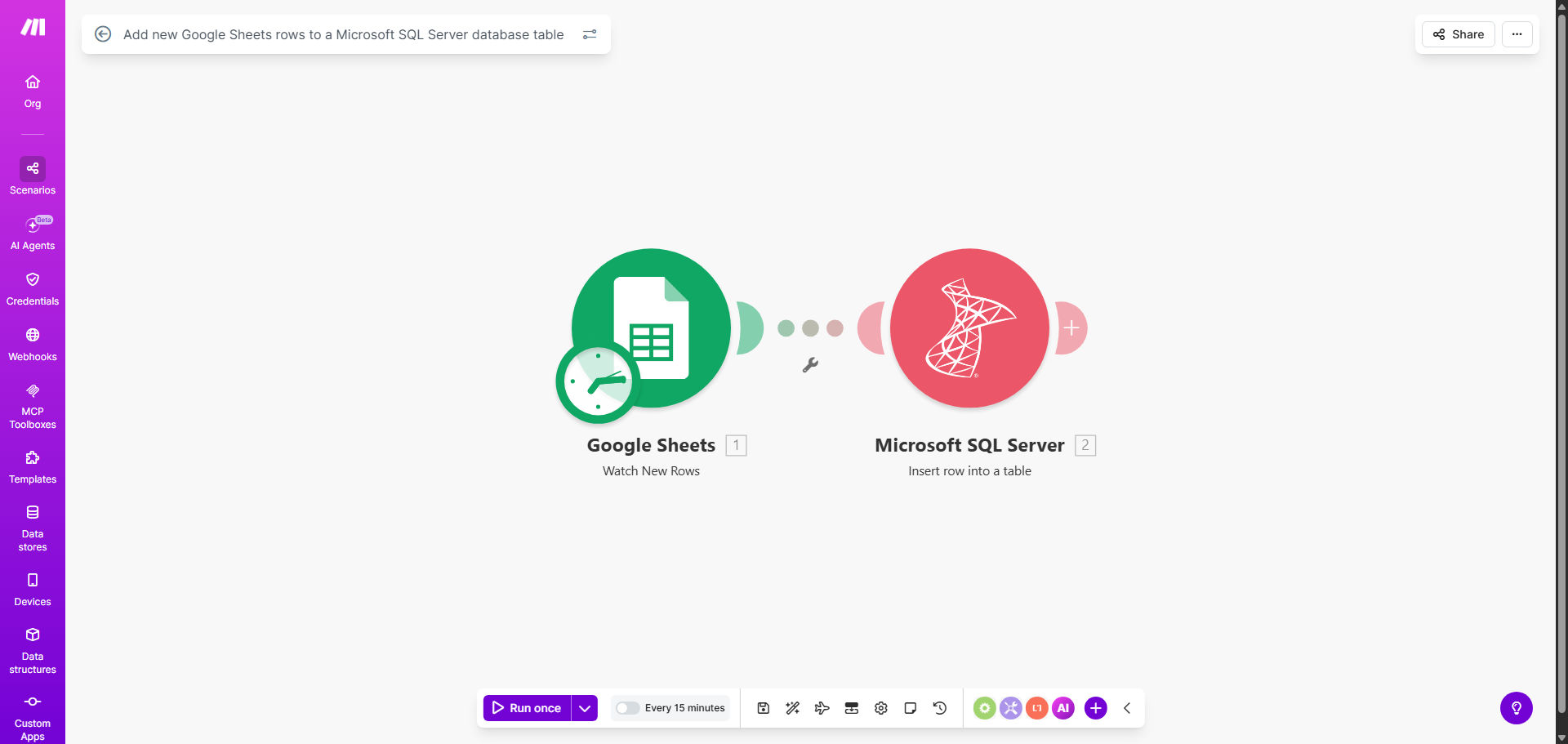
What This Workflow Does
Businesses often collect and manage data in collaborative tools like Google Sheets but need that same data securely stored and analyzed in a robust database like Microsoft SQL Server. Manually copying and pasting rows is a tedious, error-prone task that wastes valuable time and risks data integrity.
This automation solves that problem completely. It acts as a silent bridge between your team's spreadsheet and your company's database. Whenever a new row is added to a specified Google Sheet—whether it's a new sales lead, an inventory update, or a project task—the workflow instantly captures that data and inserts it as a new record in your SQL Server table. This ensures your database is always current without any human intervention.
The result is a single source of truth. Your team enjoys the flexibility of Google Sheets for input and collaboration, while your IT systems, reports, and applications can reliably pull structured, up-to-date information from SQL Server.
How It Works
The workflow follows a simple, reliable sequence triggered by a change in your spreadsheet.
Step 1: Monitor the Google Sheet
The automation continuously watches a specific Google Sheet for new rows. It uses the "Watch New Rows" trigger in Make.com, which activates the moment a row is added to the bottom of your sheet.
Step 2: Structure the Data
The new row's data is parsed. Each column from the sheet (like "Customer Name," "Email," "Order Value") is mapped to a corresponding data point in the workflow. This step ensures the information is correctly formatted for the database.
Pro tip: Use this mapping stage to clean data. You can set rules to format dates, convert text to numbers, or assign default values if a cell is empty, preventing database errors.
Step 3: Connect and Insert into SQL Server
The workflow establishes a secure connection to your Microsoft SQL Server database. It then executes an "INSERT" command, adding the new row of data into the predefined table. The connection details are stored securely in Make.com.
Step 4: Confirm and Log
After the insertion, the workflow can be configured to log the action, send a confirmation notification, or even update another cell in the Sheet to mark the record as "synced." This provides visibility and auditability for the automated process.
Who This Is For
This template is a game-changer for any business or team that uses Google Sheets for data collection but relies on a SQL database for operations. It's ideal for sales teams adding new leads from a shared sheet into a CRM backend, operations managers syncing inventory updates, marketing teams collecting campaign responses, and finance departments logging new expenses or invoices. Startups, e-commerce stores, and agencies that need to bridge simple collaboration with powerful data storage will find immediate value.
What You'll Need
- A Google Sheets spreadsheet with edit access and data organized in columns.
- A Microsoft SQL Server database instance (cloud or on-premise) with a target table ready to receive data.
- SQL Server connection credentials (server address, database name, username, and password).
- A free or paid Make.com account to host and run the automation.
- Basic knowledge of your Sheet's column headers and your SQL table's column structure to map them correctly.
Quick Setup Guide
You can have this automation running in under 15 minutes by following these steps:
- Get the Template: Click "Get This Workflow" to copy the template into your Make.com account.
- Connect Google Sheets: In the first module, authorize Make.com to access your Google account and select the specific Sheet and worksheet to monitor.
- Configure SQL Server: In the database module, enter your SQL Server connection details (host, database name, username, password).
- Map the Fields: This is the crucial step. Drag and drop each data item from the Google Sheets module (e.g., "Email") into the corresponding field for the SQL INSERT command (e.g., "customer_email").
- Test the Flow: Turn on the scenario and add a test row to your Google Sheet. Check your SQL database to confirm the new record appears correctly.
- Activate: Once testing is successful, the automation will run continuously, syncing every new row as it's added.
Key Benefits
Eliminate 5–10 hours of manual data entry per month per employee. Free your team from the mind-numbing task of copying data between systems, allowing them to focus on analysis and action.
Achieve 100% data accuracy and eliminate costly human errors. Automated transfers follow the exact same rules every time, removing typos, missed rows, and formatting mistakes that corrupt reports.
Enable real-time business intelligence and decision-making. With your SQL database updated instantly, your dashboards, reports, and applications always reflect the latest information, giving you a competitive edge.
Improve data security and governance. Sensitive information moves through a secure, logged automation instead of being emailed or manually handled, providing a clear audit trail.
Scale your data processes effortlessly. Whether you add ten rows or ten thousand, the automation handles the volume instantly without requiring additional staff time or resources.