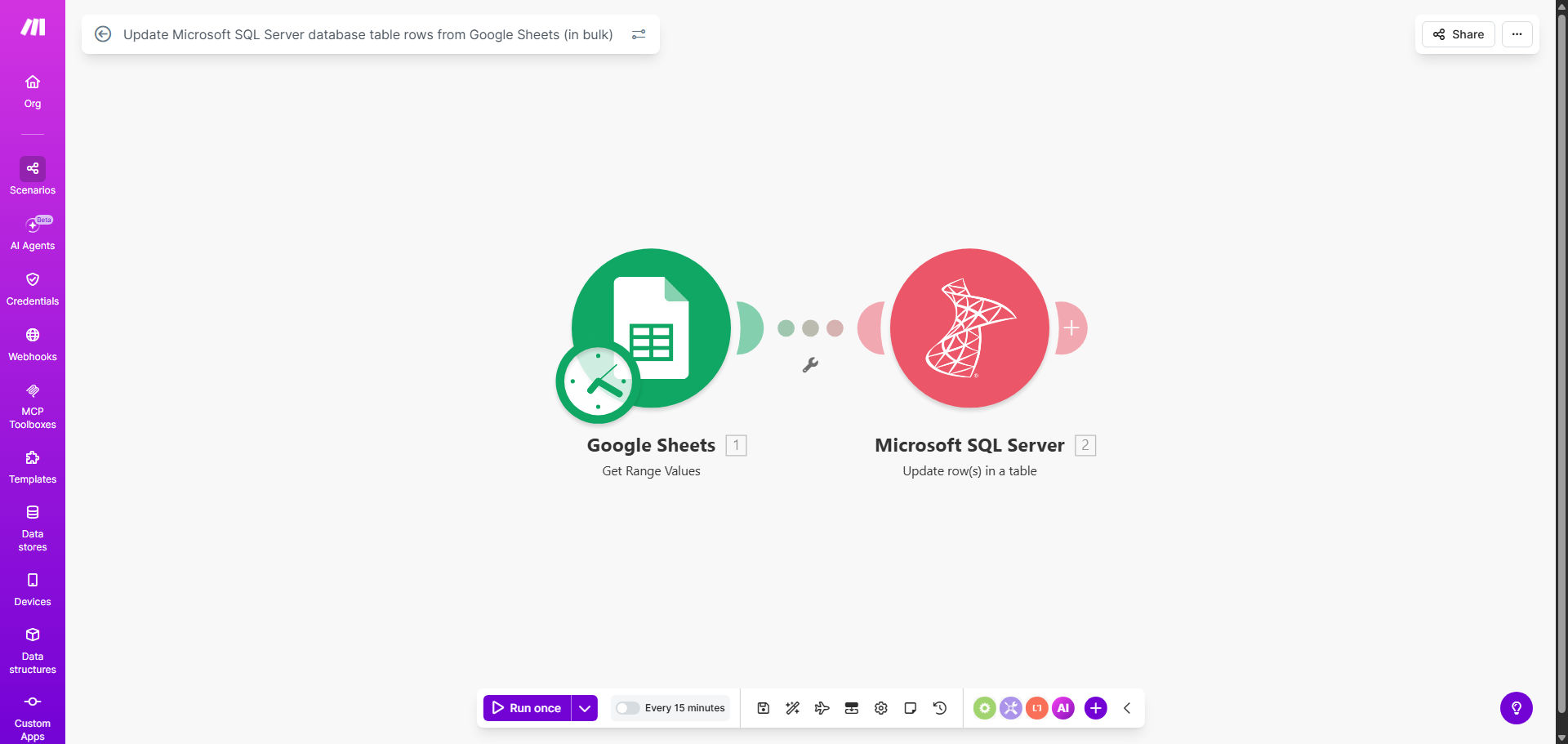
What This Workflow Does
Manually updating a corporate database from spreadsheet data is a tedious, error-prone, and time-consuming task. Teams often copy-paste values from Google Sheets into SQL Server Management Studio, risking typos, missing rows, or updating the wrong records. This process slows down operations, creates data inconsistency, and drains productivity from staff who should be focusing on analysis rather than data entry.
This automation workflow solves that problem entirely. It connects Google Sheets directly to your Microsoft SQL Server database using Make.com. Whenever your spreadsheet data changes—whether it's updated inventory levels, new customer details, revised project statuses, or adjusted pricing—the workflow automatically reads those changes and executes the corresponding UPDATE statements in your SQL Server tables. It handles bulk operations efficiently, processing hundreds of rows in minutes, with built-in error handling to ensure data integrity.
The result is a seamless, reliable data pipeline. Your spreadsheet remains the easy-to-use interface for your team, while your database stays accurately synchronized without manual intervention. This bridges the gap between collaborative spreadsheet work and robust database storage, ensuring everyone works with the same, up-to-date information.
How It Works
Step 1: Trigger from Google Sheets
The workflow is triggered by a scheduled watch or a specific event in Google Sheets. You can set it to run hourly, daily, or whenever a sheet is edited. Make.com connects to your spreadsheet via the Google Sheets API and reads the data from a defined range, such as a specific tab or a filtered set of rows that need updating.
Step 2: Map and Transform Data
The retrieved spreadsheet rows are mapped to the corresponding database columns. The workflow can transform data formats if needed—for example, converting text dates to SQL date formats, or concatenating fields. This step ensures the data structure matches your SQL Server table schema precisely.
Step 3: Execute Bulk SQL UPDATE Statements
Make.com connects to your Microsoft SQL Server instance using secure credentials. For each row from the sheet, it constructs and executes an UPDATE query, typically using a unique row identifier (like a Product ID or Customer Code) to target the correct database record. It processes all rows in a batch, logging each operation.
Step 4: Error Handling and Notification
If any update fails due to a constraint violation, missing record, or connection issue, the workflow can halt and send an alert—via email, Slack, or Microsoft Teams—to your admin team. Success logs can also be recorded, providing a clear audit trail of what data was changed and when.
Pro tip: Use a dedicated "Last Updated" column in your sheet to filter only rows changed since the last run. This makes the workflow incremental and faster, instead of processing the entire dataset every time.
Who This Is For
This automation is ideal for any business or department that maintains operational data in Google Sheets but needs that data reflected in a central SQL Server database. Typical users include:
- Operations & Logistics Managers: Updating inventory stock levels from a shared tracking sheet into the master inventory database.
- Sales & CRM Teams: Syncing new customer information or updated contact details from a sales lead sheet into the CRM's SQL backend.
- Finance Departments: Refreshing budget allocations or project cost data from collaborative finance sheets into the accounting system database.
- HR & Administration: Updating employee records, leave balances, or department assignments from a master HR spreadsheet.
- IT & Development Teams: Maintaining configuration data or product catalogs where spreadsheets serve as the editing interface.
If your team spends more than an hour a week manually syncing spreadsheet data to a database, this workflow will pay for itself in saved time and reduced errors.
What You'll Need
- A Make.com account (free or paid) to host and run the automation scenario.
- A Google Sheets spreadsheet with the data you want to sync. Ensure it has a consistent structure (columns match database fields) and a unique identifier column for each row.
- Access to your Microsoft SQL Server database, with connection details (server address, database name, authentication credentials).
- Clear understanding of the target table schema in SQL Server (column names, data types, primary keys).
- Permissions to create and modify Make.com scenarios, and to set up API connections for Google Sheets and SQL Server.
Quick Setup Guide
After importing the template into your Make.com account, follow these steps to configure it for your environment:
- Connect your Google Sheets. In the first module, authorize Make.com to access your Google account and select the specific spreadsheet and sheet tab that contains your update data.
- Define the data range. Specify the cell range (e.g., A2:H100) that includes the rows to process. You can add filters to only select rows meeting certain conditions.
- Connect to SQL Server. In the database module, enter your SQL Server connection parameters: host, database name, username, and password. Test the connection to ensure it works.
- Map columns. Map each column from your Google Sheets to the corresponding column in your SQL Server UPDATE statement. Pay special attention to the unique key column (like ID) used to identify which row to update.
- Set the schedule. Configure the trigger schedule—for example, run every 6 hours, or daily at 9 AM. You can also trigger manually for on-demand updates.
- Test with a single row. Run the scenario once with a single test row to verify the update works correctly and doesn't produce errors. Check your database to confirm the change.
- Activate the scenario. Turn on the scenario for automated, ongoing runs. Monitor the logs initially to ensure bulk operations perform as expected.
Key Benefits
Save 5–10 hours per week on manual data entry. Automating bulk updates eliminates the need for staff to manually transfer spreadsheet changes, freeing them for higher-value tasks like analysis, reporting, or customer service.
Reduce data errors by over 95%. Manual copy-paste is prone to mistakes. Automation follows the same rules every time, ensuring accurate column mapping and valid data entry, drastically improving database reliability.
Ensure real-time database accuracy. Your SQL Server database reflects the latest spreadsheet data within minutes of changes, improving decision-making and operational efficiency across departments.
Create a clear audit trail. Each automated update can be logged with timestamps and change details, providing transparency and making it easy to track data lineage or troubleshoot issues.
Scale updates effortlessly. Whether you need to update 50 rows or 5,000, the workflow handles the volume without additional manual effort, allowing your processes to grow without operational bottlenecks.