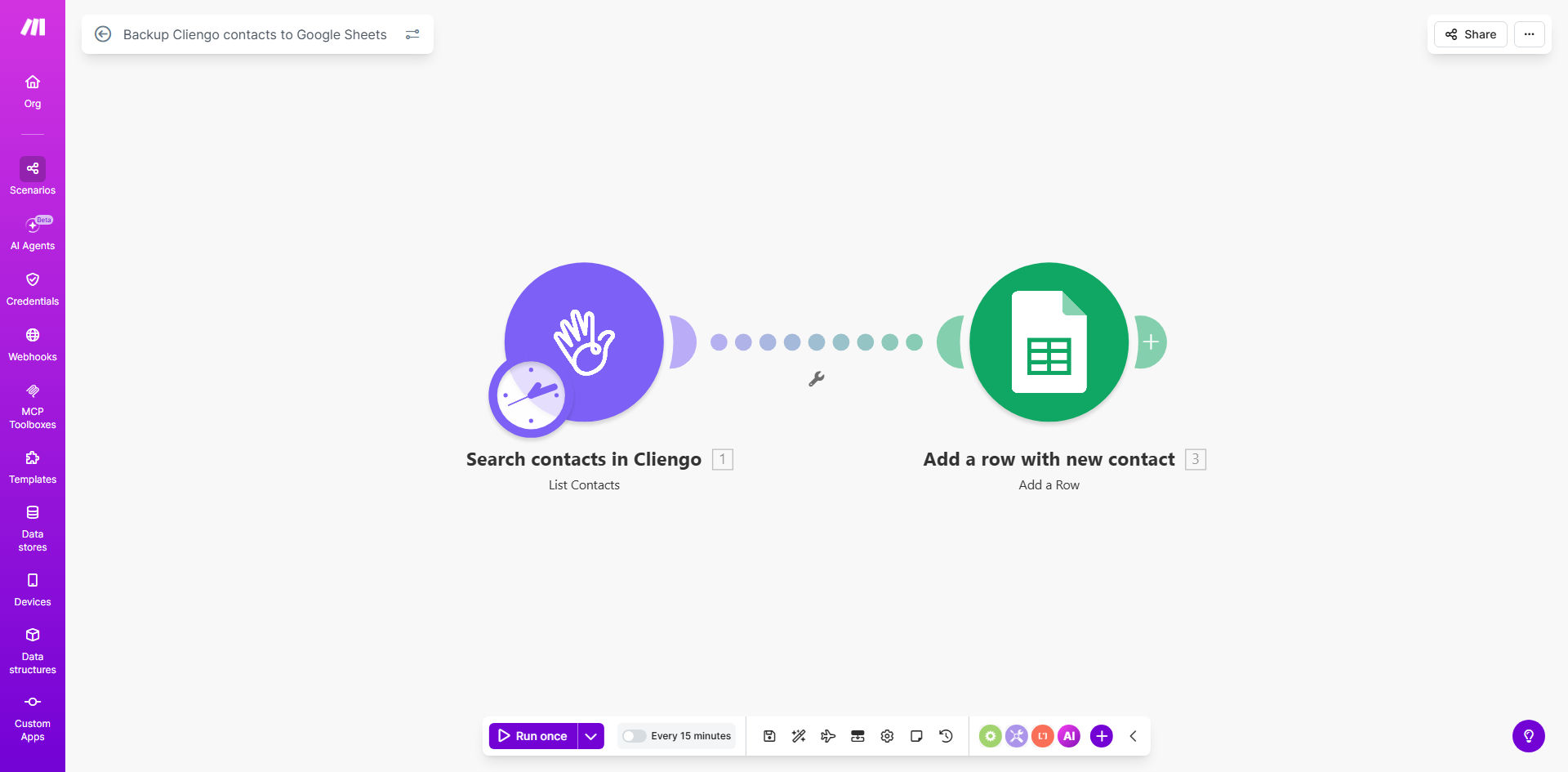
What This Workflow Does
If you use Cliengo's AI chatbot on your website, you're capturing valuable leads 24/7. However, relying solely on Cliengo's interface for lead storage poses risks: data is siloed, difficult to analyze in bulk, and vulnerable to platform-specific issues. Manual exporting is a repetitive, time-consuming task that often gets delayed.
This automation solves that by creating a seamless, real-time bridge between Cliengo and Google Sheets. Every time a visitor submits their information through the chatbot, this workflow triggers instantly. It searches for the latest contact in your Cliengo account and appends a new row to your designated Google Sheet with all relevant details—name, email, phone, conversation snippet, and timestamp.
The result is a live, centralized backup of all your chatbot leads. This transforms your Google Sheet into a powerful hub for your sales team, enabling easier lead tracking, segmentation, and integration with other marketing tools, all while eliminating manual data entry forever.
How It Works
The workflow runs on a scheduled timer or in real-time, ensuring your backup is always current.
Step 1: Monitor for New Cliengo Contacts
The automation periodically checks your connected Cliengo account for newly created contacts. You can set the interval (e.g., every 15 minutes, hourly, or instantly via webhook if supported) to match your business needs.
Step 2: Extract Contact Details
For each new contact found, the workflow pulls key data fields. This typically includes the lead's first name, last name, email address, phone number, the website URL they were on, the initial message, and the exact date and time of the conversation.
Pro tip: Use this step to filter or qualify leads. You can add a simple filter module to only back up contacts that provide an email address, ensuring your sheet contains only actionable leads.
Step 3: Format and Add Row to Google Sheets
The extracted data is mapped to corresponding columns in your pre-configured Google Sheet. The automation logs in via secure connection and adds a new row at the bottom of your sheet. Each backup session is clean, organized, and ready for your team to review.
Who This Is For
This template is ideal for any business using Cliengo to capture website leads. It's particularly valuable for:
- Small Marketing Agencies: Managing multiple client websites and needing a unified view of all chatbot leads.
- E-commerce Stores: Capturing pre-sale questions and customer intent to fuel remarketing campaigns.
- B2B Service Providers: Ensuring no high-value consultation request from their website falls through the cracks.
- Sales Teams: Who need immediate, spreadsheet-friendly lead data to import into their CRM or outreach tools.
- Business Owners: Who want a simple, foolproof backup of their lead generation data without technical overhead.
What You'll Need
- A Make.com account (free tier available).
- A Cliengo account with admin access to generate an API key or set up a connection.
- A Google Sheets spreadsheet set up with column headers for the data you wish to capture (e.g., Date, Name, Email, Message).
- Google account permissions to allow Make.com to edit the specific Google Sheet.
Quick Setup Guide
- Get the Template: Click the "Get This Workflow" button to copy the template to your Make.com account.
- Connect Cliengo: In the first module, authorize Make.com to access your Cliengo account using your API credentials.
- Connect Google Sheets: In the second module, authorize Google and select the specific spreadsheet and worksheet where contacts should be saved.
- Map the Data: Ensure the fields from Cliengo (like `contact.email`) are correctly mapped to the corresponding columns in your Google Sheet.
- Set the Schedule: Configure the trigger to run as often as you need—for most businesses, checking every hour is sufficient.
- Test & Activate: Run a single test cycle to ensure a contact flows from Cliengo into your sheet correctly. Then, turn the scenario on.
Key Benefits
Eliminate Manual Data Entry: Save 1-2 hours per week previously spent copying and pasting lead information from Cliengo into spreadsheets or other systems.
100% Data Safety Net: Protect your lead pipeline from accidental loss. Even if you encounter issues with Cliengo, your complete contact history remains safe and accessible in Google Sheets.
Centralize for Action: Create a single source of truth for all chatbot leads. This makes it easy to sort, filter, and assign leads to team members, speeding up your response time.
Enable Advanced Workflows: Use the Google Sheet as a trigger for further automation. New rows can automatically notify your team via Slack, create tasks in Asana, or add contacts to your email marketing list.
Gain Insights: With all leads in one place, you can easily analyze trends, measure conversion rates from chatbot interactions, and report on the ROI of your website chat tool.