Make.com Invoice Ninja Google Sheets Finance Automation Data Sync

Export Invoice Ninja invoices to Google Sheets as new rows

Automatically capture every new invoice in a centralized spreadsheet—no manual entry, no missed records.

Get This Workflow → Make.com · Free Template
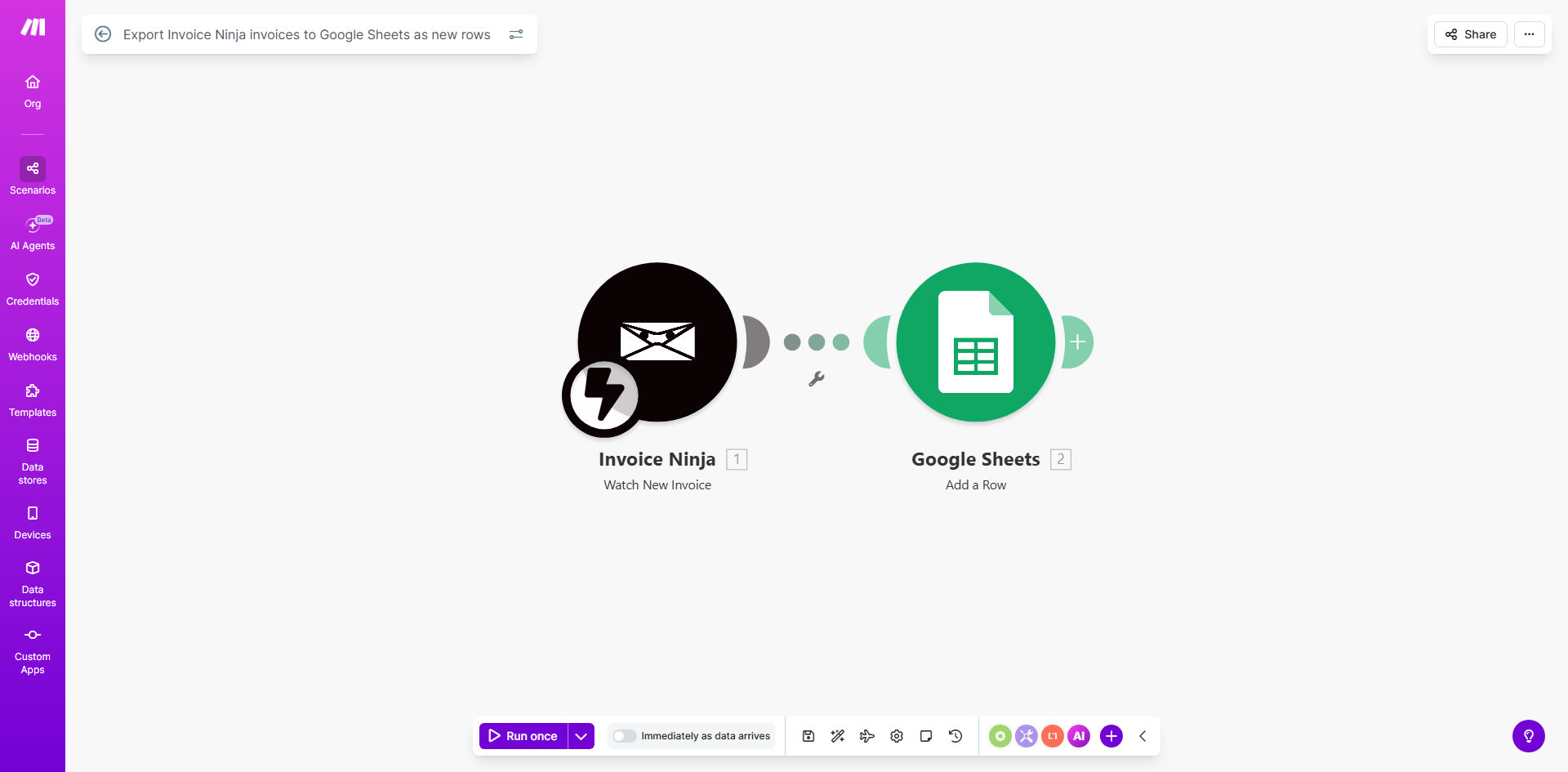
Make.com automation scenario diagram showing Invoice Ninja connected to Google Sheets

What This Workflow Does

For businesses using Invoice Ninja, manually copying invoice data into a spreadsheet is a tedious, error-prone task. This automation solves that by instantly adding every new invoice created in Invoice Ninja as a new row in your Google Sheets spreadsheet. It captures key details like client name, invoice number, amount, date, and status, building a live, centralized financial log.

The primary value is eliminating repetitive data entry, which saves several hours per month for freelancers, small teams, and accounting departments. It also ensures your spreadsheet is always current, providing accurate data for reporting, cash flow analysis, and client tracking. You gain real-time visibility into your invoicing activity without any extra work.

This template is designed as a simple, reliable connector. It uses a pre-defined Google Sheets structure, so you get a clean, organized dataset ready for analysis. Whether you're reconciling accounts, preparing tax documents, or simply keeping a client ledger, this automation turns a manual chore into a seamless background process.

How It Works

1. Trigger: New Invoice in Invoice Ninja

The workflow starts when a new invoice is created within your Invoice Ninja account. Make.com monitors this event via a webhook or API connection, instantly detecting the new record.

2. Data Extraction & Mapping

The automation pulls the relevant fields from the invoice—such as client details, invoice number, total amount, issue date, due date, and payment status. It maps these fields to corresponding columns in your Google Sheets template.

3. Action: Add Row to Google Sheets

Make.com then creates a new row in your specified Google Sheets spreadsheet, inserting the extracted invoice data. The row is appended to the sheet, maintaining a chronological record of all invoices.

4. Completion & Logging

The process completes within seconds. You can optionally add a logging step to record the sync in Make.com’s history, providing an audit trail for each automated entry.

Pro tip: Use a dedicated “Invoices Log” sheet with columns matching Invoice Ninja’s fields. This makes reporting and filtering much easier later.

Who This Is For

This workflow is ideal for freelancers, consultants, small business owners, and accounting teams who use Invoice Ninja for billing and need a simple, automated way to centralize invoice data. It’s perfect if you:

  • Manually copy invoices into spreadsheets for record-keeping.
  • Want real-time financial data for cash flow monitoring.
  • Need accurate invoice logs for tax preparation or client reporting.
  • Use Google Sheets as your primary tool for analysis and planning.
  • Are looking to eliminate human error from data entry tasks.

What You'll Need

  1. A paid or free Invoice Ninja account with active invoicing.
  2. A Google account with access to Google Sheets.
  3. A Make.com account (free tier available).
  4. The target Google Sheets spreadsheet, preferably structured with columns like Client, Invoice #, Amount, Date, Status.
  5. Basic understanding of how to authorize connections between Make.com and both services.

Quick Setup Guide

  1. Get the free template from the Make.com link provided.
  2. Open the template in Make.com and create a copy for yourself.
  3. Authorize the connections to your Invoice Ninja and Google Sheets accounts.
  4. Configure the trigger module to watch for “New Invoice” events in Invoice Ninja.
  5. In the Google Sheets module, specify your spreadsheet URL and the sheet name where rows should be added.
  6. Map the Invoice Ninja fields (client, amount, date, etc.) to the correct columns in your sheet.
  7. Turn on the scenario and test by creating a new invoice in Invoice Ninja—check your sheet for the new row.

Key Benefits

Save 2–5 hours per month on manual data entry. This automation completely removes the task of copying invoice details, freeing up time for higher-value activities like analysis or client communication.

Ensure 100% accuracy in your financial records. Automated transfer eliminates human errors like mistyped amounts or missed invoices, giving you a reliable dataset for decision-making.

Gain real-time visibility into your invoicing activity. Your spreadsheet updates instantly, allowing you to monitor cash flow, track unpaid invoices, and generate reports without delay.

Create a centralized, searchable invoice log. All invoices accumulate in one organized sheet, making it easy to filter by client, date range, or status for quick reference.

Scalable foundation for more advanced finance automation. Once this basic sync is running, you can expand it to handle invoice updates, connect to accounting software, or trigger follow-up actions.

Frequently Asked Questions

Common questions about invoice automation and integration

You can automate invoice tracking by using a tool like Make.com to connect Invoice Ninja and Google Sheets. Whenever a new invoice is created in Invoice Ninja, the automation instantly adds its details—like client name, amount, date, and status—as a new row in your Google Sheets spreadsheet. This eliminates manual copying and ensures your financial data is always synchronized and accurate.

This approach turns a previously manual, error-prone process into a seamless background operation. It's particularly valuable for freelancers and small businesses who need timely financial records without dedicating hours to data entry each month.

Automating invoice data entry saves significant time, reduces human error, and provides real-time financial visibility. Instead of manually logging each invoice, the process happens automatically, freeing up hours per week. It also creates a reliable, centralized record for reporting, tax preparation, and client analysis, improving overall financial management.

Beyond efficiency, automation ensures data consistency and completeness. You'll never miss an invoice, and your records will always reflect the latest status, enabling better cash flow forecasting and business decision-making.

Yes, most automation platforms allow you to select specific invoice fields to transfer. You can choose to include client information, invoice number, total amount, due date, payment status, and line items. This customization lets you build a spreadsheet that matches your exact reporting and analysis needs, filtering out unnecessary data.

For example, you might only need client name and amount for a simple tracker, or you could include detailed line items for project-based analysis. The flexibility allows you to tailor the automation to your business's unique requirements.

Automated syncing is secure when using reputable platforms with proper encryption and access controls. Make.com and similar tools use secure connections (OAuth) between Invoice Ninja and Google Sheets, ensuring data is transmitted safely. You maintain control over which data is shared, and the automation only accesses the specific invoice information you configure.

It's important to use official integrations and follow best practices like regular audit of access logs. The automation does not store your data permanently; it merely facilitates the transfer between your own accounts.

This basic template adds new invoices only. For updates or deletions, you would need a more advanced workflow that can modify or remove corresponding rows in Google Sheets. Many businesses start with new invoice capture and later expand the automation to handle changes, ensuring their spreadsheet always reflects the current state of their invoicing.

Building an update/deletion handler requires additional logic to find the existing row and change it. This is a common next step after establishing the initial sync, providing full lifecycle tracking.

Start by getting the free template from Make.com. You'll need accounts for both Invoice Ninja and Google Sheets, and you'll authorize the connections between them. Then, you configure the trigger (new invoice in Invoice Ninja) and the action (add row to Google Sheets). The template provides a pre-built structure, so you mainly need to map your specific invoice fields to your spreadsheet columns.

The process typically takes under 30 minutes. After setup, create a test invoice to verify the automation works. Once confirmed, it runs continuously without further intervention, syncing new invoices as they appear.

Yes, the principle works with many tools. Make.com can connect Invoice Ninja to other destinations like QuickBooks, Xero, or Notion. Similarly, you can trigger from other invoicing platforms like Stripe or PayPal. The key is having a platform that supports webhooks or APIs for your invoicing tool and your desired destination.

This flexibility allows you to build a unified financial system. You could send invoices to a spreadsheet for logging, to an accounting tool for reconciliation, and to a CRM for client history—all from the same trigger event.

Absolutely. GrowwStacks specializes in building tailored automation systems. While this free template is a great starting point, we can design a workflow that handles invoice updates, syncs with multiple tools, adds complex calculations, or integrates with your specific CRM or ERP. We ensure the solution fits your unique business processes and scales with your growth.

Custom automations can include conditional logic, multi-step approvals, and advanced reporting. We work with you to identify pain points and design a system that not only syncs data but also enhances your overall financial operations.

Need a Custom Invoice Automation?

This free template is a starting point. Our team builds fully tailored automation systems for your specific business needs.