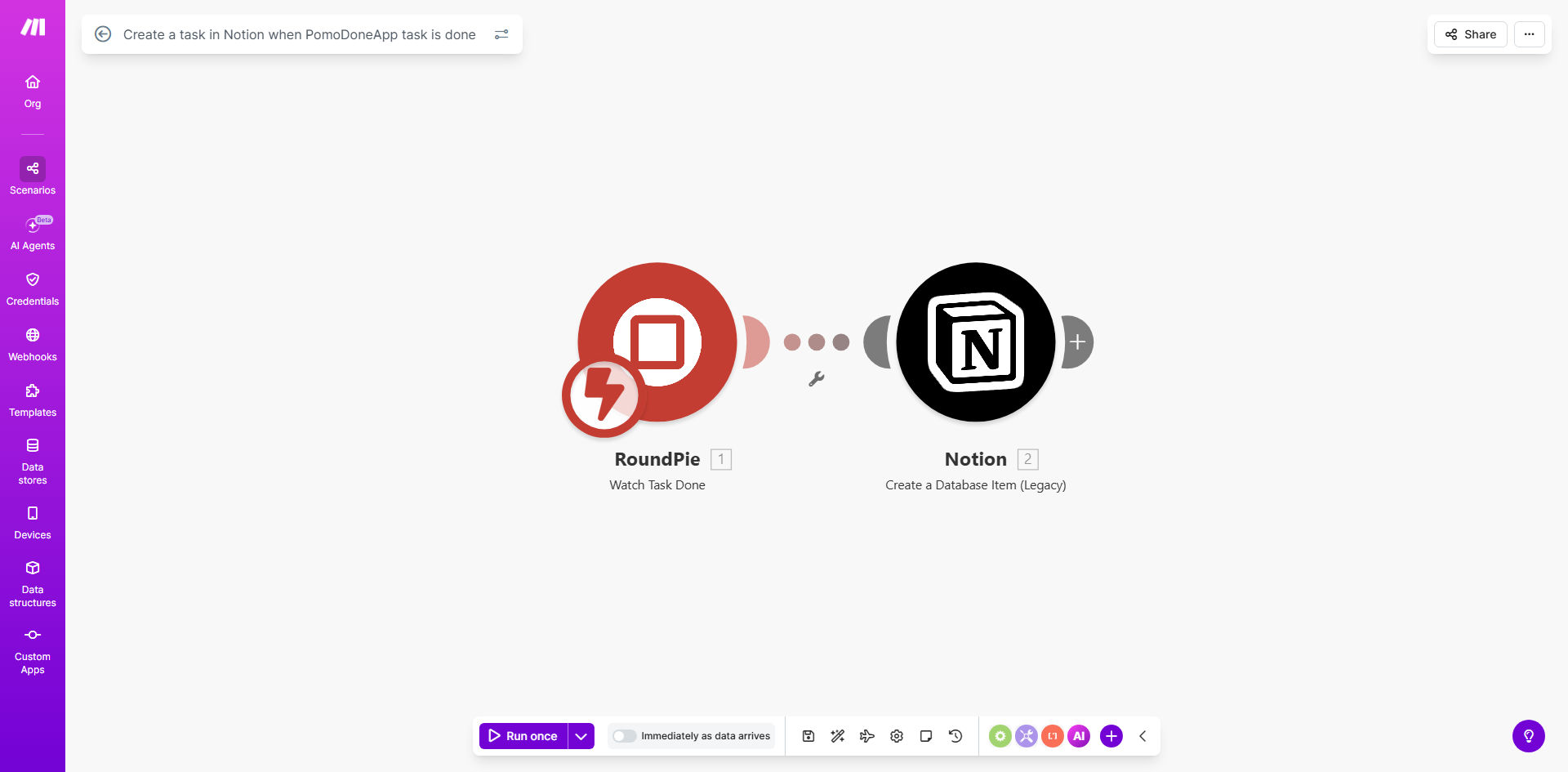
What This Workflow Does
For professionals using the Pomodoro Technique with PomoDoneApp, a common frustration is the disconnect between time tracking and project management. You finish a productive 25-minute session focused on a specific task, but that completion data stays siloed in your timer app. To log it in your central project hub like Notion, you have to manually copy details over—a repetitive task that breaks your flow and wastes precious minutes multiple times a day.
This automation solves that by creating a seamless, one-way sync from PomoDoneApp to Notion. The moment you mark a task as "Done" in PomoDoneApp, this Make.com workflow triggers. It captures key details like the task name, duration, project, and completion timestamp, then automatically creates a new, formatted item in your specified Notion database. This turns your time tracking data into actionable project records without any manual intervention.
The result is a unified system where your measured effort is directly linked to your project documentation. This is invaluable for freelancers tracking billable hours, teams managing sprints, or anyone aiming to analyze their productivity patterns with accurate, automatically generated data.
How It Works
The workflow operates on a simple trigger-action principle, orchestrated by Make.com to ensure reliability and flexibility.
Step 1: Trigger on Task Completion
The workflow starts by watching your PomoDoneApp account. The "Watch Tasks" module is configured to monitor for a specific event: a task's status changing to "Done." As soon as you finish a Pomodoro session and mark it complete, PomoDoneApp sends a real-time webhook notification to Make.com, kicking off the automation.
Step 2: Data Parsing and Preparation
Make.com receives the raw data from PomoDoneApp, which includes fields like task title, duration, associated project or tags, and the exact time of completion. The workflow can include a "Router" or filter to handle specific conditions—for example, only processing tasks from certain projects or with a minimum duration. The data is then mapped and formatted to match the property structure of your Notion database.
Step 3: Create the Notion Database Item
The final step is the creation of a new page (item) inside your chosen Notion database. Make.com uses the Notion "Create a Database Item" module, authenticating with your connected Notion workspace. It populates the database properties using the data from Step 2. The task title becomes the page name, the duration is logged in a number or text property, and the completion date is set, creating a perfect historical record of your focused work.
Pro tip: Use Notion's "Relation" property to link these automated task logs to a main project database. This creates a powerful, interconnected system where you can see all time spent directly from the project page.
Who This Is For
This automation is a game-changer for anyone who values data-driven productivity and wants to eliminate administrative drag.
Freelancers & Consultants: Automatically generate detailed, time-stamped logs of billable work sessions for transparent client reporting and accurate invoicing.
Remote Teams & Agencies: Ensure consistent time tracking across the team by automatically centralizing completed Pomodoro sessions into a shared Notion project dashboard for better resource planning.
Students & Researchers: Log study or research sessions directly into a Notion knowledge base, creating a searchable history of time invested in different subjects or papers.
Product Managers & Developers: Connect focused coding or design sprints (tracked in PomoDoneApp) directly to task tickets or epics in a Notion product roadmap for precise sprint analysis.
What You'll Need
To clone and use this template, you will need the following accounts and assets set up and ready:
- A Make.com account (free tier is sufficient to run this workflow).
- An active PomoDoneApp account with tasks you regularly mark as complete.
- A Notion account and a workspace where you have permission to create integrations.
- A Notion database prepared to receive the task logs. Decide on the properties you want to populate (e.g., "Task Name," "Duration," "Date," "Project").
- The internal integration token from your Notion workspace settings to allow Make.com to connect.
Quick Setup Guide
You can have this automation running in under five minutes by following these steps:
- Get the Template: Click the "Get This Workflow" button above to open the template in your Make.com account and create a copy of the scenario.
- Connect PomoDoneApp: In the first module, click to add a connection to your PomoDoneApp account. Authorize Make.com to access your task data.
- Connect Notion: In the Notion module, create a new connection using your Notion internal integration token. Then, select the specific database you want the tasks to be created in.
- Map Your Data: Review the data mapping between the PomoDoneApp fields and your Notion database properties. Adjust the property names (like "Title," "Duration (min)") to match your Notion database exactly.
- Test & Activate: Run a single test execution by completing a task in PomoDoneApp. Check your Notion database to confirm a new item appears correctly. Once verified, turn the scenario "ON."
Key Benefits
Eliminate Manual Data Entry: Save 2-3 minutes per completed Pomodoro session that would otherwise be spent switching apps and copying information. For 10 sessions a day, that's over 30 minutes of recovered productive time daily.
Create an Accurate Work Journal: Build a flawless, searchable history of your focused work in Notion. This is invaluable for performance reviews, project retrospectives, and understanding your personal productivity rhythms.
Improve Project Accountability: For teams, this automation ensures every member's tracked time is automatically documented against the project, providing managers with real-time, unbiased insight into effort distribution and project progress.
Enhance Client Transparency: Freelancers can provide clients with automatically generated, detailed logs of work sessions directly from their project management system, building trust and justifying invoices with concrete data.
Maintain Flow State: By removing the post-session administrative task, you protect your concentration. Finish a Pomodoro, mark it done, and immediately move to your next focus block without breaking your mental momentum.