What This Workflow Does
For professionals using the Pomodoro Technique, manually recording completed sessions is a tedious, error-prone task that often gets skipped. This breaks the feedback loop essential for improving productivity and accurate time billing.
This automation solves that by creating a seamless bridge between PomoDoneApp and Google Sheets. Every time you finish a focused work session and stop the timer, the workflow instantly captures key details—like the task name, duration, project, and timestamp—and appends them as a new row in your designated spreadsheet. This transforms your time-tracking from a chore into an automatic, reliable data stream.
The result is a living log of your work. You no longer have to remember to write down what you did or for how long. The data accumulates passively, ready for you to analyze weekly productivity, calculate billable hours, or review time allocation across projects.
How It Works
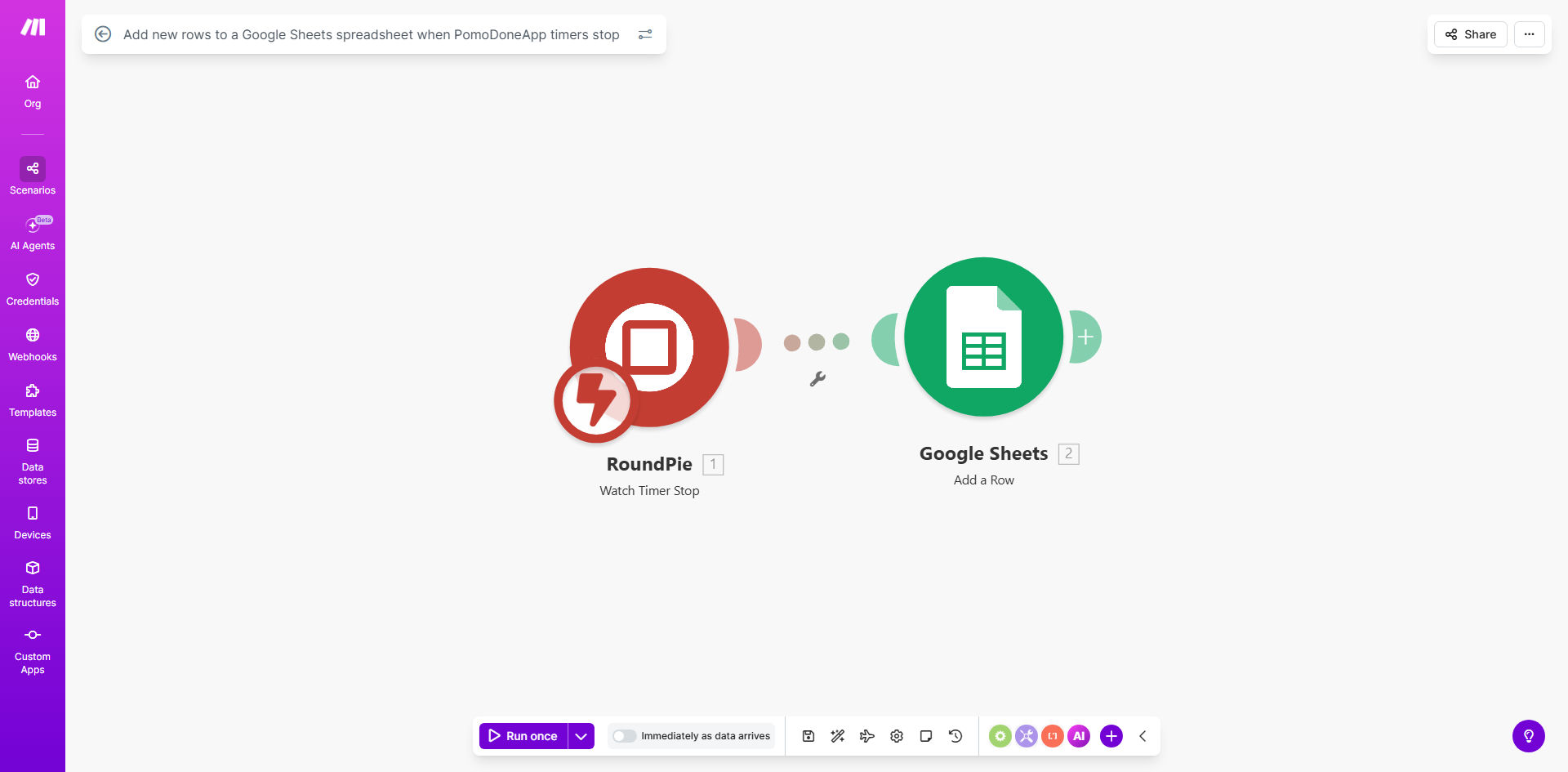
The workflow is a straightforward, trigger-based automation built on Make.com. Here’s the step-by-step process:
Step 1: Timer Stop Trigger
The automation is initiated by the "Watch Events" module in PomoDoneApp. It monitors for the specific event of a timer being stopped. When this happens, it instantly captures the payload of data associated with that timer session.
Step 2: Data Parsing & Formatting
Make.com receives the data, which includes fields like the task description, start time, end time, total duration, and any associated tags or list names. The workflow can parse this data, calculate the session length, and format dates/times to match your preferred spreadsheet structure.
Step 3: Add Row to Google Sheets
The formatted data is then sent to Google Sheets via the "Add a Row" module. It finds your specified spreadsheet and worksheet, then inserts a new row with each piece of data mapped to its corresponding column (e.g., Date, Task, Duration, Project). The log is updated in real-time.
Pro tip: Use the provided example spreadsheet as a template. It already has logical columns set up. Simply make a copy, connect it in Make, and your automation will have a clean structure from day one.
Who This Is For
This template is a powerful tool for anyone who values data-driven productivity. It's ideal for freelancers and consultants who need accurate timesheets for client billing. Students and researchers can use it to track study hours across subjects. Project managers and remote teams can implement it to gain passive insights into how time is spent on various tasks without requiring manual status updates from team members.
Essentially, if you use the Pomodoro Technique and have ever wondered "Where did my time go this week?", this automation provides the concrete, searchable answer.
What You'll Need
- A Make.com account (free tier is sufficient to run this workflow).
- A PomoDoneApp account with active timers.
- A Google Sheets spreadsheet (you can use the provided example template or create your own).
- API connections authorized between Make.com and both PomoDoneApp and Google Sheets.
Quick Setup Guide
You can be up and running in under 10 minutes by following these steps:
- Get the Template: Click "Get This Workflow" to copy the template into your Make.com account.
- Prepare Your Sheet: Make a copy of the example spreadsheet. Note its Sheet ID and worksheet name.
- Connect PomoDoneApp: In the first Make module, authorize your PomoDoneApp account to allow Make to watch for timer events.
- Connect Google Sheets: In the final module, authorize Google Sheets and select your copied spreadsheet and worksheet.
- Map the Data: Ensure the data from PomoDoneApp (task, duration, etc.) is correctly mapped to the corresponding columns in your Sheets setup.
- Test & Activate: Run the scenario once manually by stopping a PomoDoneApp timer. Check if a row appears in your sheet. Then, schedule the scenario to run automatically.
Key Benefits
Eliminate Manual Data Entry: Save 30–60 minutes per week previously spent copying timestamps and task names from your timer app into a log. The automation does it instantly and without fail.
Build an Auditable Time Record: Create a perfect, timestamped history of your work. This is invaluable for client invoicing, performance reviews, or personal productivity analysis, providing evidence-based insights.
Improve Project Estimation: By analyzing historical data on how long specific tasks actually take, you can quote future projects more accurately, set realistic deadlines, and improve your overall planning and profitability.
Enhance Focus and Accountability: Knowing that every session is being logged can reinforce the commitment to the Pomodoro technique. For teams, it fosters a culture of transparency and data-informed work distribution.
Enable Advanced Analysis: With all your time data in Google Sheets, you can easily create pivot tables, charts, and dashboards to visualize trends, identify time drains, and celebrate productivity wins.