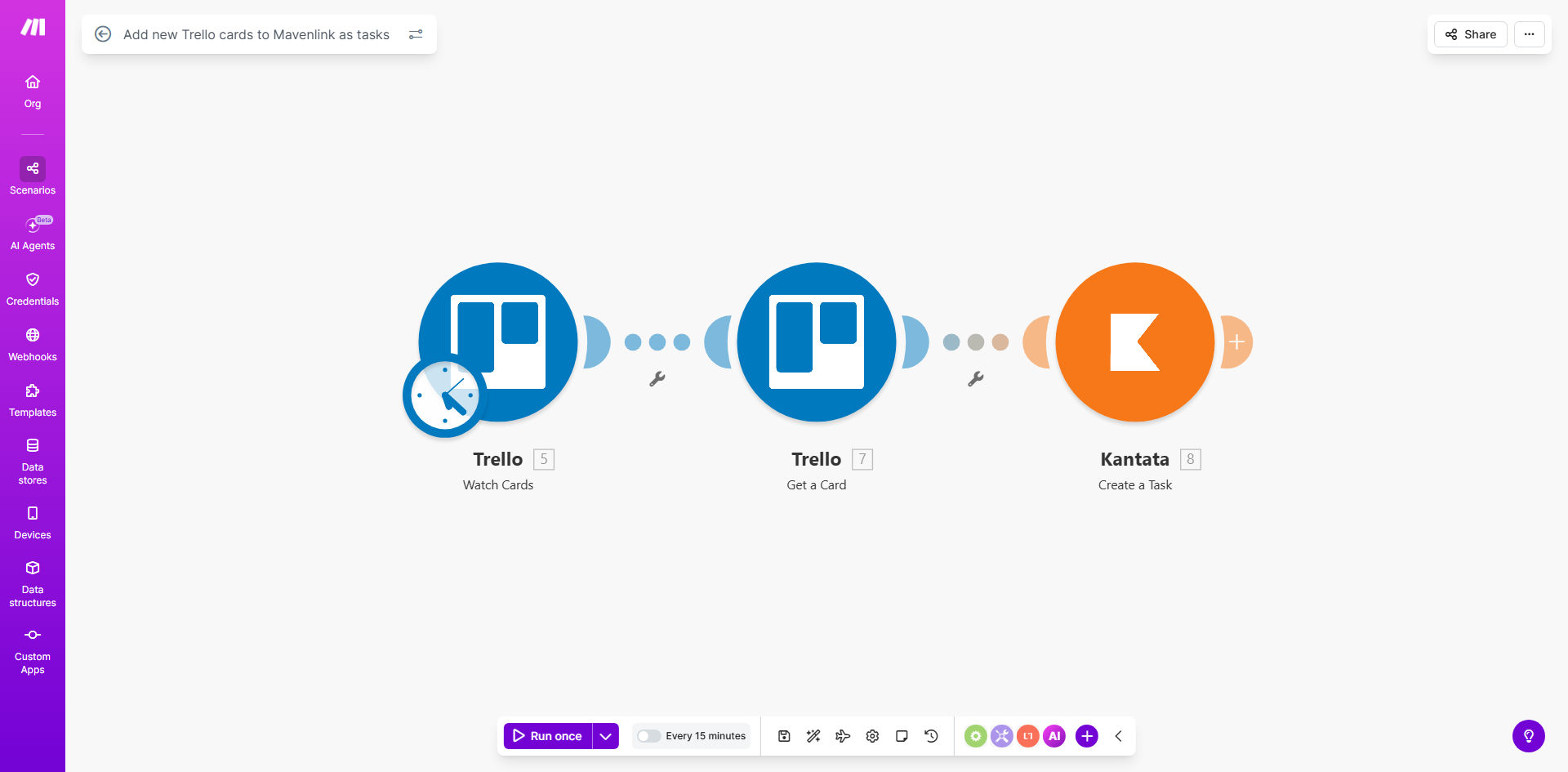
What This Workflow Does
Many teams use Trello for agile planning and brainstorming—it's visual, collaborative, and perfect for capturing ideas quickly. However, when it comes to professional project execution, tracking time, allocating resources, and billing clients, tools like Mavenlink are essential. The disconnect between these two systems creates a manual bottleneck: someone must copy tasks from Trello into Mavenlink, which is time-consuming and prone to errors.
This automation solves that problem. It acts as a real-time bridge between your creative planning space (Trello) and your professional project management suite (Mavenlink). Every time a new card is created in a specified Trello board, this Make.com scenario instantly creates a corresponding task in a selected Mavenlink project. This ensures that work defined in Trello is immediately actionable, trackable, and billable within Mavenlink.
The business value is clear: it eliminates redundant administrative work, reduces the risk of tasks being forgotten or miscommunicated, and provides a seamless flow from ideation to execution. Project managers save hours each week, and the business gains accurate, real-time data for forecasting and profitability analysis.
How It Works
Step 1: Trigger on New Trello Card
The workflow starts by monitoring a specific Trello board. The Make.com scenario uses the Trello module to watch for the "Create Card" event. You configure it to listen to a particular board, and optionally filter by lists (like "To Do" or "Backlog"). Whenever a team member adds a new card, the automation captures all its details: name, description, assignee, labels, due date, and any custom fields.
Step 2: Map Data to Mavenlink Fields
Make.com then processes the captured Trello card data. You set up mapping rules to translate Trello information into Mavenlink task properties. For example, the Trello card name becomes the Mavenlink task title, the description becomes the task notes, and the assignee (if mapped to a team member email) can be set as the task owner. You can also use labels to set priority or category in Mavenlink.
Step 3: Create Task in Mavenlink
The final step uses the Mavenlink module to create a new task within a predefined project. The scenario sends the mapped data to Mavenlink, creating a task with all the necessary details. The task is now live in Mavenlink, ready for time entries, resource assignments, and inclusion in project plans and client invoices.
Pro tip: Use Trello labels as triggers for specific Mavenlink actions. For example, a label "Billable" could automatically set the task type in Mavenlink to "Client Work," streamlining your billing process.
Who This Is For
This workflow is ideal for any business that uses Trello for operational planning and Mavenlink for professional project delivery. This includes:
- Marketing & Creative Agencies: Teams that brainstorm campaigns in Trello but need to track time and bill clients accurately via Mavenlink.
- Software Development Teams: Developers who manage backlog items in Trello but require tasks to be formally logged in Mavenlink for sprint planning and cost tracking.
- Consulting Firms: Consultants who capture client requests and ideas in Trello cards, which then need to become formal deliverables with budgets in Mavenlink.
- Project Managers & Operations Leads: Professionals tired of manually transferring tasks between systems, seeking to automate data flow and improve team efficiency.
What You'll Need
- A Make.com account (free or paid tier) to host and run the automation scenario.
- Access to your Trello account, specifically the board you want to monitor for new cards.
- A Mavenlink account with an active project where new tasks will be created.
- The necessary API keys or connection permissions to link Make.com to both Trello and Mavenlink (Make.com provides guided setup for these connections).
- A clear understanding of which Trello board/list and which Mavenlink project you want to connect.
Quick Setup Guide
- Clone the Template: Use the "Get This Workflow" button above to open the template on Make.com and clone it to your own workspace.
- Connect Your Apps: In the Make.com scenario, establish connections to your Trello and Mavenlink accounts by following the in-app authorization steps.
- Configure the Trigger: Select the specific Trello board you want to monitor. You can optionally filter by list to avoid syncing cards from irrelevant columns.
- Map the Data: In the Mavenlink "Create Task" module, map the incoming Trello fields (like card name, description) to the corresponding Mavenlink task fields (title, notes).
- Select the Destination: Choose the target Mavenlink project where new tasks should be created. Ensure the project is active and you have permission to add tasks.
- Test and Activate: Create a test card in your Trello board. Run the scenario once to verify a task appears correctly in Mavenlink. Then turn the scenario on to run automatically.
Key Benefits
Save 5–10 hours per month on manual task entry. Eliminate the repetitive work of copying information between systems, freeing up project managers for higher-value activities.
Improve data accuracy and reduce errors. Automated transfer ensures task details are consistent and complete, preventing mistakes from manual typing or omissions.
Accelerate project kick-off. Ideas captured in Trello become actionable Mavenlink tasks instantly, speeding up the transition from planning to execution.
Enhance billing and profitability tracking. Every task is immediately available for time tracking in Mavenlink, ensuring all work is accounted for and billable hours are captured.
Create a unified workflow for your team. Bridge the tool gap, allowing teams to work in their preferred platform (Trello) while ensuring business processes (Mavenlink) are seamlessly integrated.