Make.com Project Management Calendar Sync Mavenlink Google Calendar

Add Mavenlink Tasks to a Google Calendar

Automatically create Google Calendar events for every new task with a deadline in Mavenlink. Keep your schedule perfectly aligned with project timelines.

Get This Workflow Make.com · 1 Module · Free Template
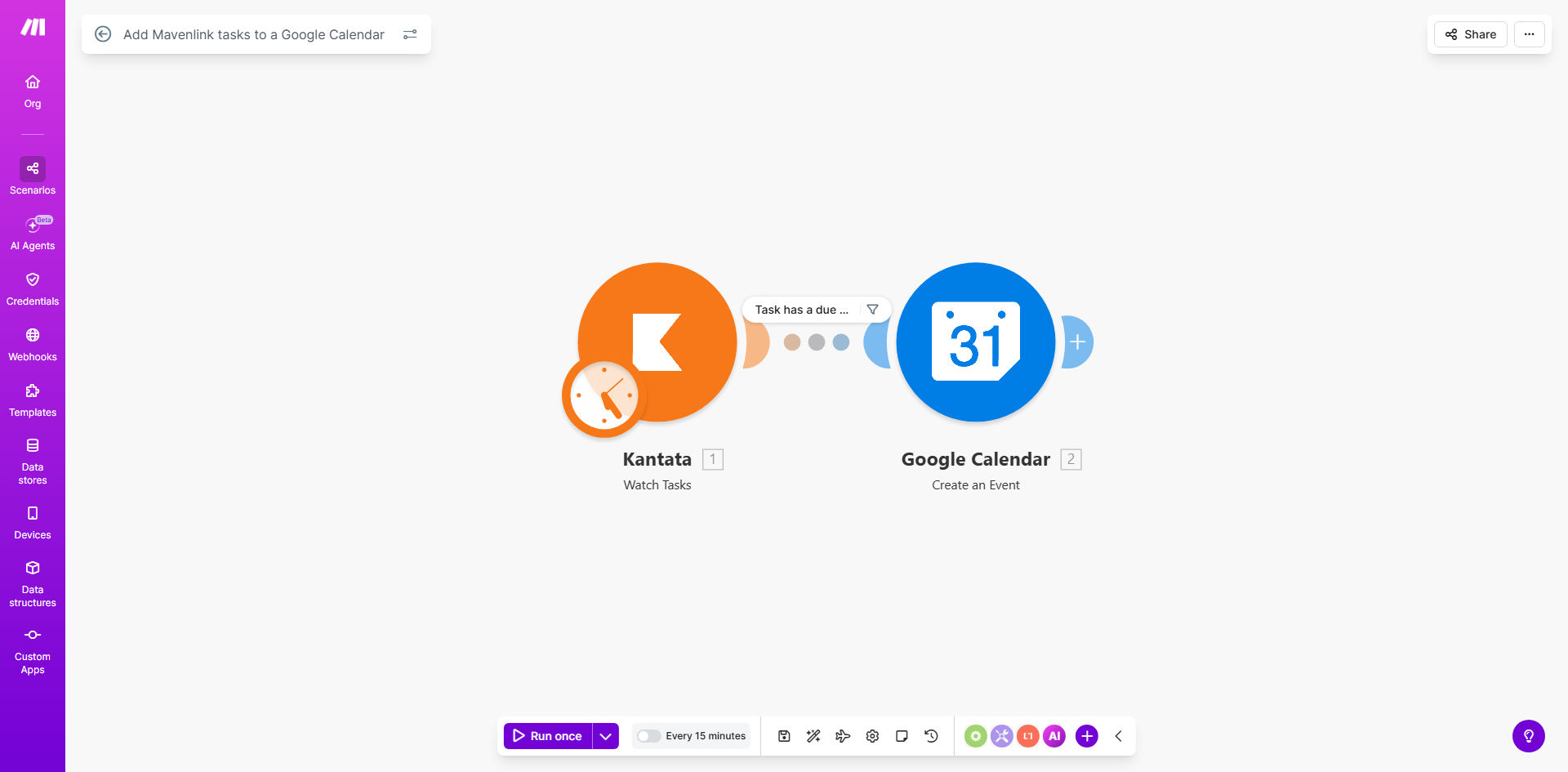
Make.com automation workflow diagram showing Mavenlink triggering a Google Calendar event creation

What This Workflow Does

For project managers and teams using Mavenlink, keeping track of task deadlines across multiple projects is a constant challenge. Tasks are created and assigned within Mavenlink, but their due dates often live separately from your daily schedule in Google Calendar. This disconnect leads to manual copying, missed deadlines, and schedule conflicts.

This automation workflow solves that problem by creating a seamless bridge between your project management tool and your personal calendar. Every time a new task is created in Mavenlink and has a due date assigned, Make.com instantly creates a corresponding event in your specified Google Calendar. The event includes the task name, description, and due date, turning a project milestone into a visible calendar commitment.

The result is a unified scheduling system where your project timeline and your daily agenda are always synchronized. You no longer need to manually transfer deadlines, reducing administrative overhead and ensuring every task deadline is visually accounted for, improving project visibility and on-time delivery.

How It Works

Step 1: Trigger on New Mavenlink Task

The workflow starts by monitoring your Mavenlink account. The Make.com scenario uses the Mavenlink module to watch for the creation of new tasks. It filters for tasks that have a due date field populated, as this is required to create a calendar event.

Step 2: Extract Task Details

Once a new task with a due date is detected, the workflow pulls key information: the task name, description, assigned due date and time, and any relevant project or assignee details. This data is formatted and prepared for the next step.

Step 3: Create Google Calendar Event

Using the Google Calendar module, Make.com creates a new event in your chosen calendar. The event title is set to the Mavenlink task name. The start and end times are configured based on the task's due date (often set as a single-day event). The event description can include the task details from Mavenlink, providing context directly in your calendar.

Pro tip: You can customize the event duration. For example, set a 1-hour event for a deadline to block out focus time, or create an all-day event for a due date to serve as a visual marker.

Who This Is For

This template is ideal for any business or team that uses Mavenlink for project management and Google Calendar for scheduling.

  • Project Managers & Team Leads: Automatically see all project deadlines in your calendar, making capacity planning and resource allocation easier.
  • Consulting Firms & Agencies: Keep client project deliverables visually scheduled alongside internal meetings and other commitments.
  • Development & Creative Teams: Ensure every sprint task, design milestone, or review deadline appears in the team's shared calendar, improving time awareness.
  • Freelancers & Solo Operators: Sync your Mavenlink client task deadlines directly to your personal calendar, eliminating the need for double-entry.

What You'll Need

  1. A Make.com account (free tier available).
  2. A Mavenlink account with active projects and tasks.
  3. A Google Calendar account (personal or Google Workspace).
  4. API access credentials for both services (set up via OAuth within Make.com).
  5. Tasks in Mavenlink that have a due date field set. The automation will only trigger for tasks with this field populated.

Quick Setup Guide

  1. Clone the Template: Click "Get This Workflow" to open the template on Make.com and clone it to your own account.
  2. Connect Mavenlink: In the first module, authorize the connection to your Mavenlink account. Specify which project or task list you want to monitor.
  3. Connect Google Calendar: In the calendar module, authorize the connection to your Google account and select the specific calendar (e.g., "Primary") where events should be created.
  4. Test the Trigger: Create a new task with a due date in your Mavenlink project. The workflow should run and create a corresponding event in your Google Calendar.
  5. Customize Event Details: Optionally, adjust the event title format, description content, or duration within the Make.com scenario to match your preferences.

Key Benefits

Save 1-2 hours per week on manual calendar updates. Eliminate the repetitive task of copying deadlines from Mavenlink to your calendar. This time savings compounds across teams, freeing up focus for actual project work.

Reduce missed deadlines by creating visual schedule reminders. When a task deadline exists only in a project management tool, it's easy to overlook. Placing it directly on your calendar creates a daily visual prompt, significantly improving on-time completion rates.

Improve project visibility and team alignment. By syncing deadlines to calendars, everyone involved gains a real-time, unified view of upcoming deliverables. This transparency helps prevent schedule conflicts and fosters better collaborative planning.

Ensure data accuracy with automated transfer. Manual entry is prone to errors like wrong dates or missing details. Automation guarantees that the exact task name and due date from Mavenlink are transferred correctly to your calendar.

Create a scalable system for growing project loads. As your team or project count grows, manual scheduling becomes unsustainable. This automation scales effortlessly, handling hundreds of tasks without any additional administrative effort.

Frequently Asked Questions

Common questions about project management and calendar automation

Syncing project tasks to a calendar provides a unified view of deadlines and commitments, preventing schedule conflicts and missed deadlines. It transforms abstract project timelines into tangible calendar events, ensuring team members and managers can plan their daily work around actual project deliverables, improving accountability and on-time completion.

For example, a project manager can see client deliverables alongside internal meetings, allowing for realistic capacity planning. Team members avoid overbooking themselves because their project deadlines are visually blocking time in their schedule.

Automating this integration saves significant administrative time by eliminating manual calendar entry, ensures data accuracy by directly transferring task details, and improves project visibility by giving everyone a real-time view of deadlines in their personal calendar. It also reduces the risk of tasks being overlooked because they aren't visually scheduled.

The automation acts as a reliable bridge, ensuring that any change in the project plan (a new task) is immediately reflected in the execution schedule (your calendar). This creates a closed-loop system between planning and doing.

  • Time savings: No manual copying of dates.
  • Error reduction: Automated data transfer is exact.
  • Improved adherence: Visual reminders increase deadline compliance.

The basic template creates a calendar event for each new task with a due date. For recurring tasks or multiple assignees, the workflow can be extended within Make.com. You can add logic to create recurring calendar events based on task recurrence settings or to create separate calendar events for each assignee, ensuring everyone gets their own reminder.

This requires adding additional modules and routing paths in the scenario. For instance, you could parse the task's recurrence field and use the Google Calendar module's recurrence rules, or split a task's assignee list and create individual events for each person.

By placing project deadlines directly into team members' Google Calendars, it creates a shared reference point for timing. Everyone can see upcoming deliverables, plan their workload, and avoid overbooking. This transparency fosters accountability, as missed deadlines become visible schedule gaps, and encourages proactive communication about timeline adjustments.

In practice, if a developer sees a code review deadline on their calendar, they can block time for it. If a designer sees a mockup due date, they can communicate early if they need more time. The calendar becomes a common language for project timing beyond the project management tool.

The template triggers on new task creation. To handle date changes, you would need to modify the workflow to also watch for task updates in Mavenlink. An enhanced version could update or delete the corresponding Google Calendar event when a task's due date is modified, keeping the calendar perfectly synchronized with the latest project reality.

This involves adding a second Mavenlink watch module for "updated tasks" and then using Google Calendar modules to search for the existing event and modify its date. It's a common customization we build for clients who need dynamic sync.

Yes, using a reputable platform like Make.com is safe. Connections are established via official, secure APIs using OAuth authentication. The automation only accesses the data you specify (new tasks with due dates) and performs the actions you define (creating calendar events). No sensitive data is stored on Make.com; it merely acts as a secure conduit.

You grant permissions only for the specific actions needed (read tasks from Mavenlink, write events to Google Calendar). These permissions can be revoked at any time from your account settings in each service.

Similar automations can be built for Asana, Trello, Jira, Monday.com, and ClickUp. The principle is the same: watch for new tasks or deadlines in the project tool and create corresponding calendar events. Each integration helps bridge the gap between project planning tools and personal scheduling tools, centralizing deadline management.

The value is universal: regardless of which project tool you use, automating the sync to your calendar saves time and improves deadline visibility. The specific workflow steps vary slightly based on each tool's API, but the outcome is identical.

Absolutely. GrowwStacks specializes in building custom automations that connect your specific project management tools (like Mavenlink, Asana, Jira) with your scheduling and communication apps (Google Calendar, Outlook, Slack). We design workflows that handle complex logic like date changes, multi-assignee tasks, recurring events, and notifications tailored to your team's processes.

We start with a free consultation to understand your current workflow pain points, then design and implement a robust automation system that saves you time, reduces errors, and keeps your team perfectly synchronized. Whether you need simple sync or a multi-step workflow with conditional logic, we build it.

  • Tailored to your exact tool stack and processes.
  • Handles complex scenarios like updates and reassignments.
  • Includes testing, documentation, and ongoing support.

Need a Custom Project Management Automation?

This free template is a starting point. Our team builds fully tailored automation systems for your specific business needs.