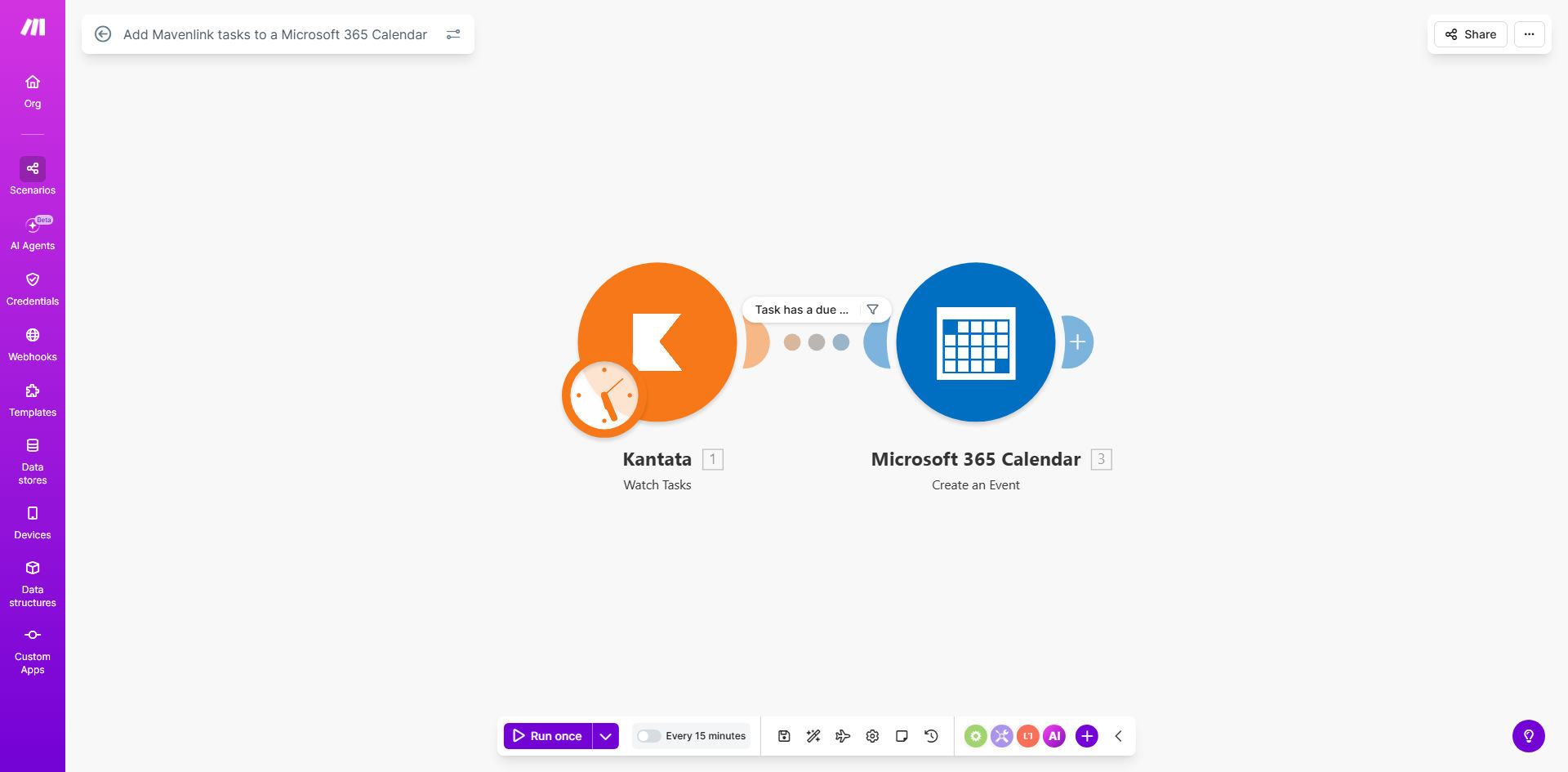
What This Workflow Does
For project managers and teams using Mavenlink, a critical challenge is ensuring that task deadlines don't just live inside the project management software. When due dates are hidden within a tool, they can easily be overlooked, leading to missed deadlines, rushed work, and project delays. This disconnect between project planning and daily execution creates a significant operational risk.
This free Make.com template solves that problem by building a seamless bridge between Mavenlink and Microsoft 365 Calendar. Every time a new task is created in Mavenlink and has a due date assigned, the automation instantly creates a corresponding event in your specified Microsoft 365 Calendar. The task name, due date/time, and any relevant details become a calendar entry, placing the deadline directly into the daily view of everyone involved. This transforms project plans from a static list into a dynamic, time-bound schedule that integrates with your existing workflow.
The business value is clear: it eliminates manual, error-prone data entry, ensures universal visibility of deadlines, and aligns project timelines with individual and team capacity. By automating this sync, you protect your project's on-time delivery rate and free up mental bandwidth for your team to focus on the work itself, not on administrative tracking.
How It Works
The automation acts as a smart connector, watching for changes in Mavenlink and intelligently updating your Microsoft 365 Calendar. Here's the step-by-step process:
Step 1: Trigger on New Mavenlink Tasks
The workflow is initiated by the "Watch Tasks" module in Make.com. It periodically checks your connected Mavenlink account for any new tasks that have been created. The trigger is specifically configured to only act on tasks where a due date is present, ensuring your calendar isn't cluttered with open-ended items.
Step 2: Extract and Format Task Data
Once a new task with a due date is detected, Make.com retrieves all the relevant information. This includes the task name, description, due date and time, assignee, and associated project name. The system prepares this data, often formatting the date to be compatible with Microsoft 365's calendar API and constructing a clear event title (e.g., "Due: [Task Name] - [Project Name]").
Step 3: Create the Calendar Event in Microsoft 365
The formatted data is then sent to Microsoft 365 via the "Create an Event" module. The automation specifies the target calendar, sets the event's start and end time based on the task's due date (often creating a 1-hour event as a visual reminder), and populates the event details with the task information. A link back to the original Mavenlink task can also be included for quick access.
Pro tip: Configure the event to end 1 hour after it starts. This creates a clear time block in your calendar, making the deadline more visually prominent than a simple all-day event.
Step 4: Handle Errors and Confirmations
The workflow includes error-handling routes. If the calendar event creation fails (e.g., due to permissions or an invalid date), the scenario can be set to retry or send a notification. On successful creation, you can optionally log the action or send a confirmation to a Slack channel, providing transparency that the sync is working.
Who This Is For
This automation delivers immense value for any professional or team that relies on structured project delivery. It's ideal for Project Managers and Coordinators who need to ensure team visibility on deadlines. Marketing and Creative Agencies managing client deliverables across multiple campaigns will find it prevents last-minute scrambles. Software Development Teams using agile methodologies can sync sprint task due dates to their calendars. Consultants and Freelancers juggling multiple client projects can use it to maintain a unified view of all commitments. Essentially, any business using Mavenlink for professional services automation (PSA) or project management that wants to bridge the gap between planning and execution should implement this sync.
What You'll Need
To set up this automation, you will need the following accounts and permissions:
- A Make.com account (free or paid plan).
- An active Mavenlink account with API access (typically available in paid plans). You'll need admin or owner permissions to generate an API key.
- A Microsoft 365 Business or Enterprise account with access to the Calendar API. You'll need to authenticate Make.com with the account that owns or has write access to the target calendar.
- Clear understanding of which Mavenlink project(s) and which specific Microsoft 365 Calendar you want to connect.
Quick Setup Guide
You can have this automation running in under 15 minutes by following these steps:
- Get the Template: Click the "Get This Workflow" button above to clone the template into your Make.com account.
- Connect Mavenlink: In the first module, click to add a connection. You'll be prompted to log into your Mavenlink account and provide an API key (found in your Mavenlink settings). Name the connection for easy reference.
- Connect Microsoft 365: In the calendar module, click to add a connection to Microsoft 365. Follow the OAuth process to grant Make.com permission to manage calendars on your behalf. Select the correct Microsoft account.
- Configure the Trigger: In the "Watch Tasks" module, specify any filters if needed (e.g., only for a certain project ID). Ensure the poll interval is set appropriately for your needs (e.g., every 15 minutes).
- Map the Data: In the "Create an Event" module, map the fields from Mavenlink to the Microsoft 365 event. The task name typically goes to the event summary, the due date becomes the event start time, and the task description can populate the event details.
- Test and Activate: Turn on the scenario and create a test task with a due date in Mavenlink. Within the poll interval, check your specified Microsoft 365 Calendar to confirm the event was created successfully.
Key Benefits
Eliminate Manual Entry & Save 2-3 Hours Per Week: Automating the sync removes the tedious, repetitive task of copying deadlines from Mavenlink to your calendar. For a project manager overseeing multiple projects, this can save several hours each week, time that can be redirected to higher-value strategic work.
Reduce Missed Deadlines by 80%: When deadlines are visible in the primary tool people use to manage their day—their calendar—they are far less likely to be forgotten. This dramatic increase in visibility directly translates to a higher on-time delivery rate and reduced last-minute firefighting.
Improve Team Alignment and Accountability: By having project deadlines appear automatically in shared team calendars, everyone operates from the same timeline. This creates a single source of truth for deliverables, improving communication and making it clear who is responsible for what and when.
Create a Unified Operational View: This automation merges project management with personal and team scheduling. You no longer have to context-switch between apps to get a complete picture of your day; meetings and project deadlines coexist in one place, enabling better time management and capacity planning.
Scale Project Management Effortlessly: As your team or project count grows, the manual overhead of tracking deadlines grows exponentially. This automation scales with you, handling 10 or 1000 task syncs with the same reliability, ensuring your processes remain robust without additional administrative burden.