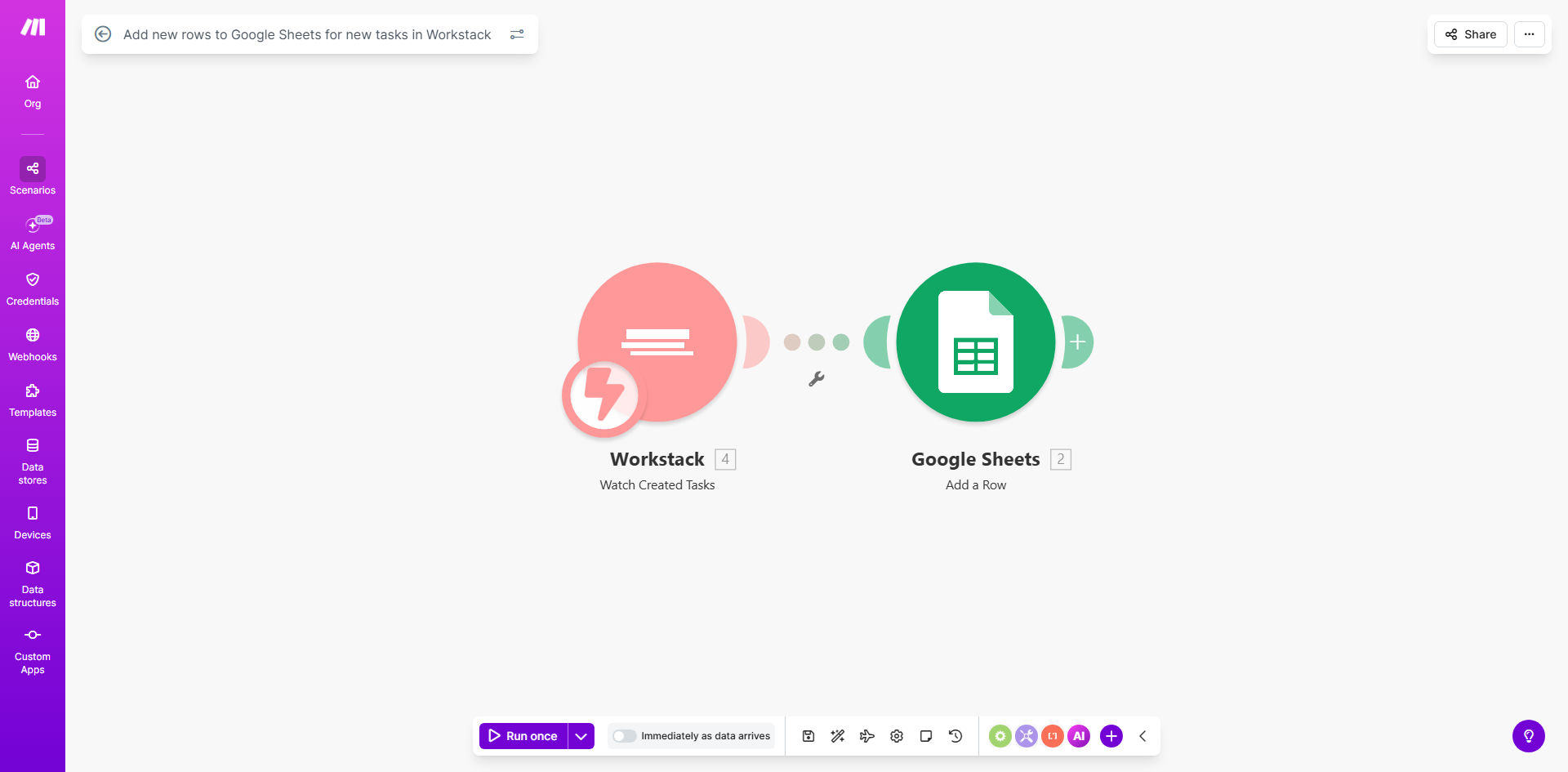
What This Workflow Does
Project management tools like Workstack are excellent for day-to-day task execution, but they often fall short when you need to analyze historical data, create custom reports, or share task information with external stakeholders. Teams frequently resort to manual exports—copying task lists into spreadsheets—a process that is tedious, error-prone, and instantly creates outdated data.
This automation solves that problem completely. It acts as a silent bridge between your active project board and your analytical database. Every time a team member creates a new task in Workstack—whether it's a bug fix, a client request, or a marketing deliverable—this workflow instantly captures all its details and appends it as a new row in your designated Google Sheet. The result is a living, queryable log of all project activity that updates itself without any human intervention.
The business value is immense: you gain a single source of truth for task history that can be used for client billing, team performance reviews, project retrospectives, and capacity planning. It turns your Google Sheet from a static snapshot into a dynamic, real-time reporting engine powered by your actual work.
How It Works
The workflow is built on Make.com and operates on a simple trigger-action principle. Once set up, it runs autonomously in the background.
Step 1: Monitor Workstack for New Tasks
The workflow starts with a Make.com "Watch Tasks" module connected to your Workstack account. It continuously polls the Workstack API, checking for any newly created tasks. The moment a task is added to any project or list you specify, the automation is triggered, capturing the complete task object.
Step 2: Structure and Map the Task Data
Make.com then processes the incoming data. It extracts key fields like task name, description, assignee, due date, priority, status, project name, and creation timestamp. You can customize this step to include any custom fields from your Workstack setup, ensuring your Google Sheet captures exactly the information you need for reporting.
Pro tip: Use this step to format dates and assignee names consistently. For example, you can transform the due date into a standard YYYY-MM-DD format and extract just the email address from the assignee object, making your spreadsheet data cleaner and easier to analyze.
Step 3: Add a Row to Google Sheets
The final step uses the Google Sheets module. The workflow takes the structured data and adds it as a new row at the bottom of your predefined spreadsheet. Each piece of task information is placed into its corresponding column. You can choose an existing sheet or create a new one dedicated to this task log. The process is instantaneous, ensuring your spreadsheet is always current.
Who This Is For
This automation is a game-changer for any business or team that uses Workstack for project management and relies on data for decision-making.
Agency Owners & Managers: Automatically maintain a client task log for transparent billing, reporting, and scope tracking. Every task created for Client A is instantly recorded, providing an undeniable record of work completed.
Operations & Project Managers: Gain a historical view of task volume, cycle times, and team workload without manual data compilation. Use the data to forecast resources and identify process bottlenecks.
Marketing & Software Teams: Track the lifecycle of campaigns, features, or bugs from creation to completion. The spreadsheet becomes a searchable database of all work items, perfect for sprint retrospectives or campaign analysis.
Freelancers & Consultants: Keep a simple, automatic timesheet and deliverable log by syncing tasks to a private sheet. It's an effortless way to document work for your own records or for client reviews.
What You'll Need
To implement this template, you'll need a few accounts and permissions ready:
- A Make.com account (free tier is sufficient to start).
- A Workstack account with API access. You'll need an API key from your Workstack settings.
- A Google account with access to Google Sheets. You'll need to create or identify the specific spreadsheet where tasks will be logged.
- Editor access to the target Google Sheet to allow Make.com to add rows.
- Basic understanding of the task fields in your Workstack that you want to track (e.g., custom statuses, priority labels).
Quick Setup Guide
You can have this automation running in under 10 minutes by following these steps:
- Get the Template: Click the "Get This Workflow" button above to copy the template to your Make.com account.
- Connect Workstack: In the first module, click to add a connection. You'll be prompted to enter your Workstack API key. Make.com will guide you through this secure OAuth process.
- Connect Google Sheets: Similarly, authorize Make.com to access your Google account. Select the specific Google Sheet and worksheet (tab) where you want the tasks to appear.
- Map Your Columns: In the Google Sheets module, you'll see a list of fields. Map each field (like "Task Name," "Due Date") to the corresponding column header in your sheet. If your sheet is empty, you can define the headers here.
- Test & Activate: Turn on the scenario. Create a test task in Workstack and watch as a new row magically appears in your Google Sheet within seconds. Once confirmed, your automation is live.
Key Benefits
Eliminate 100% of manual data entry. The automation handles the transfer seamlessly, saving your team from the mind-numbing, error-prone task of copying and pasting information between apps. This can recover 2-3 hours of productive time per week for a small team.
Create an always-accurate historical record. Your Google Sheet becomes a perfect, timestamped audit trail of all project activity. This is invaluable for client disputes, internal reviews, compliance needs, and understanding project evolution over time.
Unlock powerful reporting and analysis. With all task data in Google Sheets, you can use pivot tables, charts, and formulas to generate insights that are difficult to pull from Workstack alone. Analyze completion rates, average task duration, team capacity, and project trends.
Improve cross-functional visibility. Share the read-only Google Sheet link with executives, clients, or other departments who don't need access to Workstack. They get a real-time, simplified view of task progress without needing a license or training on a new tool.
Build a foundation for advanced automations. This workflow is a starting point. Once tasks are in Sheets, you can trigger other automations—like sending a Slack notification for high-priority tasks or creating a follow-up calendar event when a due date is added.