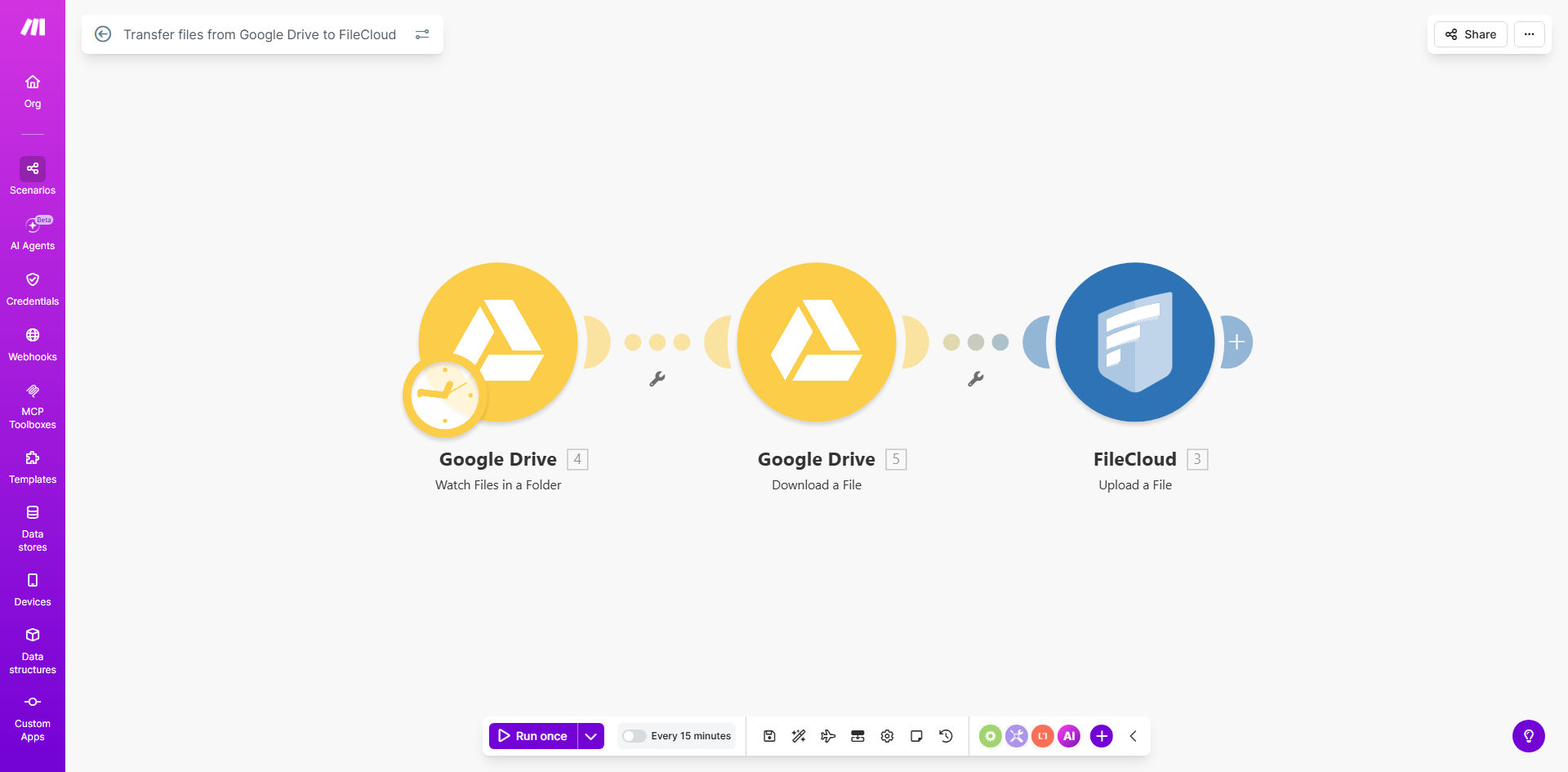
What This Workflow Does
Businesses today use multiple cloud storage platforms for different purposes. Google Drive is excellent for real-time collaboration and ease of use, while FileCloud often serves as a secure, internal file server or client portal. The problem arises when files need to exist in both places. Manually downloading from Drive and re-uploading to FileCloud is a repetitive, time-consuming task that is prone to errors, version mix-ups, and delays.
This automated workflow solves that problem completely. It acts as a silent, reliable bridge between the two platforms. Whenever a new file is added to a specific "watch" folder in Google Drive, the automation instantly detects it, securely transfers the file, and places it in the correct destination folder within FileCloud. This ensures your teams can collaborate in the tool they prefer, while critical files are always backed up and available in your centralized, governed storage system without any manual intervention.
How It Works
The workflow is built on Make.com and operates on a simple trigger-action principle, with built-in logic for reliability.
Step 1: Monitoring Google Drive
The scenario starts by watching a specific folder you designate in Google Drive. It uses Make.com's Google Drive module to poll for new files or updates at regular intervals. You can set it to watch for any new file, or filter for specific types like documents, images, or spreadsheets.
Step 2: Downloading & Processing the File
Once a new file is detected, Make.com temporarily downloads it to its secure, ephemeral server environment. During this step, you can add logic—like renaming the file with a timestamp, checking its size, or parsing metadata—to prepare it for its new home in FileCloud.
Step 3: Uploading to FileCloud
The processed file is then uploaded to your specified FileCloud account. The automation authenticates securely with FileCloud's API and places the file in the target folder you've configured. It can also create subfolders based on date or file type automatically.
Pro tip: Use a dedicated "To-FileCloud" folder in Google Drive as the trigger. This gives users clear control over what gets synced and prevents accidental transfers of draft or temporary files.
Who This Is For
This automation is ideal for any business or team that operates across multiple cloud storage environments. It's perfect for marketing agencies that create assets in Google Drive but need to deliver them via a client portal on FileCloud. Legal and accounting firms can use it to securely archive final client documents from collaborative workspaces to compliant storage. IT departments can automate the backup of configuration files or reports. Any team tired of the "download-upload" dance between platforms will find immediate value.
What You'll Need
- A Make.com account (free tier available).
- A Google Drive account with files and a designated source folder.
- A FileCloud account (self-hosted or cloud) with API access enabled.
- Basic understanding of folder paths in both Google Drive and FileCloud.
Quick Setup Guide
- Clone the Template: Click "Get This Workflow" to copy the scenario into your Make.com account.
- Connect Your Apps: Authorize Make.com to access your specific Google Drive and FileCloud accounts using secure OAuth.
- Configure the Trigger: In the Google Drive module, select the exact folder you want to monitor for new files.
- Set the Destination: In the FileCloud module, specify the full path of the destination folder (e.g.,
/Client_Deliverables/ProjectX). - Test & Activate: Turn on the scenario and upload a test file to your Google Drive folder. Verify it appears correctly in FileCloud within minutes.
Key Benefits
Save 5–10 hours per month per employee on manual file management tasks. This time can be redirected to high-value work like client service or creative development.
Eliminate 100% of manual transfer errors such as uploading the wrong file version, forgetting to sync a critical document, or placing it in the incorrect folder.
Improve data security and compliance by ensuring a consistent, automated backup process from collaborative spaces to your controlled, auditable file storage system.
Accelerate project delivery and client response times because final files are instantly available where they need to be, removing bottlenecks and wait times.
Create a scalable file management foundation that works consistently regardless of team size or file volume, supporting business growth without adding administrative overhead.