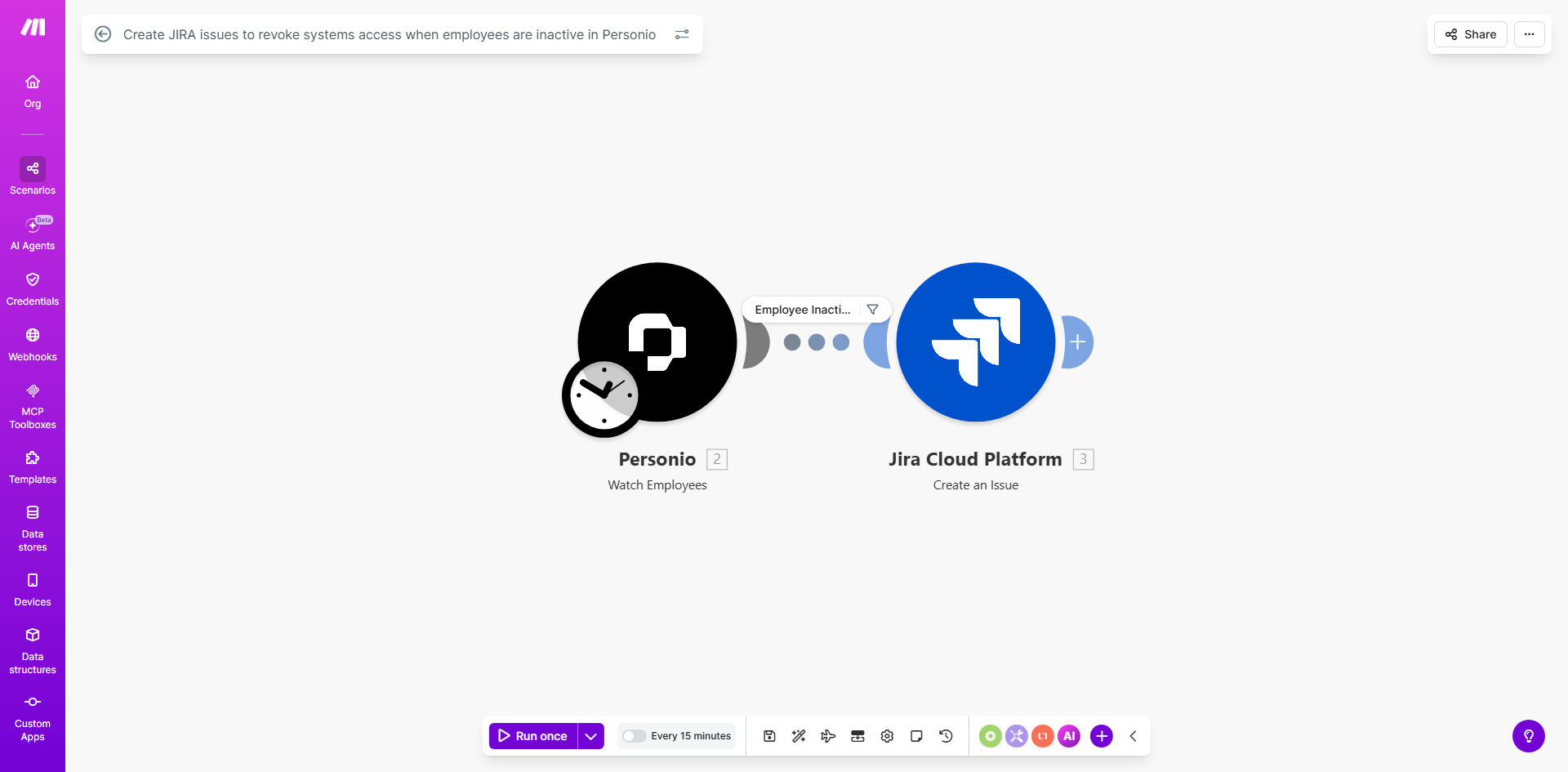
What This Workflow Does
When an employee leaves a company or goes on extended leave, one of the biggest security risks is "orphaned access"—their accounts and permissions remain active across email, CRM, internal tools, and databases. Manually tracking these changes in an HR system like Personio and then notifying the IT team to take action is slow, prone to error, and creates dangerous compliance gaps.
This automation solves that problem by creating a direct, real-time link between your HR data and your IT ticketing system. The moment an employee's status is updated to "inactive," "terminated," or "on leave" in Personio, this workflow triggers. It automatically gathers the employee's details and creates a structured, actionable issue in JIRA, assigned to the correct IT team with all the context they need to immediately begin the access revocation process.
The result is a proactive security posture. Instead of relying on spreadsheets, calendar reminders, or hoping someone remembers to send an email, you have a guaranteed system that ensures no departing employee retains access to sensitive systems. This not only protects your data but also saves your HR and IT teams from hours of administrative coordination each month.
How It Works
The workflow acts as a secure bridge, translating an HR event into an IT action item without any human intervention.
Step 1: Monitor Personio for Employee Status Changes
The automation is configured to watch a specific Personio employee directory or webhook for updates. It periodically checks for changes to the "status" field of employee profiles. You can define which statuses should trigger the workflow, such as "Inactive," "Terminated," or "Long-Term Leave."
Step 2: Gather Employee Context and Details
Once a qualifying status change is detected, the workflow retrieves the full employee record. It captures essential information like the employee's full name, email address, employee ID, department, manager, and their official last working day. This data is crucial for the IT team to accurately identify the user across all systems.
Step 3: Format and Create the JIRA Issue
Using the collected data, the automation constructs a new JIRA issue. It populates key fields: a clear summary (e.g., "Revoke access for [Employee Name]"), a detailed description outlining the request, the employee's details, and the required actions. It sets the issue type (like "Task"), priority (often "High" for security), and assigns it to the appropriate IT service desk team or project board.
Step 4: Trigger Notifications and Log the Action
Upon successful creation of the JIRA ticket, the workflow can trigger secondary actions. This might include sending a confirmation alert to an HR manager via email or Slack, or logging the action in a separate spreadsheet for audit purposes. The JIRA ticket itself becomes the central record, initiating the standard IT offboarding procedure.
Pro tip: Extend this workflow by adding a module that also sends a Slack message to the IT channel with a link to the new JIRA ticket. This provides an immediate, high-visibility alert alongside the formal ticket creation.
Who This Is For
This automation is essential for any business that uses Personio for HR management and JIRA for IT project or service management. It is particularly valuable for:
- IT & Security Managers: Who are responsible for enforcing access controls and need a reliable, auditable process for offboarding.
- HR Operations Teams: Who want to ensure their employee status changes instantly trigger the necessary IT actions, improving inter-departmental efficiency.
- Compliance Officers: In companies that must adhere to standards like SOC 2, ISO 27001, or GDPR, where proving timely access revocation is mandatory.
- Growing Startups & Scale-ups: Where manual processes break down as employee churn increases, creating significant security blind spots.
What You'll Need
- A Make.com account (free or paid plan) to host and run the automation.
- Admin or API access to your Personio account to set up the connection and read employee data.
- Admin or project lead access to your JIRA instance (Cloud or Server) to create the API connection and define the target project, issue type, and assignee.
- A clear understanding of which employee statuses in Personio should trigger the workflow (e.g., "Inactive," "Terminated").
- The JIRA Project Key and Issue Type (e.g., "IT" for project key, "Task" for issue type) where tickets should be created.
Quick Setup Guide
- Clone the Template: Click "Get This Workflow" and duplicate the scenario into your Make.com account.
- Connect Personio: In the first module, authorize Make.com to access your Personio account using OAuth or an API key. Set the trigger to watch for updates to the employee "status" field.
- Connect JIRA: In the JIRA "Create Issue" module, authorize the connection to your JIRA instance. Enter your JIRA site URL and API credentials.
- Configure the JIRA Ticket: Map the data from Personio (employee name, email, etc.) to the corresponding fields in the JIRA issue form. Set the project, issue type, summary, description, and assignee.
- Test and Activate: Run a test with a dummy employee record or a safe status change. Verify that a JIRA ticket is created correctly. Once confirmed, activate the scenario to run on a schedule (e.g., every hour).
Key Benefits
Eliminate Security Vulnerabilities Instantly. By automating the trigger, you reduce the access revocation timeline from days (or weeks) to minutes, directly shrinking your attack surface and protecting sensitive company data from potential misuse by former employees.
Save 5-10 Hours of Manual Work Per Month. This workflow removes the need for HR to manually compile lists, send emails, and follow up with IT. It also saves IT teams from manually creating and assigning tickets, freeing them for higher-value security tasks.
Build an Ironclad Compliance Audit Trail. Every access revocation is automatically logged as a timestamped JIRA issue with full context. This provides perfect documentation for security audits, demonstrating enforced controls over user access lifecycle management.
Improve Inter-Departmental Coordination. It creates a seamless, error-proof handoff from HR to IT. Both teams work from a single source of truth (the JIRA ticket), eliminating miscommunication, forgotten requests, and the blame game when something is missed.
Scale Your Offboarding Process Effortlessly. Whether you have 5 or 500 employees leaving per year, the process remains consistent, reliable, and fast. The automation scales with your company growth without requiring additional HR or IT headcount.