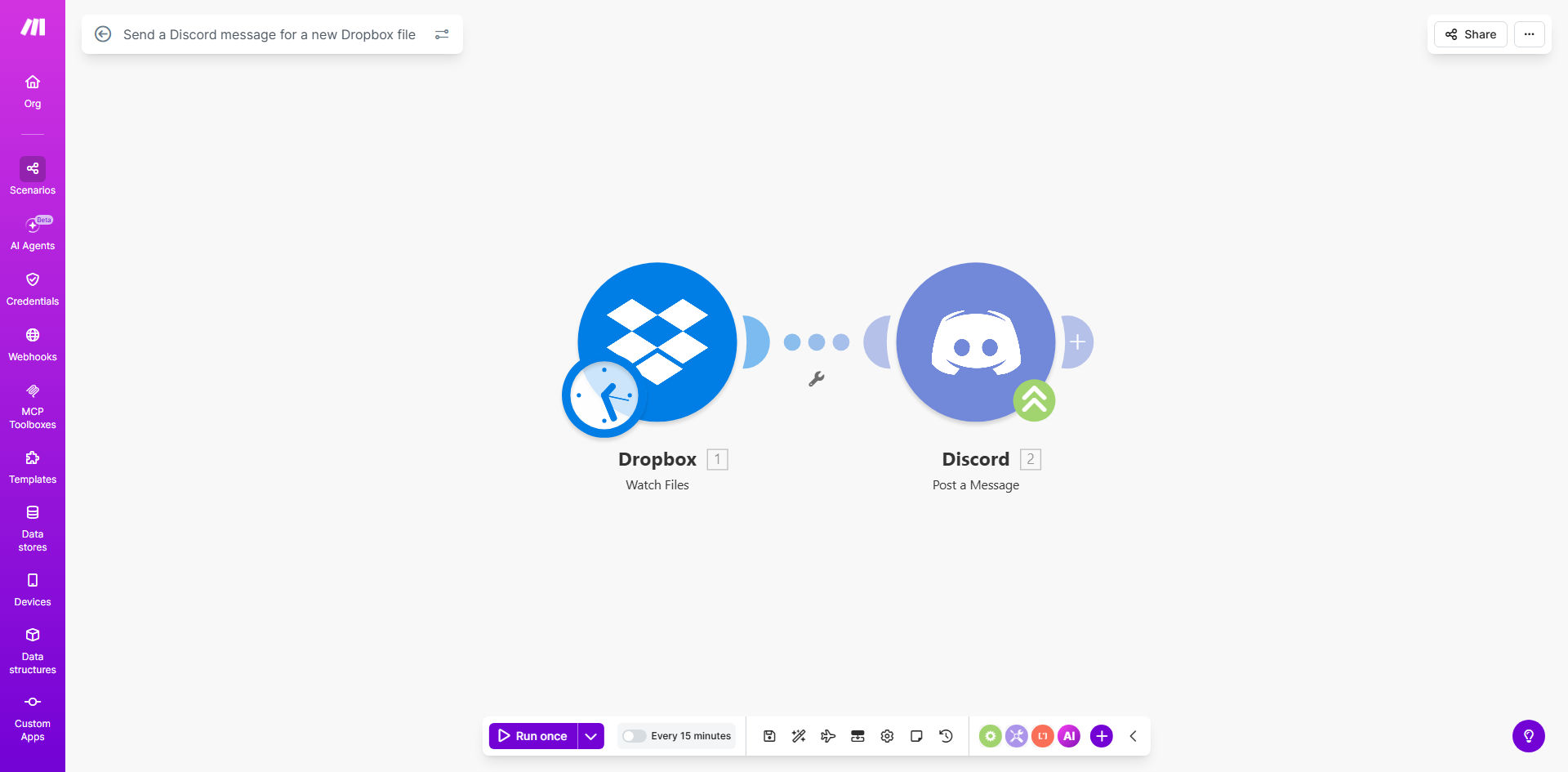
What This Workflow Does
In today's remote and hybrid work environments, files are constantly being created and shared. The problem is that when a team member uploads a critical document, spreadsheet, or design asset to a shared Dropbox folder, others often don't know about it until they manually check—or until someone sends a separate message saying "I uploaded the file." This creates delays, missed information, and fragmented communication.
This automation solves that by creating a direct bridge between your cloud storage and your team communication hub. The moment a new file lands in a specified Dropbox folder, a tailored notification is instantly posted to your chosen Discord channel. It turns a silent file upload into a visible team event, ensuring everyone who needs to know is alerted immediately, with context.
The business value is clear: reduced operational lag, eliminated manual "file-checking" tasks, and a more cohesive workflow where sharing and discussion happen in the same place. It's about making information flow automatically, so your team can focus on the work itself.
How It Works
The workflow is a straightforward yet powerful sequence on Make.com, acting as your digital bridgekeeper.
Step 1: Monitor Dropbox for New Files
The automation starts by watching a specific folder (or your entire Dropbox) for any new file uploads. Using Dropbox's API, it detects the event the instant a file is added. You can set filters to watch for certain file types, names, or folders to keep notifications relevant.
Step 2: Gather File Details
Once a new file is detected, the workflow pulls key information: the file name, who uploaded it, a secure shareable link, the file size, and even the modification time. This data is structured to be used in the next step.
Step 3: Format and Send the Discord Message
Make.com then connects to your Discord server via a webhook. It crafts a clear, informative message using the file details. This message can include a direct download link, the uploader's name, and any custom instructions you want to add, then posts it to the designated channel.
Pro tip: Use Discord's formatting in your message! You can make the file name bold, add emojis (like 📄 for documents or 🎨 for designs), and use code blocks for log files to make notifications instantly scannable.
Who This Is For
This automation is ideal for any team or business that uses Dropbox for file storage and Discord for internal communication. It's particularly powerful for:
- Creative & Marketing Agencies: Instant alerts when new designs, copy drafts, or campaign assets are ready for review.
- Software Development Teams: Notify the team when new build files, bug reports, or documentation is uploaded to a shared repo folder.
- Remote & Hybrid Workforces: Keep distributed teams in sync by automatically announcing new policy documents, meeting notes, or resource packs.
- Content Creators & Communities: Share new episode files, graphics, or schedule documents with moderators or editors directly in your Discord server.
- Small Business Owners: Automate the sharing of weekly reports, invoices, or client deliverables from your Dropbox to your team's discussion channel.
What You'll Need
- A Make.com account (free tier is sufficient to run this workflow).
- A Dropbox account (Personal, Business, or Team) with files to monitor.
- A Discord server where you have permission to create webhooks in the desired channel.
- Basic familiarity with connecting apps in Make.com (guided process).
Quick Setup Guide
- Get the Template: Click "Get This Workflow" to copy the template into your Make.com account.
- Connect Dropbox: In the first module, authorize Make.com to access your Dropbox account and select the specific folder you want to monitor.
- Create a Discord Webhook: Go to your Discord channel settings, create a new webhook, and copy the URL.
- Connect Discord: Paste the webhook URL into the Discord module in Make.com. Customize the message format using the data from the Dropbox step.
- Test & Activate: Upload a test file to your Dropbox folder. The workflow should run and post a message to Discord. Once confirmed, turn the scenario on.
Key Benefits
Eliminate Manual Notification Work: Save 5–15 minutes per day per team member previously spent checking folders or sending "file uploaded" messages. That time adds up to hours of recovered productivity each week.
Accelerate Project Velocity: Reduce the lag between file creation and team awareness from hours (or even days) to seconds. This can shave days off project timelines by keeping feedback loops tight.
Improve Information Reliability: Ensure no critical file is ever missed because someone forgot to check Dropbox. The automated system provides a consistent, reliable audit trail of shared assets in your Discord history.
Centralize Communication: Keep file discussions where your team already talks—in Discord. This reduces context switching between Dropbox, email, and chat apps, creating a smoother workflow.
Scalable & Customizable: The workflow can easily be duplicated to monitor multiple folders, send different messages to different channels, or add filtering logic. It grows with your team's needs.