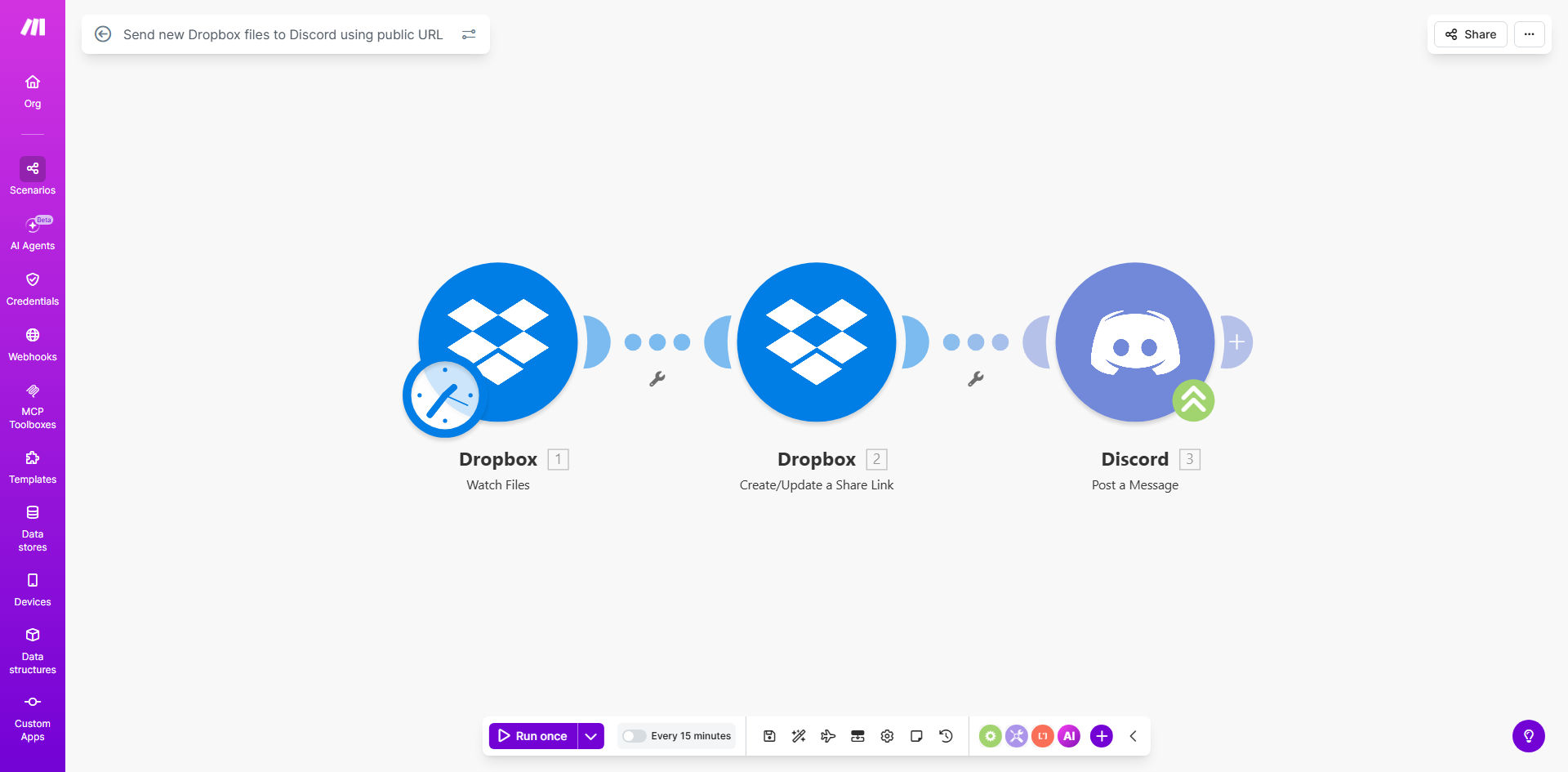
What This Workflow Does
Manually sharing files between cloud storage and team chat apps is a repetitive, time-consuming task that disrupts workflow. Team members upload a file to Dropbox, then must switch to Discord, find the right channel, copy the link, and craft a message. This process is prone to delays, forgotten shares, and channel clutter.
This automation solves that by creating a seamless bridge between Dropbox and Discord. Whenever a new file is added to a specified Dropbox folder, the workflow automatically generates a shareable public URL and posts it directly to a designated Discord channel. It transforms a multi-step manual process into a zero-touch, instantaneous notification system.
The business value is clear: it reclaims hours of administrative work each week, ensures consistent and timely information distribution, and enhances team productivity by keeping resources immediately accessible where discussions happen.
How It Works
The automation follows a clean, event-driven sequence powered by Make.com.
Step 1: Monitoring Dropbox for New Files
The workflow starts with a Dropbox module set to watch a specific folder. It triggers instantly when any new file is uploaded or added to that location. This is the "watchdog" that kicks off the entire process without any manual intervention.
Step 2: Generating a Public Share Link
Once a new file is detected, the next step uses Dropbox's API to create a public link for that specific file. This link grants view-only access to anyone who has it, making it perfect for sharing resources with a team or community without requiring them to sign into Dropbox.
Pro tip: You can configure the link settings within the Dropbox module, such as setting an expiration date or password, adding an extra layer of control to your automated shares.
Step 3: Formatting & Posting to Discord
The final step takes the generated file URL and file details (like name and type) and formats them into a clean, informative message. This message is then sent via a webhook to your specified Discord channel, alerting everyone instantly with a direct link to the new resource.
Who This Is For
This template is incredibly versatile and serves a wide range of users who rely on both cloud storage and real-time communication.
Remote & Hybrid Teams: Teams that use Dropbox for shared assets and Discord for daily communication can ensure design files, reports, and meeting notes are instantly available.
Content Creators & Communities: Creators who share assets (graphics, videos, guides) with their Patreon or Discord community can automate the delivery of new content to an announcements channel.
Project Managers & Agencies: For agencies managing client projects, this automation can post final deliverables or weekly updates from a shared Dropbox folder directly to the client's project channel in Discord.
Educators & Trainers: Instructors can automatically share new course materials, worksheets, or recorded lectures from Dropbox to a class Discord server.
What You'll Need
- A Make.com account (free tier available).
- A Dropbox account with files stored in it.
- A Discord server where you have permission to create webhooks.
- Admin access to create a Discord Webhook for the specific channel you want to post to.
- Basic familiarity with connecting apps in Make.com (guided setup).
Quick Setup Guide
You can have this automation running in under 10 minutes by following these steps.
- Clone the Template: Click "Get This Workflow" and duplicate the template into your Make.com account.
- Connect Dropbox: Authorize Make.com to access your Dropbox account and select the specific folder you want to monitor for new files.
- Create a Discord Webhook: In your Discord server, go to Channel Settings > Integrations > Webhooks. Create a new webhook, copy the URL, and paste it into the Discord module in Make.com.
- Customize the Message: Adjust the message format in the Discord module. You can include the file name, link, and a custom note (e.g., "New asset uploaded!").
- Test & Activate: Turn on the scenario and upload a test file to your monitored Dropbox folder. Within seconds, it should appear in your Discord channel!
Key Benefits
Save 5+ Hours Per Month on Manual Sharing: Eliminate the repetitive task of copying links and posting notifications. This time can be reinvested in core work, directly boosting team productivity and morale.
Ensure 100% Consistency and Zero Missed Files: Automation never forgets. Every single file added to the monitored folder is guaranteed to be shared with the team, removing human error and ensuring everyone has access to the latest versions instantly.
Centralize Resources and Discussion: By posting files directly into the relevant Discord channel, you create a unified hub. Team discussions, feedback, and the files themselves live side-by-side, drastically reducing context-switching and search time.
Scale Your Sharing Effortlessly: Whether you're sharing one file a day or one hundred, the automation handles it without any additional effort from your team. It's a set-and-forget system that grows with your needs.
Improve Onboarding and Transparency: New team members can instantly access the history of shared files in Discord, making onboarding smoother. The automated log also creates a transparent audit trail of when assets were published.