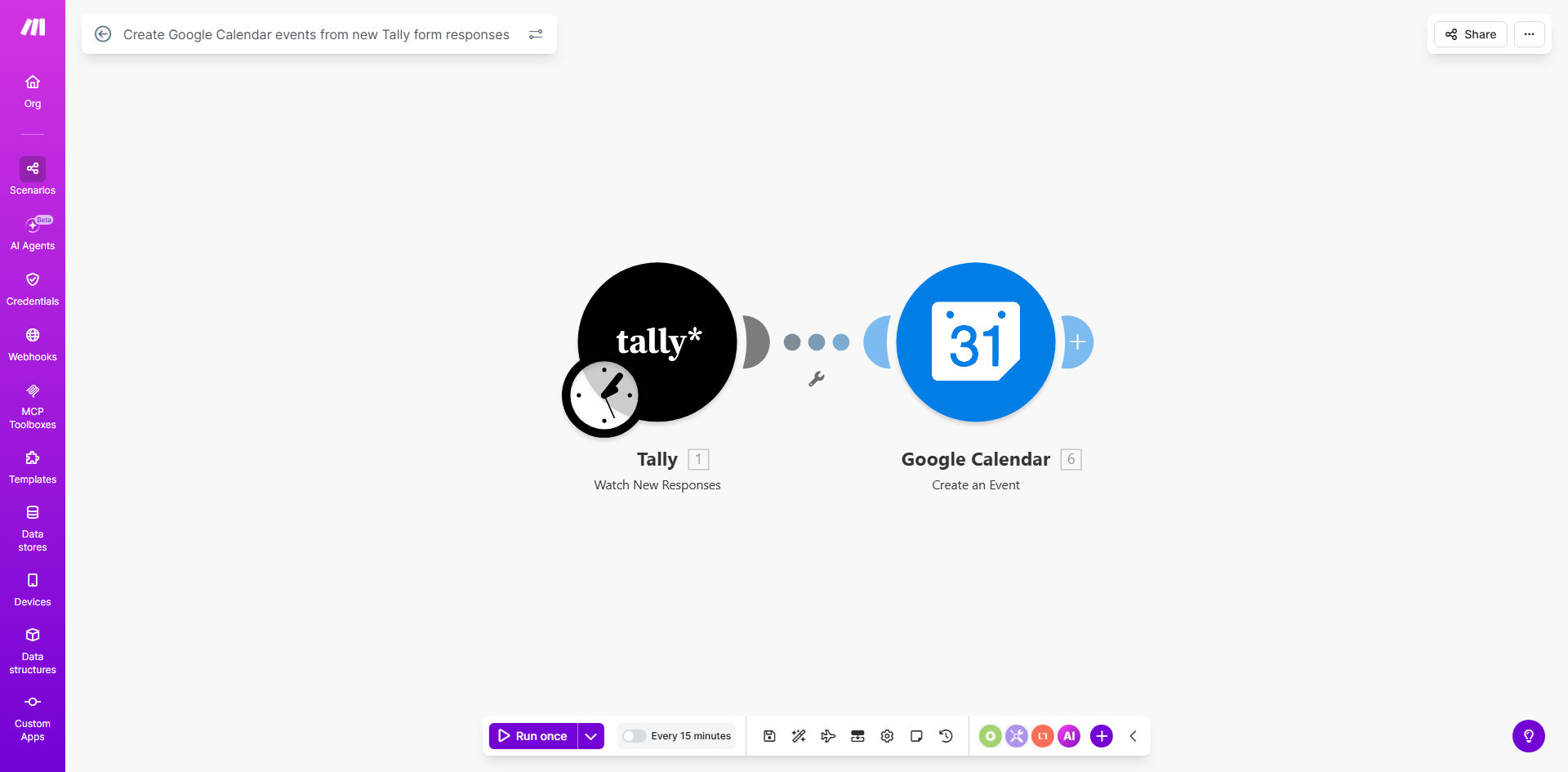
What This Workflow Does
If you use Tally forms for booking appointments, consultations, or events, you know the tedious process that follows: someone submits their preferred time, and you must manually copy their name, email, date, and time into Google Calendar. This back-and-forth wastes valuable time and introduces errors, leading to missed appointments, double-bookings, and a poor client experience.
This automation solves that problem completely. Every time a new response comes through your Tally form, this Make.com workflow automatically creates a corresponding event in your Google Calendar. It extracts the attendee details, meeting title, date, time, and any notes, then schedules the event and can even send the calendar invite directly to the client. The process runs automatically every 15 minutes, ensuring your calendar is always synchronized with your latest bookings without any manual intervention.
Pro tip: Use this workflow not just for client bookings, but also for internal team meetings, workshop registrations, or interview scheduling. The flexibility of Tally's form builder combined with Google Calendar's reliability creates a powerful, hands-free scheduling system.
How It Works
The automation follows a clean, logical sequence to transform a form submission into a calendar event.
Step 1: Monitor for New Tally Responses
The workflow is triggered on a schedule (every 15 minutes by default) to check your Tally form for any new submissions. Make.com connects to your Tally account via API and retrieves only the latest responses that haven't been processed yet.
Step 2: Parse and Validate Form Data
Each response is broken down into its component fields. The system looks for specific data points required for a calendar event: the attendee's name and email, the meeting start date and time, the event title, and an optional description. Basic validation ensures the date and time are in a correct format before proceeding.
Step 3: Create the Google Calendar Event
Using the parsed data, the workflow calls the Google Calendar API to create a new event. It sets the title, start and end times (you can configure default duration), adds the client as a guest, and populates the description with any additional notes from the form. The event is created in your specified calendar.
Step 4: Confirm and Log (Optional)
After successful creation, the workflow can be extended to send a confirmation message back to you via email or Slack, or to log the booking in a Google Sheet for record-keeping. This step provides visibility and ensures every submission is accounted for.
Who This Is For
This automation is a game-changer for any business or individual that schedules appointments through online forms.
Service Professionals: Coaches, consultants, therapists, tutors, and freelancers who book discovery calls or paid sessions.
Sales & Support Teams: Teams that schedule demos, follow-up calls, or customer support meetings via a public form.
Educators & Event Organizers: Those who manage registrations for workshops, webinars, or classes and need to add attendees to a calendar event.
Small Business Owners: Anyone tired of the manual copy-paste dance between their booking form and calendar, seeking to eliminate errors and save 1-2 hours per week.
What You'll Need
- A Make.com account (free tier available).
- A Tally form set up with fields for: Client Name, Email, and Meeting Date/Time (using Tally's date or datetime field type is ideal).
- A Google account with Google Calendar enabled.
- The API connections between Make.com, Tally, and Google Calendar (the template guides you through this).
- Basic understanding of your meeting default duration (e.g., 30-minute consultations, 60-minute sessions).
Quick Setup Guide
You can have this automation running in under 15 minutes.
- Copy the Template: Click "Get This Workflow" to duplicate the template into your Make.com account.
- Connect Your Apps: In the Make.com scenario, establish the connections to your Tally account and Google Calendar. This is a one-time, secure OAuth process.
- Map Your Form Fields: Point the workflow to your specific Tally form and map the Tally question fields (like "What's your name?") to the corresponding data points for the calendar event (like "Event attendee").
- Configure Event Details: Set the default calendar, event duration, and how you want the event title to be formatted (e.g., "Call with [Client Name]").
- Test and Activate: Run a test by submitting your Tally form. Check that an event appears correctly in a test calendar. Then, schedule the scenario to run automatically and turn it on.
Key Benefits
Eliminate manual entry and save 5-10 minutes per booking. What used to be a multi-step process of reading an email, opening calendars, and typing details now happens instantly in the background, freeing you for higher-value work.
Reduce scheduling errors and double-bookings to zero. The automation pulls data directly from the form, removing typos and misinterpretations. Since it writes to your live calendar immediately, your availability is always accurate.
Improve client experience with instant confirmation. Clients receive a Google Calendar invite the moment they book, reducing anxiety and no-show rates. They have all details and a calendar link without waiting for you to manually send it.
Scale your booking process without adding administrative overhead. Whether you get 5 or 50 bookings a day, the system handles them all with the same speed and accuracy, allowing your business to grow smoothly.
Gain a reliable, auditable record of all appointments. Every automated event creation is logged within Make.com, giving you a clear trail from form submission to calendar event for easy tracking and follow-up.