What This Workflow Does
In project management, visibility is everything. When a new issue is logged in Redmine—a bug report, a feature request, or a client task—the team responsible needs to know immediately. Without automation, this relies on manual updates, emails, or team members constantly checking Redmine, leading to delays, missed issues, and communication gaps.
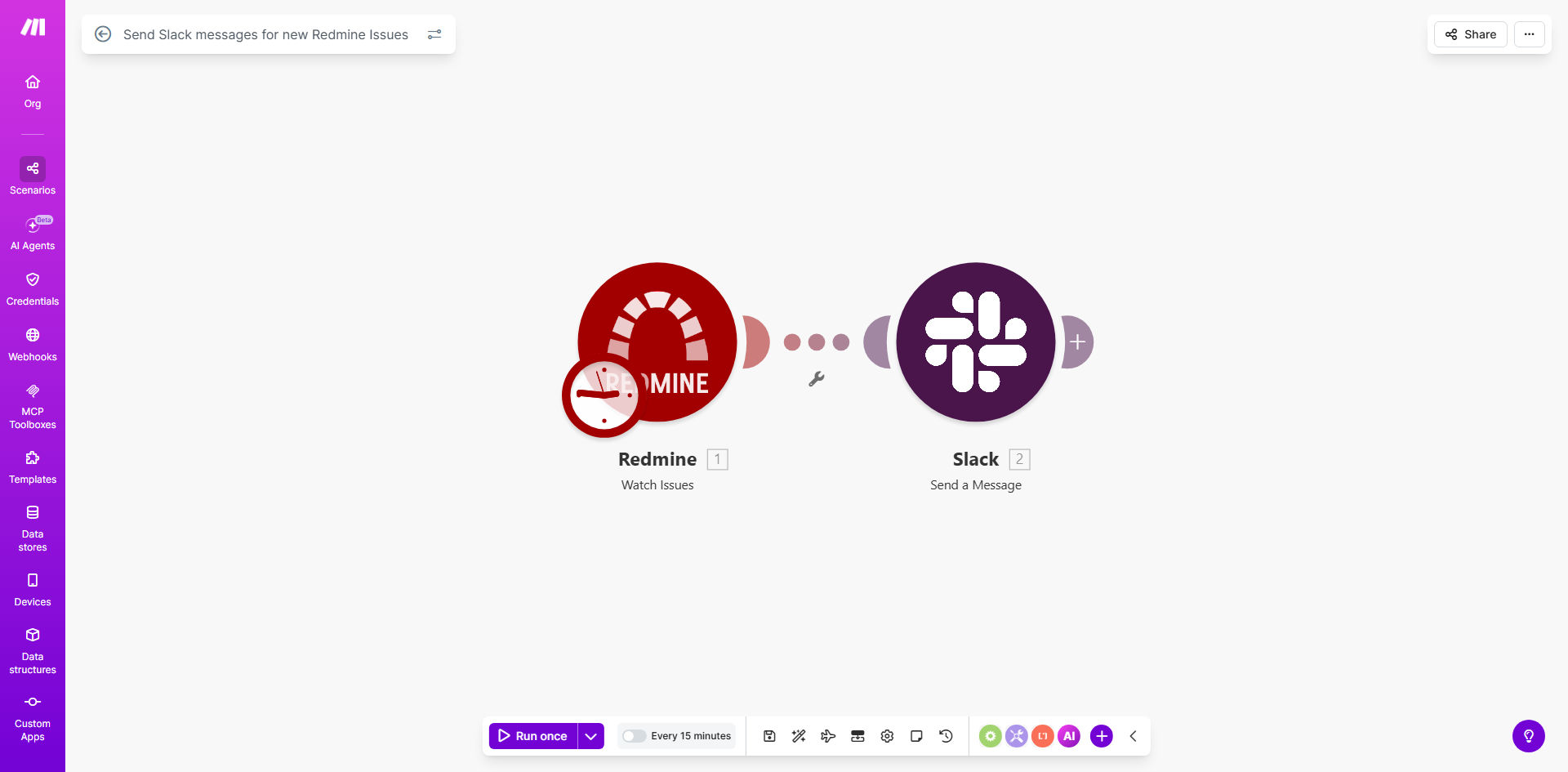
This workflow solves that by creating a seamless bridge between Redmine and Slack. Every time a new issue is created, Make.com detects it instantly and posts a formatted notification directly into your designated Slack channel. The message includes key details like the issue subject, description, priority, assignee, and a direct link back to Redmine. This transforms Slack into a real-time command center for your projects, ensuring nothing falls through the cracks and enabling faster collaboration.
The business value is clear: reduced issue response time, eliminated manual notification work, and improved team alignment. Projects move faster because the right people are informed the moment their input is needed.
How It Works
The automation follows a simple but powerful sequence, orchestrated by Make.com.
Step 1: Monitor Redmine for New Issues
The workflow starts with a Redmine module set to watch the "Issue" resource. It polls the Redmine API at regular intervals (e.g., every 5 minutes) or uses a webhook for instant triggering. When it detects a newly created issue, it captures all its data and passes it to the next step.
Pro tip: Configure the trigger to watch specific Redmine projects or issue trackers to avoid noise. This ensures only relevant notifications are sent to Slack.
Step 2: Format the Slack Message
Make.com then takes the raw issue data and structures it into a clear, actionable Slack message. This step involves using a "Compose" or "Text Aggregator" module to build a message that includes the issue ID, subject, description snippet, priority level (e.g., High, Normal), the assigned person, and the project name. A direct URL to the Redmine issue is also added for one-click access.
Step 3: Send the Notification to Slack
Finally, the formatted message is sent to your chosen Slack workspace via the Slack "Send a Message" module. You can specify the exact channel (like #development, #support, or #urgent-issues) or even a user's direct message. The notification appears in Slack with a clean format, allowing team members to react, comment, or click through to Redmine immediately.
Who This Is For
This automation is ideal for any team using Redmine for project, bug, or issue tracking that also relies on Slack for daily communication.
- Software Development Teams: Get instant alerts for new bug reports or feature requests logged by QA or product managers.
- IT & Support Teams: Be notified immediately when internal tickets or system issues are created, speeding up resolution times.
- Project Managers & Agencies: Ensure client feedback and new tasks are visible to the entire project team without manual follow-ups.
- Remote & Hybrid Teams: Bridge the gap between a dedicated project tool (Redmine) and the primary communication hub (Slack).
What You'll Need
To set up this workflow, ensure you have the following accounts and access ready:
- A Make.com account (free tier is sufficient to start).
- Admin or API access to your Redmine instance, including an API key for authentication.
- Admin access to your Slack workspace to create a new app or use an existing one, requiring a "Bot User OAuth Token".
- Decide which Slack channel (e.g., #engineering-alerts) should receive the notifications.
Quick Setup Guide
Follow these steps to deploy the template in under 15 minutes:
- Copy the Template: Click "Get This Workflow" to open the template on Make.com and create a copy in your own account.
- Connect Redmine: In the first module, add your Redmine connection by entering your instance URL and API key when prompted.
- Connect Slack: In the Slack module, authenticate with your workspace by following Make.com's OAuth flow to grant necessary permissions.
- Configure Channels: Specify the exact Slack channel name where notifications should be sent. You can use a data variable to make it dynamic based on the Redmine project.
- Test the Flow: Create a test issue in Redmine and run the scenario once to see the notification appear in Slack. Adjust the message formatting if needed.
- Activate & Monitor: Turn on the scenario scheduler (e.g., run every 5 minutes) and monitor the operations history in Make.com to ensure it's running smoothly.
Key Benefits
Cut issue response time by up to 80%. Instead of waiting for someone to check Redmine or receive an email, the relevant team is pinged in Slack within minutes of an issue being logged, allowing for immediate triage and action.
Eliminate 2-3 hours of weekly manual work. No more copying issue details, formatting messages, or manually posting updates to Slack. This automation handles it all consistently, freeing project managers and team leads for higher-value work.
Improve team accountability and visibility. With notifications public in a team channel, it's clear who is responsible for each new issue, and the entire team can see the project's incoming workload, fostering transparency.
Create a searchable record of alerts. All notifications are stored in Slack, creating a historical log of when issues were raised. This is invaluable for retrospectives, auditing, and understanding project patterns.
Scale your project communication effortlessly. As your team or project count grows, this automation scales with you, ensuring consistent notification practices without additional management overhead.