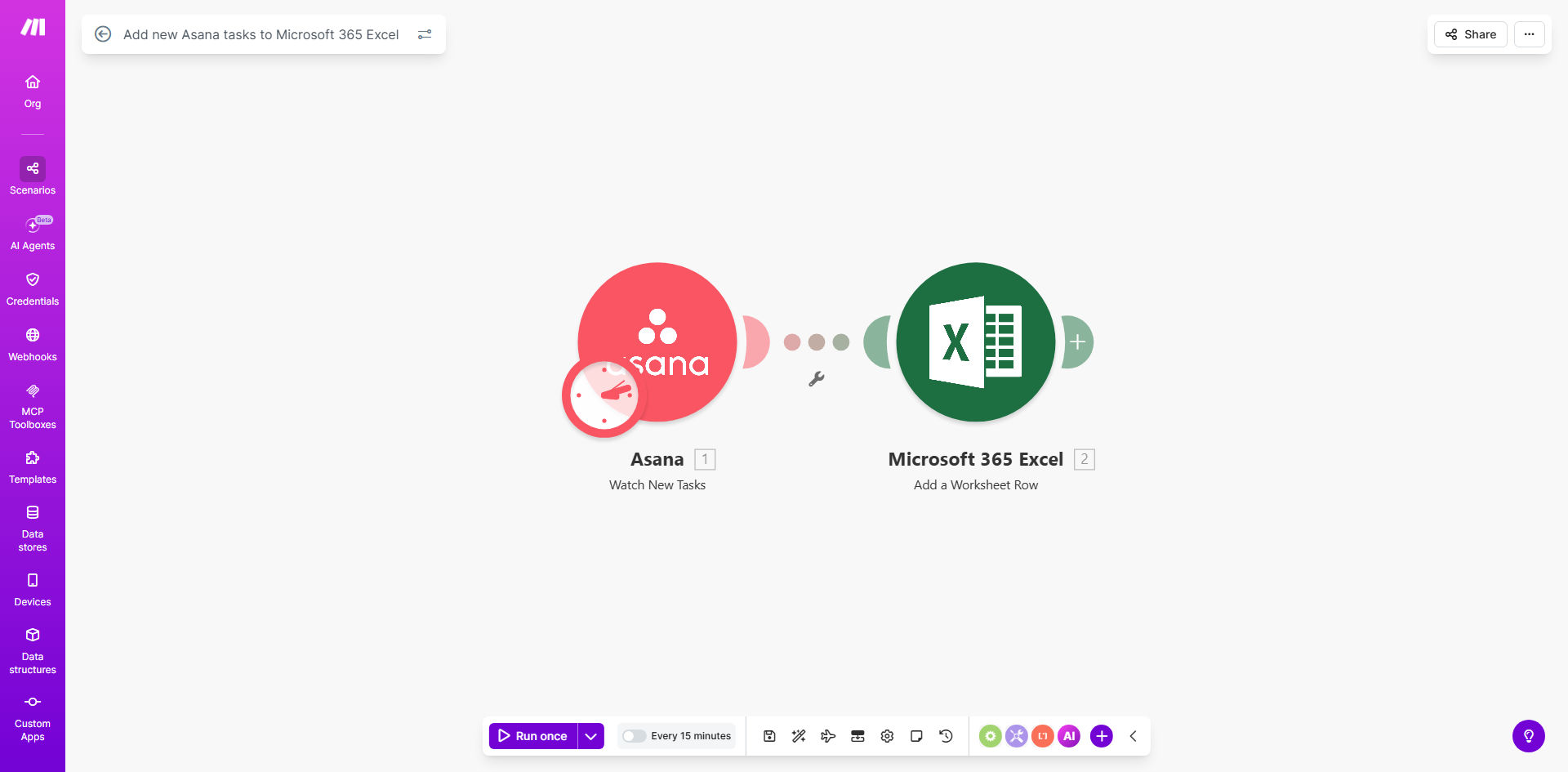
What This Workflow Does
Project managers and team leaders often waste valuable hours manually copying task details from Asana into Excel for reporting, budgeting, or client updates. This process is not only tedious but also prone to errors and delays, meaning your spreadsheets are never truly up-to-date with the latest project status.
This automation solves that problem completely. It acts as a live bridge between your project management hub (Asana) and your analysis and reporting tool (Microsoft Excel). Every time a new task is created in a specified Asana project, this workflow instantly captures its key details—like name, assignee, due date, and custom fields—and appends it as a new row in your designated Excel worksheet. This creates a continuously growing, accurate log of all project activities without any human intervention.
The business value is clear: it transforms your Excel file from a static snapshot into a dynamic project database. You can now build pivot tables, charts, and dashboards that reflect real-time progress, track resource allocation against budgets, and generate reports for stakeholders at the click of a button, saving countless hours of administrative work each month.
How It Works
The workflow is built on Make.com and operates on a simple trigger-action principle. Here’s the step-by-step process:
Step 1: Monitor Asana for New Tasks
The scenario starts by watching a specific Asana project or your entire workspace. It uses Asana's "Watch Tasks" or "Watch Events" module to detect the moment a new task is created. This is the trigger that kicks off the entire automation.
Step 2: Extract and Map Task Data
Once triggered, the workflow collects all relevant data from the new Asana task. This includes standard fields (Task Name, Assignee, Due Date, Project Name) and can be extended to include custom fields, tags, descriptions, and the task URL. The data is structured and prepared for insertion into Excel.
Pro tip: Use Asana's custom fields for budget estimates or priority levels. The automation can send these directly to Excel, allowing for instant cost tracking and prioritization analysis.
Step 3: Add a Row to Microsoft Excel
The final step is to take the mapped data and use the Microsoft 365 Excel module to "Add a Row" to a predefined worksheet. The workflow matches each piece of Asana data to the correct column header in your Excel sheet, ensuring the information lands in the right place every time. The Excel file can be stored in your OneDrive or SharePoint, making it accessible to your entire team.
Who This Is For
This automation is a game-changer for any business or team that relies on both Asana for execution and Excel for analysis. It's ideal for:
- Project Managers & Coordinators: Who need to report on project progress, track deadlines, and manage resources without manual data entry.
- Agency Owners & Consultants: Who bill clients based on tasks completed and need accurate, automated timesheets or deliverable logs in Excel.
- Operations & Finance Teams: Who integrate project data into larger financial models, budget trackers, or operational dashboards.
- Remote & Hybrid Teams: That require a single, always-updated source of truth for project status that everyone can access via a shared Excel file.
What You'll Need
- A Make.com account (free tier is sufficient to start).
- An Asana account with admin or member access to the projects you want to monitor.
- A Microsoft 365 Business or Personal account with access to Excel Online (OneDrive or SharePoint).
- An Excel workbook set up with column headers that match the data you want to capture from Asana (e.g., "Task Name", "Assignee", "Due Date", "Status").
Quick Setup Guide
You can have this automation running in under 15 minutes by following these steps:
- Clone the Template: Click "Get This Workflow" and it will open the pre-built scenario in your Make.com account. Press the "Copy" button to create your own version.
- Connect Your Apps: In your new scenario, click on the Asana module and authorize Make.com to access your Asana account. Repeat the process for the Microsoft 365 Excel module, logging into your Microsoft account.
- Configure the Trigger: Select the specific Asana project or workspace you want to monitor for new tasks. You can also set filters here if you only want tasks with certain tags or assignees to trigger the flow.
- Map Your Excel Sheet: In the Excel module, navigate to and select your target workbook and worksheet. Ensure the column headers in your sheet match the data points being sent from Asana. The template provides a common mapping which you can adjust.
- Test and Activate: Turn on the scenario and create a test task in your Asana project. Within moments, check your Excel sheet—you should see a new row with the task details. Once confirmed, your automation is live.
Key Benefits
Eliminate Manual Data Entry & Reduce Errors: Save 2-5 hours per week previously spent copying and pasting. Automating the transfer ensures 100% data accuracy, removing typos and forgotten updates from your critical reports.
Real-Time Project Visibility: Your Excel-based dashboards and financial models are always current. Stakeholders can see the latest task status, resource assignments, and upcoming deadlines without asking for a manual update.
Streamlined Client & Stakeholder Reporting: Automatically generate up-to-date reports for clients or leadership by simply refreshing a pivot table in your now-auto-populated Excel log. This enhances professionalism and transparency.
Scalable Process Foundation: This workflow is a starting point. Once running, you can easily extend it to update existing rows when tasks are completed, send notifications to Slack, or trigger other actions, building a comprehensive project operations system.
Empower Data-Driven Decisions: With a reliable, automated feed of project data into Excel, you can perform robust analysis on team performance, project costs, and timeline adherence, leading to better planning and resource allocation.