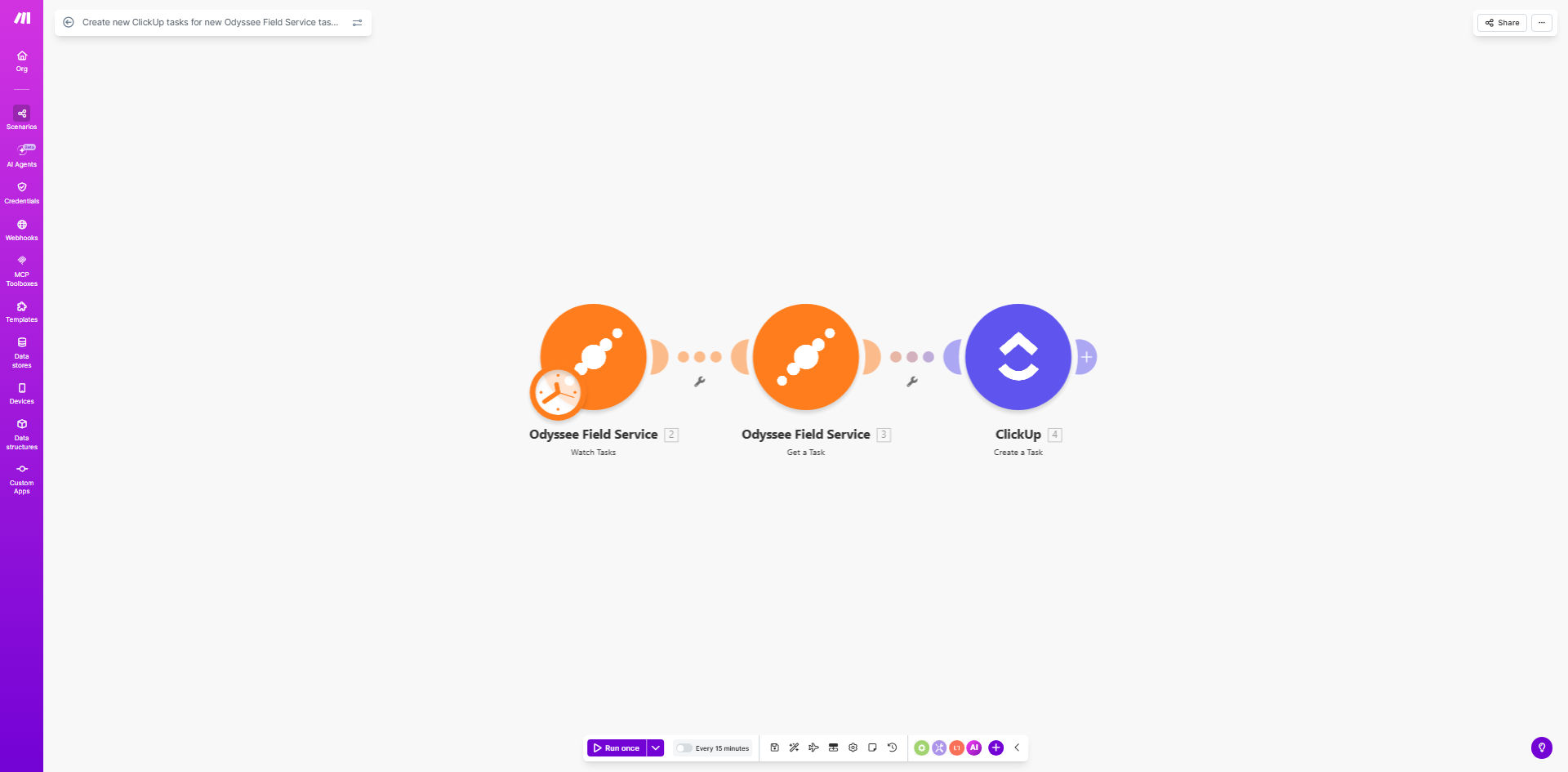
What This Workflow Does
For businesses managing field technicians, the gap between on-site work logs and central project planning is a major source of inefficiency. A technician completes a job in Odyssee Field Service, but that information sits isolated until someone manually copies it into ClickUp for scheduling, invoicing, or follow-up. This delay causes scheduling conflicts, billing errors, and frustrated customers waiting for updates.
This automation solves that by creating a live bridge between Odyssee and ClickUp. Every time a new task is logged by a field technician—whether it's a repair, installation, or inspection—this workflow instantly creates a corresponding, detailed task in your designated ClickUp space or list. The field data becomes immediately actionable for your project managers, dispatchers, and support team, turning two separate systems into one cohesive operation.
How It Works
The workflow is a straightforward, reliable automation built on Make.com. It acts as a smart messenger between your field service software and your project command center.
Step 1: Trigger on New Odyssee Task
The scenario starts by watching Odyssee Field Service for new tasks. You can set it to check at frequent intervals (e.g., every 5 minutes) or use a webhook for instant triggering. When a new task is detected, the workflow captures all relevant data: customer information, job description, location, priority, assigned technician, and any custom notes.
Step 2: Format and Prepare the Data
Make.com then processes this data. It can filter tasks based on type or status (e.g., only create ClickUp tasks for "Completed" jobs or "High Priority" requests). It also maps the Odyssee field names to the correct field structure in ClickUp, ensuring the information lands in the right place.
Step 3: Create the Task in ClickUp
The processed data is sent to ClickUp via its API. The workflow creates a new task in your specified List, Folder, or Space. It populates the task name, description, due date (if provided), assigns it to the correct team member, adds relevant tags, and even attaches the customer details to custom fields. The ClickUp task now holds all the context needed for the next steps in your process.
Pro tip: Use this automation as a foundation. You can easily extend it to also notify a Slack channel when a high-priority field task comes in, or to start a time-tracking clock in ClickUp once the task is created.
Who This Is For
This template is ideal for any business that uses Odyssee (or similar field service software) for technician dispatch and ClickUp for internal project and task management. It's perfect for HVAC companies, plumbing services, electrical contractors, telecommunications installers, and property maintenance firms. If your team struggles with communication gaps between the field and the office, or if manual data entry is eating into your admin time, this automation will deliver immediate value.
What You'll Need
- A Make.com account (free tier available).
- An active Odyssee Field Service account with API access or webhook capabilities.
- A ClickUp account with a designated Space, Folder, or List where new tasks should be created.
- API keys or OAuth credentials for both Odyssee and ClickUp to authorize the connection in Make.
- Basic understanding of your task data structure (what fields in Odyssee should map to which fields in ClickUp).
Quick Setup Guide
Getting this automation live takes about 15-20 minutes. Follow these steps:
- Clone the Template: Click the "Get This Workflow" button above to open the template in your Make.com account and create a copy.
- Connect Your Apps: In the Make scenario, click on the Odyssee module and authorize the connection by logging into your Odyssee account. Repeat the process for the ClickUp module.
- Configure the Trigger: Set the Odyssee module to watch for "New Tasks." Choose your desired filter, such as specific job types or statuses.
- Map the Data: In the ClickUp "Create Task" module, select your target Workspace, Space, and List. Then, map the data from Odyssee to the ClickUp task fields (Name, Description, Assignee, Due Date, Custom Fields).
- Test and Activate: Run the scenario once in test mode. Create a dummy task in Odyssee and verify it appears correctly in ClickUp. Once confirmed, schedule the scenario to run automatically (e.g., every 5 minutes) and turn it on.
Key Benefits
Save 5–10 hours per week on administrative data entry. Eliminate the tedious, error-prone process of manually transferring job details from your field service platform to your project management tool. This time can be reinvested in customer service or business growth.
Achieve 100% data accuracy and a single source of truth. Automated syncing removes human typos and omissions. The information in ClickUp is always an exact replica of what was logged in the field, ensuring reliable reporting, accurate billing, and clear accountability.
Improve customer response times by over 50%. When a field request is logged, your office team sees it instantly. They can immediately schedule follow-ups, order parts, or generate invoices, dramatically speeding up your service delivery cycle and boosting customer satisfaction.
Enhance team coordination and visibility. Dispatchers, managers, and support staff all work from the same real-time information in ClickUp. This prevents double-booking, improves resource allocation, and gives everyone a clear view of field operations without needing to log into a separate system.
Create a scalable foundation for process automation. This workflow is a building block. Once syncing is established, you can easily add steps to auto-assign tasks based on skill, trigger customer SMS updates, or sync completion status back to Odyssee, building a fully integrated field service ecosystem.