Make.com CRM Automation Google Sheets Nutshell Lead Management

Automatically Add Contacts from Google Sheets to Nutshell CRM

Eliminate manual data entry. Sync new leads and contact information from spreadsheets directly into your Nutshell sales pipeline in real-time.

Get This Workflow Make.com · CRM Automation · Free Template
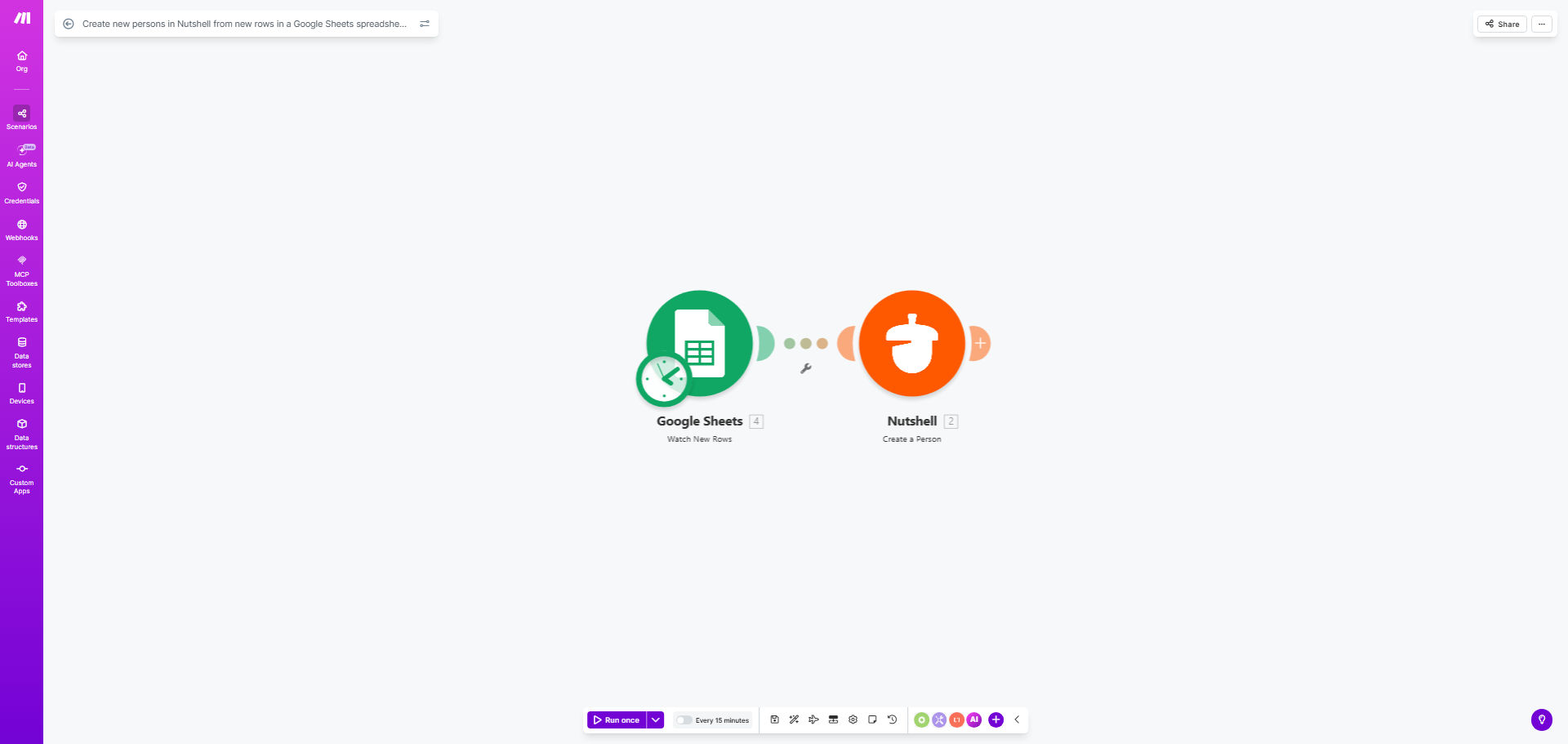
Diagram showing automation flow from Google Sheets to Nutshell CRM creating new person records

What This Workflow Does

For sales and marketing teams, a critical bottleneck is moving lead data from collection points—like web forms, event lists, or partner spreadsheets—into the CRM where the sales team can act on it. Manually copying and pasting information from Google Sheets into Nutshell is not only tedious but also error-prone and slow, causing delays in lead follow-up and potential lost opportunities.

This automation solves that problem by creating a seamless, hands-off bridge between Google Sheets and Nutshell CRM. It periodically checks a designated spreadsheet for new rows. Whenever a new lead is added (containing details like name, email, company, and phone), the workflow instantly creates a corresponding "Person" record in your Nutshell account. This ensures your sales pipeline is always populated with the latest information, enabling faster response times and more efficient sales processes.

Pro tip: Use this workflow not just for new leads, but also to centralize contacts from multiple sources—like different team sheets or external reports—into one unified Nutshell database, giving your sales team a complete view.

How It Works

The workflow operates on a simple trigger-action principle, running silently in the background to keep your CRM updated.

Step 1: Monitor the Google Sheet

The automation is scheduled (e.g., every 15 minutes) to watch a specific Google Sheets spreadsheet. It looks for any new rows that have been added since its last check. This trigger is the starting point, ensuring no new data is missed.

Step 2: Retrieve the New Lead Data

For each new row found, the workflow reads the cell values from predefined columns. This data typically includes the contact's first name, last name, email address, company name, phone number, and any additional notes or tags you wish to import.

Step 3: Create a Person in Nutshell

The workflow then takes this structured data and uses the Nutshell API to create a new "Person" record. It maps the spreadsheet columns to the correct fields in Nutshell, populating the contact's profile accurately. The new person is instantly available in your CRM, ready for assignment and follow-up.

Pro tip: You can easily extend this workflow to also create a related "Company" record in Nutshell if one doesn't exist, or to add the new person to a specific lead list or campaign for immediate action.

Who This Is For

This automation is a game-changer for small to medium-sized businesses, sales teams, marketing agencies, and solopreneurs who use Nutshell CRM but collect lead information in Google Sheets. It's perfect for:

  • Sales Teams: Who receive lead lists from marketing, events, or partners via shared spreadsheets.
  • Marketing Agencies: Managing multiple client campaigns where lead data from forms lands in Sheets before needing to be passed to a client's CRM.
  • Business Development Reps: Who manually research and compile prospect lists in Sheets.
  • Startups: With lean operations that need to automate foundational sales processes without heavy IT investment.

What You'll Need

To set up this workflow, you'll need the following accounts and assets ready:

  1. A Make.com account (free tier is sufficient to start).
  2. A Google Sheets spreadsheet with your lead data, structured with clear column headers (e.g., "First Name", "Email", "Company").
  3. Editor access to that sheet to connect it to Make.com.
  4. A Nutshell CRM account with API access enabled (typically available in all paid plans).
  5. Your Nutshell API credentials for authentication within Make.com.

Quick Setup Guide

You can have this automation running in less than 15 minutes by following these steps:

  1. Get the Template: Click the "Get This Workflow" button above to open the pre-built template in your Make.com account.
  2. Connect Google Sheets: In the Make.com editor, authorize the Google Sheets module and select your source spreadsheet. Identify the worksheet and the column range to watch.
  3. Connect Nutshell: Authorize the Nutshell module by entering your Nutshell username and API key (found in your Nutshell settings).
  4. Map Your Data: In the "Create a Person" module, map the columns from your Google Sheet row to the corresponding Nutshell person fields (e.g., map Sheet column "B" to "Email Address").
  5. Set the Schedule: Configure the schedule module to run as often as needed—every 15 minutes, hourly, or daily.
  6. Test & Activate: Run a single test cycle with a dummy row in your sheet to ensure a person is created correctly in Nutshell. Then turn the scenario on.

Key Benefits

Eliminate 5–10 hours of manual data entry per month. By automating the transfer of contact information, your team reclaims time that can be redirected towards high-value activities like selling and customer engagement.

Reduce data entry errors by nearly 100%. Automated data transfer removes the risk of typos, missed fields, or duplicate entries that are common with manual processes, ensuring your CRM data is clean and reliable.

Accelerate lead response time from hours to minutes. When a new lead lands in your sheet, they can be in your CRM and assigned to a sales rep almost instantly, dramatically increasing the chance of conversion.

Create a scalable foundation for sales operations. This workflow is a building block. As you grow, you can easily add steps to assign leads, send welcome emails, or create tasks, all without additional manual work.

Improve visibility and reporting. With all leads consistently flowing into Nutshell, you gain accurate data for tracking lead sources, measuring sales team performance, and forecasting pipeline growth.

Frequently Asked Questions

Common questions about CRM and Google Sheets automation and integration

The best way to import leads into Nutshell CRM is through automated integration with your lead sources, like Google Sheets or web forms. Manual CSV imports are time-consuming and prone to errors. An automated workflow ensures new leads are instantly added as persons in Nutshell, keeping your sales pipeline current and preventing data loss.

For example, if you collect leads at a trade show into a Sheet, an automation can add them to Nutshell before your team even returns to the office. This method is far superior to periodic bulk uploads, which create data silos and delay follow-up.

Yes, you can fully automate contact creation from Google Sheets to a CRM like Nutshell using no-code tools like Make.com. Whenever a new row is added to your sheet (from a form, manual entry, or another system), an automation can instantly create a corresponding contact record in your CRM. This eliminates manual copying and pasting, saving significant time each week.

The process is reliable and customizable. You can map any column in your sheet to any field in your CRM, add conditional logic (e.g., only create contacts with valid emails), and even trigger secondary actions like sending a notification to your sales channel.

To keep your CRM updated without manual work, set up automated data syncs between your data sources (like Google Sheets, web forms, or email) and your CRM. Use a workflow that triggers on new data to create or update records. This ensures your sales team always has the latest contact information, improving follow-up speed and accuracy.

Key strategies include: connecting your website forms directly to your CRM, using email parsing to create contacts from inquiries, and syncing data from other business apps your team uses daily. Automation turns your CRM into a living system, not a static database.

Integrating Google Sheets with Nutshell centralizes your lead management. Benefits include eliminating duplicate data entry, reducing human error, accelerating lead response times, and maintaining a single source of truth. Sales teams can focus on selling instead of admin work, and marketing can trust that lead data flows seamlessly into the sales pipeline.

This integration also enhances collaboration. Marketing can manage lead lists in the familiar Sheets environment, while sales operates within Nutshell, with data flowing automatically between both. It breaks down data silos between departments.

Setting up automation between apps like Google Sheets and Nutshell is straightforward with no-code platforms. You connect your accounts, map the data fields (like name, email, company), and set a trigger schedule. Most businesses can configure a basic sync in under 30 minutes using pre-built templates, with no programming skills required.

The complexity depends on your data structure. Simple, clean sheets with consistent columns are easiest. If your data requires reformatting (like splitting full names), you can add simple data transformation steps within the same workflow.

Sync data between Sheets and your CRM as frequently as your business requires. For high-velocity sales, real-time or every 15-minute syncs are ideal. For slower processes, daily updates may suffice. The key is to match the sync frequency to your lead response goals to ensure no opportunity sits idle in a spreadsheet.

Consider your lead sources. If leads come from a live chat or website form, near-instant sync is best. For weekly curated lists, a daily sync is perfect. Most no-code tools allow you to adjust the schedule with a single click.

When adding a new person to Nutshell, include essential contact details: full name, email address, phone number, company, and job title. Also consider adding lead source, notes from initial contact, and any tags for segmentation. Complete data helps sales personalize outreach and improves CRM reporting and pipeline forecasting.

Prioritize data quality over quantity. A complete email and company name are often more valuable than a long list of incomplete fields. Structure your Google Sheet columns to capture these high-priority elements consistently for the best automation results.

Yes, GrowwStacks specializes in building custom CRM and Google Sheets automations tailored to your specific business processes. We can design workflows that handle complex data transformations, multi-step approvals, or integrations with other tools like your email marketing platform or customer support software.

Our team ensures the automation fits your exact needs, saving you dozens of hours monthly on manual data management. We handle the entire build, from planning and configuration to testing and documentation, so you get a reliable system that works from day one.

  • Custom field mapping and data logic
  • Integration with multiple data sources
  • Ongoing support and optimization

Need a Custom CRM and Sheets Automation?

This free template is a starting point. Our team builds fully tailored automation systems for your specific business needs.