Email Marketing Data Automation CRM Integration

Google Sheets to Zoho Campaigns Subscriber Automation

Automatically add new contacts from spreadsheets to your email marketing lists

Get This Workflow → Make.com · Free Template
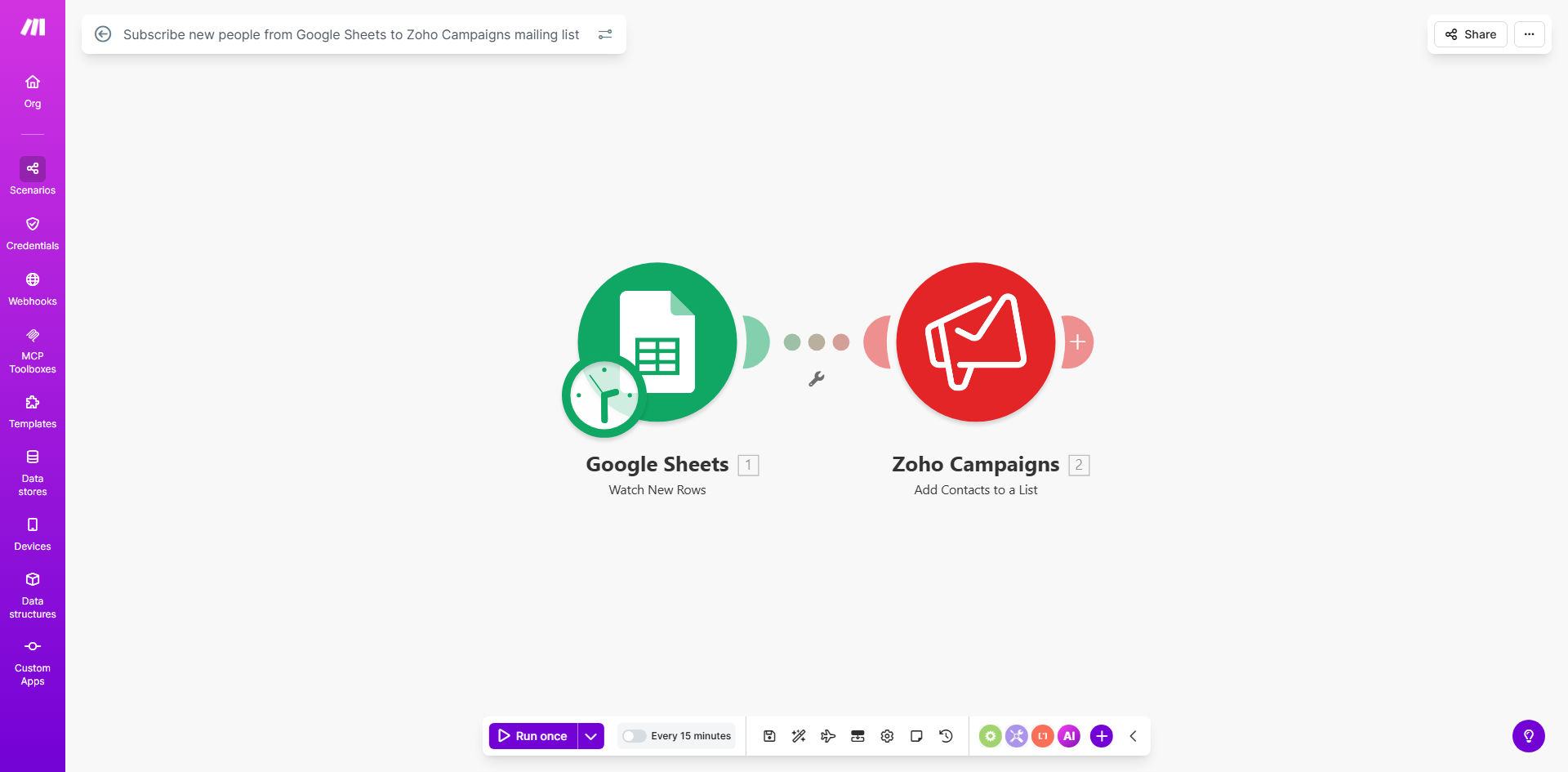
Google Sheets to Zoho Campaigns workflow diagram showing the automation process

What This Workflow Does

This automation bridges the gap between your lead collection in Google Sheets and your email marketing in Zoho Campaigns. It automatically detects new rows added to your specified Google Sheet and subscribes those contacts to your chosen Zoho Campaigns mailing list.

The workflow solves the common problem of manually transferring contact information between systems, which is time-consuming and prone to errors. By automating this process, you ensure that new leads are added to your email campaigns immediately, improving your marketing response times.

How It Works

1. Monitoring Google Sheets

The workflow regularly checks your specified Google Sheet for new rows, using a timestamp or row ID to identify additions since the last check.

2. Processing New Contacts

Each new row is processed to extract contact information like name, email address, and any other relevant fields you've configured.

3. Adding to Zoho Campaigns

The contact details are then automatically added to your specified Zoho Campaigns mailing list, with all field mappings preserved.

Who This Is For

This workflow is ideal for marketing teams, small businesses, and entrepreneurs who:

  • Collect leads through forms that feed into Google Sheets
  • Use Zoho Campaigns for email marketing
  • Want to automate their lead-to-campaign process
  • Need to reduce manual data entry errors

What You'll Need

  1. A Google Sheets spreadsheet with contact information
  2. A Zoho Campaigns account
  3. A Make.com account (free tier available)
  4. Editor access to both systems

Quick Setup Guide

  1. Connect your Google Sheets account in Make.com
  2. Connect your Zoho Campaigns account
  3. Specify which sheet to monitor and which columns contain contact data
  4. Choose the target mailing list in Zoho Campaigns
  5. Set your preferred checking frequency
  6. Activate the workflow

Pro tip: Use a dedicated "Status" column in your Google Sheet to track which contacts have been processed, allowing for easy troubleshooting.

Key Benefits

Time savings: Eliminates hours of manual data entry each week, allowing your team to focus on strategy rather than administrative tasks.

Improved accuracy: Automated transfers reduce human error that commonly occurs with manual data entry between systems.

Faster campaign inclusion: New leads are added to your email sequences immediately, improving conversion opportunities.

Scalability: Easily handles large volumes of new contacts without additional work from your team.

Frequently Asked Questions

Common questions about Google Sheets and Zoho Campaigns integration

This workflow automatically transfers new contacts from Google Sheets to Zoho Campaigns mailing lists, eliminating manual data entry and ensuring timely updates.

The automation watches for new rows in your specified Google Sheet and processes them according to your configured field mappings. This ensures your email marketing lists are always current with minimal effort.

The integration saves hours of manual work, reduces human error, and ensures your marketing lists are always up-to-date with new leads or customers.

By connecting these systems, you create a seamless flow from lead capture to email marketing, improving response times and conversion rates while maintaining data consistency across platforms.

You can configure the workflow to check for new rows in your Google Sheet at any interval - from every 15 minutes to once per day.

The frequency should match your business needs. High-volume lead generation might require more frequent checks, while slower-paced businesses can use longer intervals to conserve API calls.

You can map any contact fields like name, email, phone number, and custom fields between the two systems.

Common mappings include first/last name, email address, company, phone number, and any custom attributes you track. The workflow supports transferring all standard Zoho Campaigns contact fields.

The workflow can be configured to skip duplicates or update existing records based on email address matching.

For best results, use email as your unique identifier. You can choose whether to ignore duplicates completely or update existing records with new information from your Google Sheet.

Yes, you can configure the workflow to add contacts to different mailing lists based on criteria in your Google Sheet.

By adding conditional logic, you can route contacts to specific lists depending on data in your spreadsheet, such as lead source, product interest, or geographic location.

Absolutely! Our team can create a tailored solution that matches your specific business processes and requirements.

We specialize in building custom automations that integrate Google Sheets with Zoho Campaigns, including advanced features like lead scoring, segmentation rules, and multi-step onboarding sequences. Our solutions are designed to fit your exact workflow needs.

  • Custom field mappings for your unique data structure
  • Advanced duplicate handling rules
  • Integration with additional systems in your stack

Need a Custom Google Sheets to Zoho Campaigns Automation?

This free template is a starting point. Our team builds fully tailored automation systems for your specific business needs.