Make.com Tally Forms Microsoft 365 Excel Automation No-Code

Automatically Add Tally Responses to Excel Worksheets

Eliminate manual data entry by automatically syncing form submissions to your spreadsheets

Get This Workflow → Make.com · Tally to Excel · Free Template
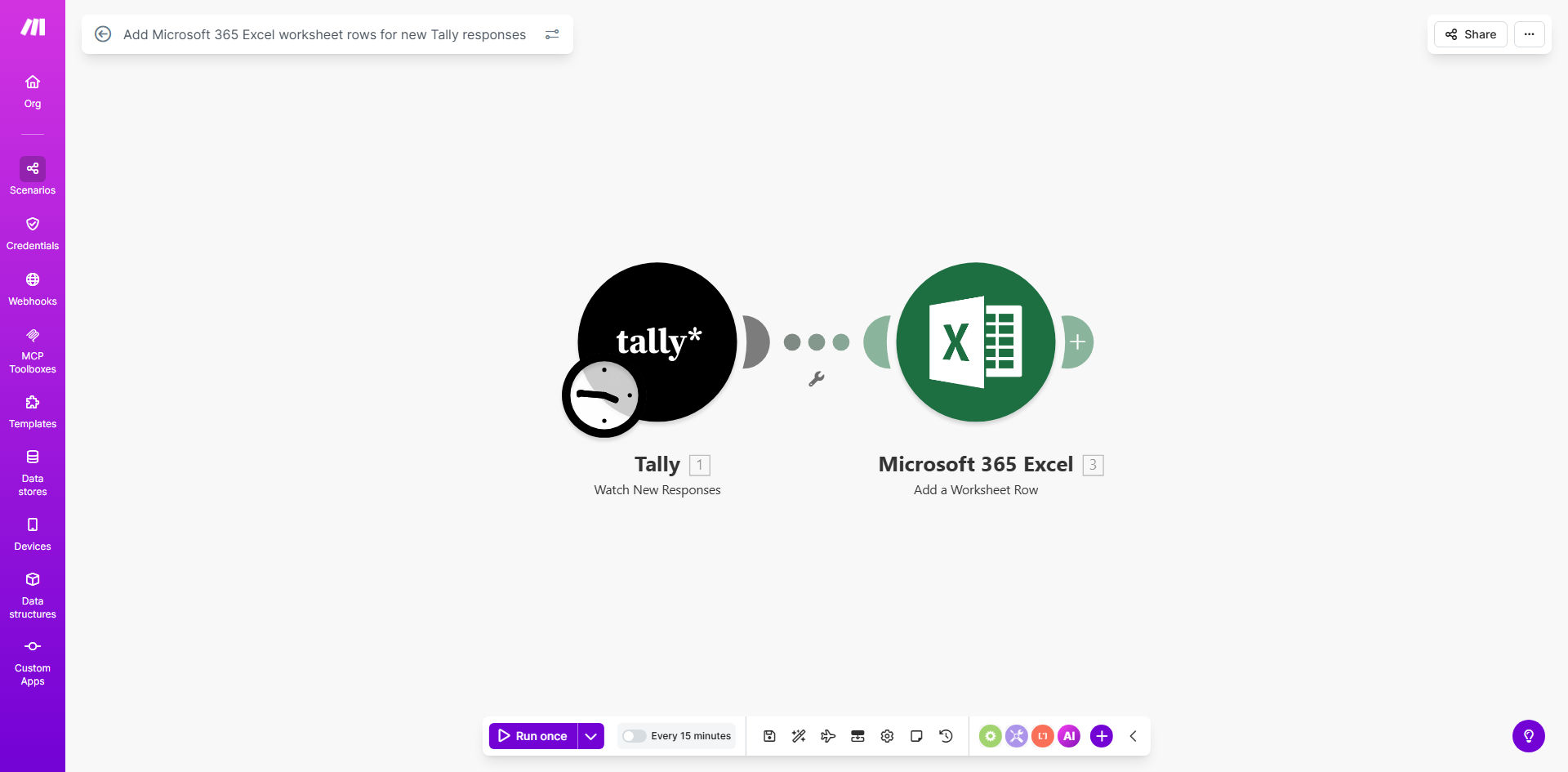
Make.com workflow diagram showing Tally form responses being added to Microsoft Excel automatically

What This Workflow Does

This automation solves the tedious and error-prone process of manually copying data from Tally form submissions into Excel spreadsheets. Every time someone submits your Tally form, the workflow automatically adds their responses as a new row in your specified Microsoft 365 Excel worksheet.

The system runs continuously in the background, checking for new responses at regular intervals you configure. It handles all the data mapping between form fields and spreadsheet columns, maintaining perfect consistency without any human intervention. Whether you receive 5 or 500 responses daily, your Excel file stays perfectly updated.

How It Works

1. Trigger on New Tally Responses

The workflow monitors your Tally form for new submissions using Make.com's Tally connector. You specify which form to watch and how frequently to check for updates (typically every 15-60 minutes).

2. Process Response Data

Each new submission's data is extracted and formatted appropriately for Excel. The workflow can handle all Tally field types including text, numbers, dates, multiple choice, and file uploads.

3. Add Row to Excel Worksheet

Using Microsoft 365's API, the workflow adds the processed data as a new row in your specified Excel file. You configure exactly which form fields map to which spreadsheet columns during setup.

Pro tip: Set up a dedicated "Raw Data" worksheet to receive all submissions, then use Excel formulas to create summary views in separate tabs. This preserves original responses while enabling analysis.

Who This Is For

This automation is ideal for any business or team using Tally forms for:

  • Customer feedback collection
  • Event registrations
  • Lead generation forms
  • Internal surveys
  • Order forms
  • Application processes

Particularly valuable for operations teams, marketers, HR departments, and small business owners who need to analyze form data but lack technical resources to build custom integrations.

What You'll Need

  1. A Tally form with responses you want to track
  2. Microsoft 365 Business or Enterprise account
  3. An Excel worksheet ready to receive data (create column headers matching your form fields)
  4. A Make.com account (free plan available)

Quick Setup Guide

  1. Click "Get This Workflow" to copy the template to your Make.com account
  2. Connect your Tally account and select the form to monitor
  3. Connect your Microsoft 365 account and select the destination Excel file
  4. Map each Tally form field to the corresponding Excel column
  5. Set your preferred polling interval (how often to check for new responses)
  6. Turn on the scenario and test with a form submission

Key Benefits

Eliminate 90% of manual data entry work by automatically transferring every form response to your spreadsheet the moment it's submitted.

Reduce errors to near-zero since there's no human typing or copy-pasting involved in the data transfer process.

Always work with current data as your Excel sheet updates automatically, whether you're viewing it or not.

Scale effortlessly from handling 5 submissions per day to 500 without any additional work on your part.

Enable better analysis by having all response data neatly organized in Excel where you can sort, filter, and visualize it.

Frequently Asked Questions

Common questions about Tally to Excel automation and integration

Automating Tally to Excel saves hours of manual data entry, eliminates human errors, and ensures your records are always up-to-date. Businesses using this automation typically reduce form processing time by 85% while improving data accuracy.

For example, a marketing team collecting webinar registrations can instantly see all signups in their master spreadsheet without copying each response. The data becomes actionable immediately rather than waiting for manual updates.

The workflow checks for new Tally responses at intervals you configure (typically every 15-60 minutes). You can adjust this based on your needs - more frequent for time-sensitive data, less frequent for general forms.

Unlike manual processes that might batch updates once per day, this automation ensures your data is never more than an hour old. Critical applications like order forms benefit from near real-time updates.

Yes, the workflow lets you precisely map each Tally form field to specific Excel columns. You can also transform data during transfer (like formatting dates or concatenating fields) without manual intervention.

This means your Excel sheet can have a completely different structure than your form. Map first/last name fields to separate columns, combine address components, or even calculate values like totals during the transfer.

The automation works with Microsoft 365 Excel Online, so the spreadsheet doesn't need to be open. Responses are added directly to your cloud-stored worksheet regardless of whether you have the file open.

This cloud-based approach means your data is always accessible and up-to-date from any device. Team members can view the latest submissions even when the primary user isn't actively working in the file.

Absolutely. The workflow handles concurrent submissions seamlessly, queuing responses if needed and adding them to Excel in the order received without data conflicts or overwrites.

High-traffic forms like event registrations benefit most from this capability. The system processes each submission independently, maintaining data integrity even during peak submission periods.

The connection uses OAuth 2.0 authentication and only accesses the specific Tally form and Excel worksheet you authorize. Data is encrypted in transit and never stored permanently on Make.com servers.

For sensitive data, you can implement additional security measures like restricting Excel access to specific team members or setting up audit logs to track all data modifications.

Yes! GrowwStacks specializes in building tailored automation solutions. We can create custom workflows that include data validation, conditional formatting, notifications, and integration with other tools in your stack.

Our team will design a solution specific to your business processes, whether you need multi-step approvals, data enrichment from other systems, or specialized reporting. We handle everything from initial consultation to ongoing maintenance.

  • Custom data transformations
  • Multi-system integrations
  • Error handling and alerts

Need a Custom Tally-Excel Automation?

This free template is a starting point. Our team builds fully tailored automation systems for your specific business needs.