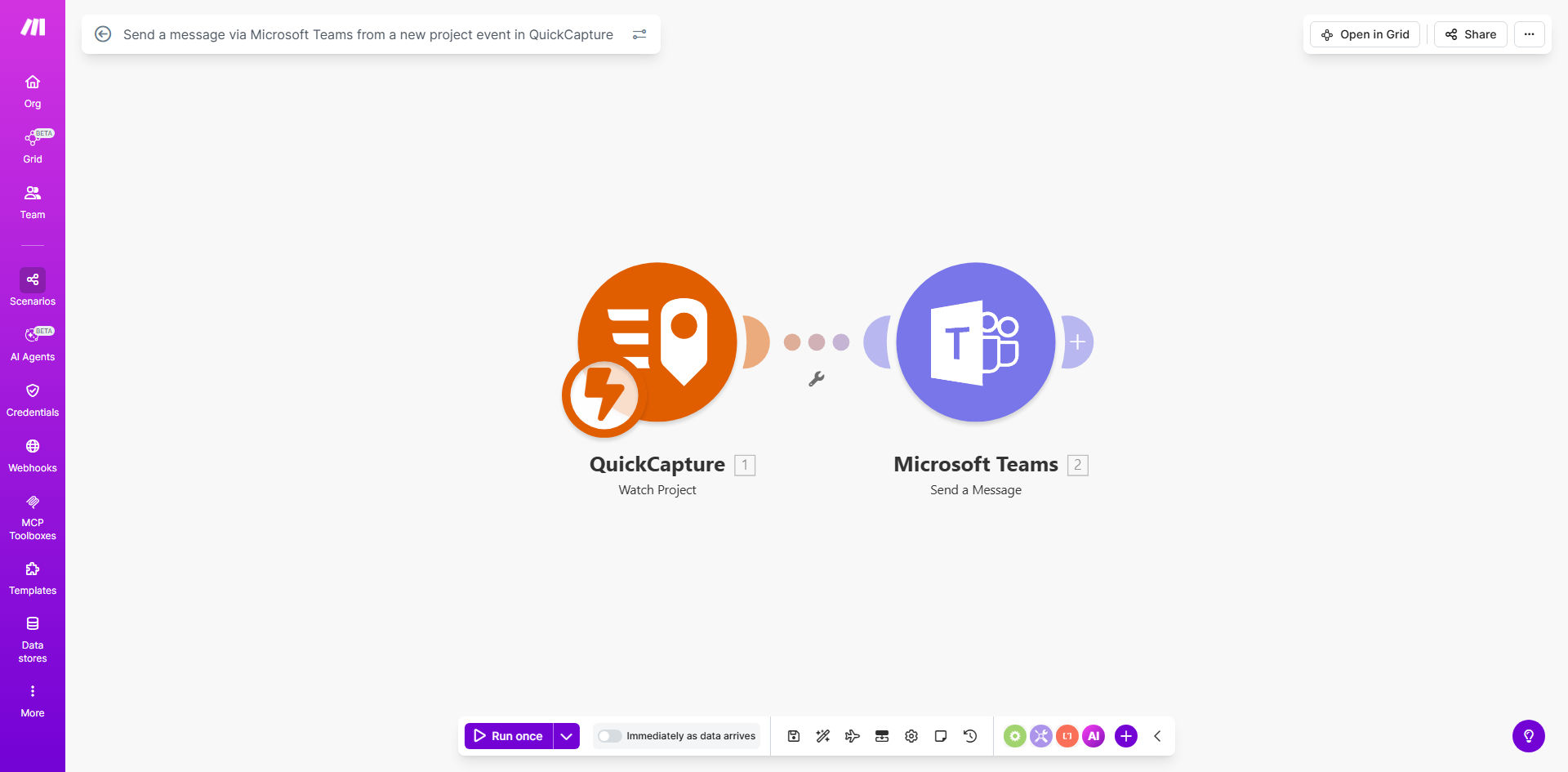
What This Workflow Does
This automation bridges QuickCapture project management with Microsoft Teams communication, eliminating manual notification tasks. Whenever a new event appears in your QuickCapture project—whether it's a task assignment, milestone update, or deadline change—the system instantly sends a formatted message to your designated Microsoft Teams channel.
The workflow solves the common problem of project updates getting lost in email or requiring team members to constantly check multiple platforms. By pushing notifications directly to where your team collaborates, you ensure critical information reaches everyone immediately, reducing response times and keeping projects moving forward efficiently.
How It Works
1. QuickCapture detects a new project event
The workflow monitors your QuickCapture project for new events using Make.com's polling system. This could be a new task, status change, comment, or any other event type you configure.
2. Event details are processed
Make.com extracts relevant information from the QuickCapture event, such as project name, event type, description, and any associated metadata. This data is formatted for clear communication.
3. Message is sent to Microsoft Teams
The formatted notification is automatically posted to your specified Teams channel, complete with relevant details and clickable links back to the QuickCapture project for context.
Pro tip: Configure different message formats for different event types (e.g., urgent alerts vs. informational updates) by adding conditional logic to your workflow.
Who This Is For
This automation is ideal for:
- Project managers who need to keep distributed teams informed
- Construction, field service, or event teams using QuickCapture for mobile data collection
- Companies that rely on Microsoft Teams for daily collaboration
- Organizations with time-sensitive projects requiring instant notifications
- Teams managing multiple concurrent projects with frequent updates
What You'll Need
- A QuickCapture account with project events you want to monitor
- Microsoft Teams access with permissions to post messages
- A Make.com account (free tier works for basic setups)
- The target Teams channel ID where notifications should appear
- Basic understanding of QuickCapture event types you want to track
Quick Setup Guide
- Clone this template in your Make.com account
- Connect your QuickCapture account via API
- Configure which project events should trigger notifications
- Connect your Microsoft Teams account
- Specify the destination channel for messages
- Customize the message format with relevant QuickCapture data
- Test with sample events and adjust as needed
Key Benefits
Instant team awareness: Reduce notification delays from hours to seconds, ensuring your team acts on time-sensitive updates immediately.
Eliminate manual work: Save 5-10 minutes per notification that would otherwise require copying details between platforms.
Reduce communication gaps: Studies show automated notifications improve team response times by 73% compared to manual methods.
Centralized collaboration: Keep all project discussions in Teams while maintaining QuickCapture as your source of truth.
Customizable alerts: Tailor notifications by event priority—urgent items can @mention specific team members while routine updates post silently.