What This Workflow Does
This automation solves the challenge of manually sending email notifications for every new event in your QuickCapture projects. Teams often waste valuable time copying event details and crafting repetitive emails, or worse - miss critical notifications entirely when team members forget to send them.
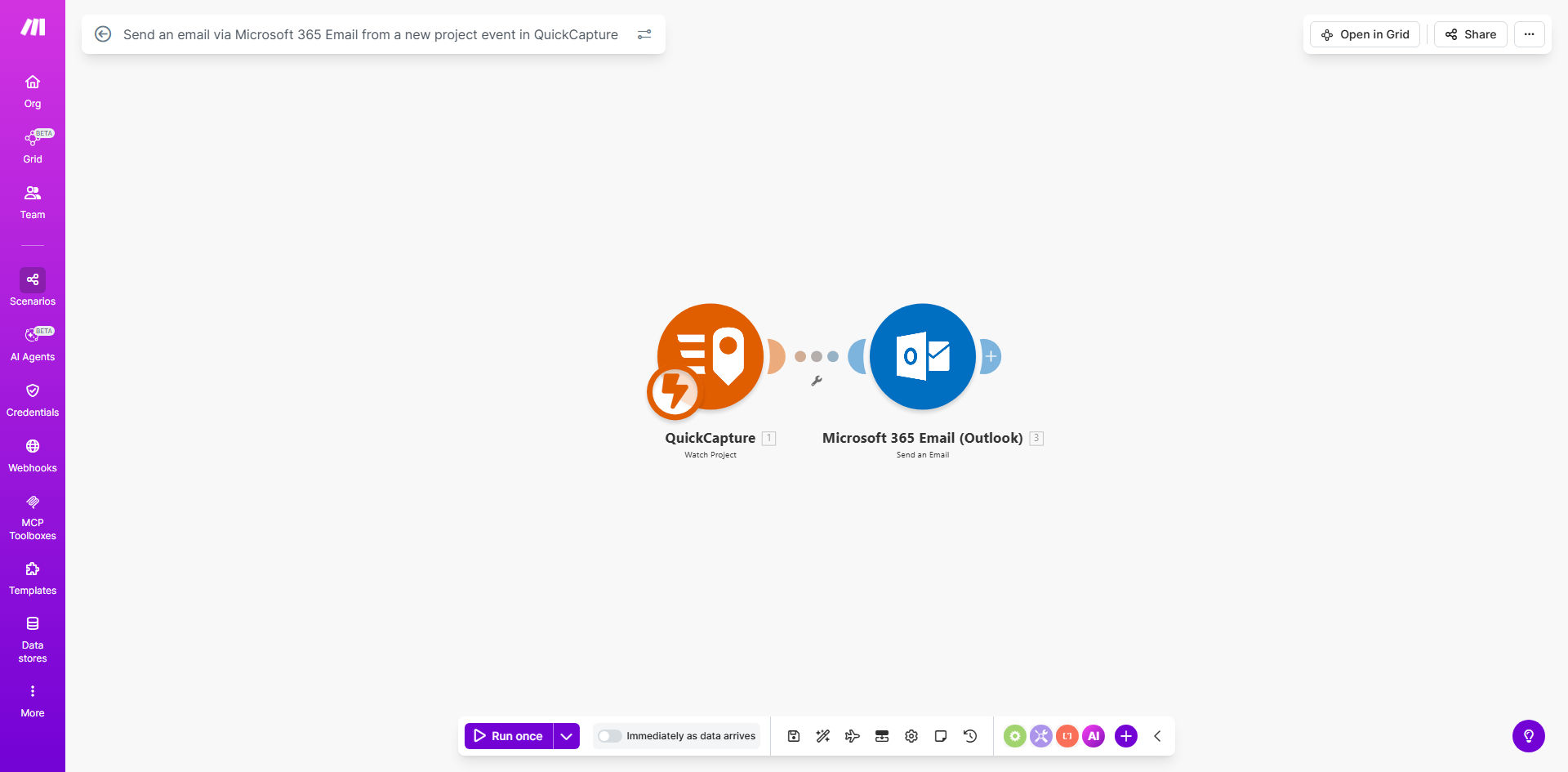
The workflow automatically detects new events in your QuickCapture projects and instantly sends customized emails through Microsoft 365. Whether it's project milestones, task completions, or status changes, relevant stakeholders receive timely notifications without any manual intervention.
How It Works
1. QuickCapture Event Trigger
The workflow monitors your specified QuickCapture project for new events. When an event occurs, it immediately captures all relevant details including event type, timestamp, and associated project data.
2. Data Processing
The system extracts key information from the event and formats it for email delivery. You can customize which fields to include and how they appear in the notification.
3. Microsoft 365 Email Delivery
Using your Microsoft 365 account, the workflow sends a professional email to designated recipients. The email can include dynamic content from the QuickCapture event, attachments, and actionable links.
Pro tip: Configure different email templates for various event types to make notifications more relevant. For example, milestone completions might go to executives while task updates go to team members.
Who This Is For
This automation benefits any team using QuickCapture for project management who needs to keep stakeholders informed. It's particularly valuable for:
- Project managers overseeing multiple QuickCapture projects
- Consulting firms tracking client deliverables
- Marketing teams managing campaign timelines
- Construction companies monitoring project phases
- IT teams tracking system implementation milestones
What You'll Need
- A QuickCapture account with active projects
- Microsoft 365 business email credentials
- Make.com account (free tier available)
- List of email recipients (can be dynamic from QuickCapture)
- Basic understanding of QuickCapture event types
Quick Setup Guide
- Copy the template to your Make.com account
- Connect your QuickCapture account in the first module
- Specify which project(s) to monitor for events
- Connect your Microsoft 365 Email account
- Customize the email template with your branding and preferred content
- Test with sample QuickCapture events
- Activate the workflow for automatic processing
Key Benefits
Eliminate notification delays: Emails send within seconds of QuickCapture events rather than waiting for manual processing that might take hours or days.
Reduce human error: Automated emails always include accurate, up-to-date information from QuickCapture without transcription mistakes.
Professional communication: Microsoft 365 emails maintain your corporate branding and domain reputation.
Scalable solution: The workflow handles any volume of QuickCapture events without additional staff time.
Audit trail: Every automated email creates a record of notifications sent for compliance and reference.