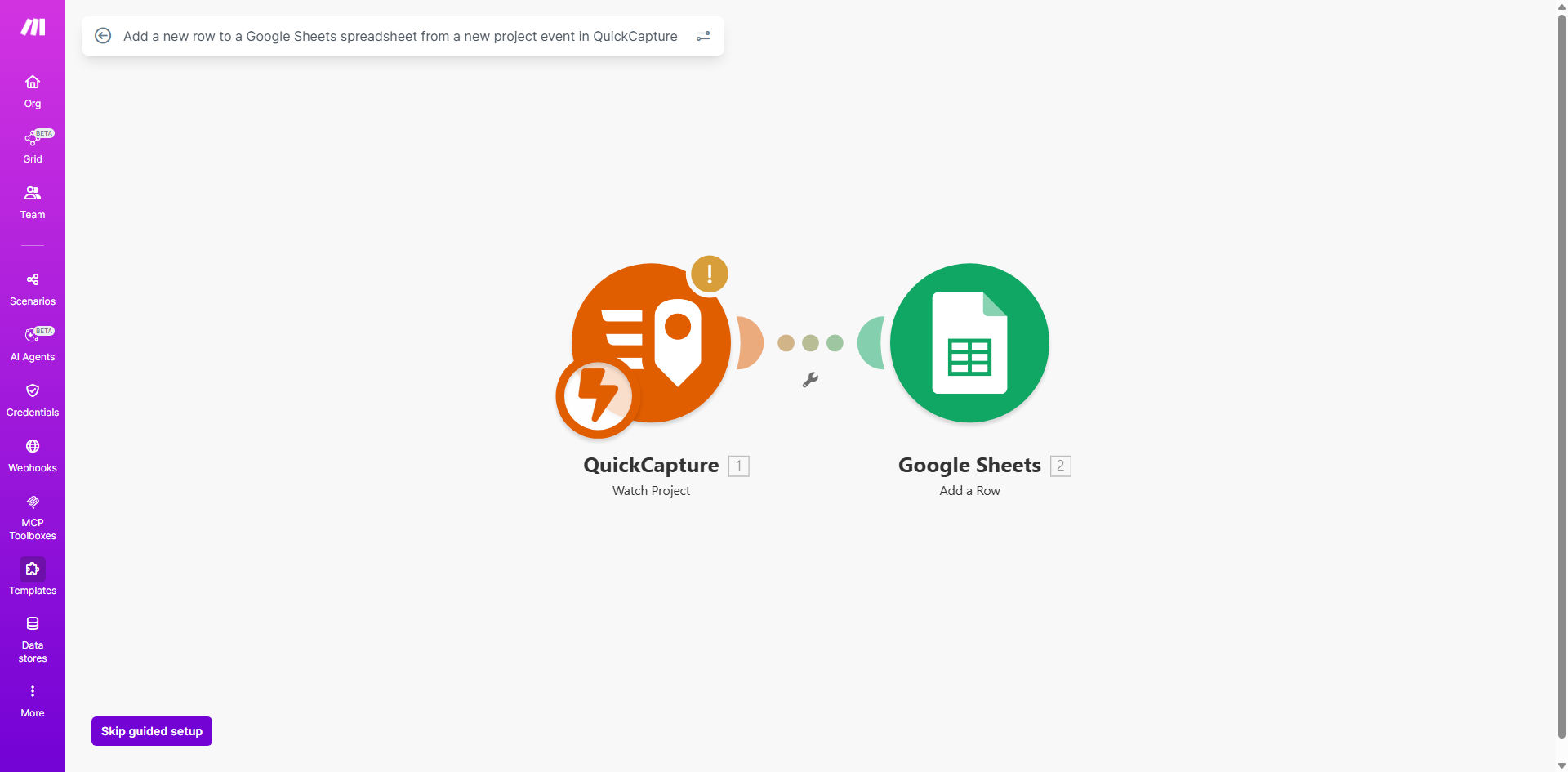
What This Workflow Does
This automation solves the common challenge of manually tracking project events from QuickCapture in spreadsheets. Every time team members create or update events in your QuickCapture projects, the workflow automatically adds a complete record to your designated Google Sheet.
The template creates a centralized log that's always up-to-date, eliminating hours of manual data entry while reducing human error. Project managers gain real-time visibility into team activities without constantly switching between apps.
How It Works
1. Trigger: New QuickCapture Event
The workflow monitors your specified QuickCapture project for new events. Each time an event is created or modified, it captures all relevant details including timestamp, event type, assignee, description, and custom fields.
2. Data Mapping
The automation extracts key information from the QuickCapture event and structures it for spreadsheet entry. You can customize which fields get mapped to which columns in your Google Sheet.
3. Google Sheets Update
The workflow adds a new row to your designated spreadsheet with all the event details. It maintains data consistency by following your predefined column structure while preserving existing spreadsheet formatting.
Pro tip: Add timestamp columns to track when events were logged versus when they occurred in QuickCapture. This helps analyze response times.
Who This Is For
This workflow benefits:
- Project managers tracking team activities across multiple QuickCapture projects
- Operations teams needing audit logs of field work captured in QuickCapture
- Consultants who share progress reports with clients via Google Sheets
- Quality assurance teams analyzing event patterns across projects
- Any team using QuickCapture that needs historical records in spreadsheet format
What You'll Need
- A QuickCapture account with admin access to your project
- A Google account with edit access to your destination spreadsheet
- The Make.com template (provided)
- 5 minutes to configure the connections
Quick Setup Guide
- Click "Get This Workflow" to copy the template to your Make.com account
- Connect your QuickCapture account when prompted
- Connect your Google Sheets account and select your destination spreadsheet
- Map the QuickCapture fields to your desired spreadsheet columns
- Test with sample events to verify the data flows correctly
- Turn on the automation - it will now run continuously
Key Benefits
Eliminate manual data entry: Save 2-5 hours per week typically spent copying information between apps.
Improve data accuracy: Remove human error from the logging process with 100% consistent data capture.
Enable better reporting: Use Sheets' analysis tools on your QuickCapture data for insights into team productivity.
Maintain complete records: Never lose track of project events with an automatic historical log.
Flexible customization: Easily adapt which fields get logged as your tracking needs evolve.