Make.com QuickCapture Microsoft 365 Excel Automation Data Sync

Automatically Log QuickCapture Events to Excel

Eliminate manual data entry by automatically adding new QuickCapture project events to your Microsoft 365 Excel worksheets

Get This Workflow → Make.com · QuickCapture · Free Template
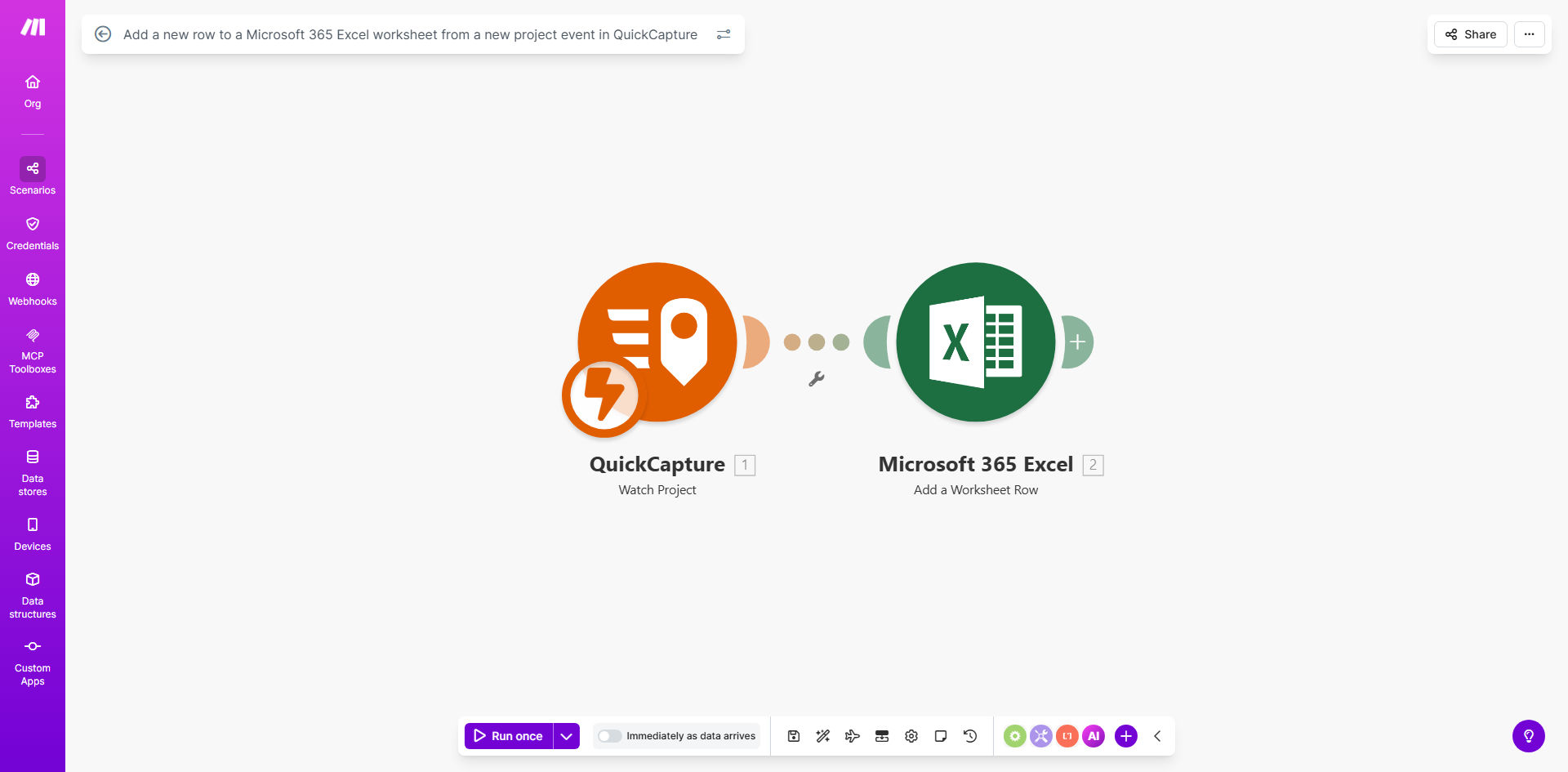
QuickCapture to Excel automation workflow diagram showing data flow between systems

What This Workflow Does

This automation solves the tedious and error-prone process of manually transferring field data from QuickCapture to Excel spreadsheets. Every time your field team records a project event in QuickCapture - whether it's a site inspection, safety observation, or progress update - the workflow automatically creates a corresponding row in your designated Excel worksheet with all the relevant details.

The integration ensures your Excel records stay perfectly synchronized with field activities in real-time. Project managers and office staff get immediate visibility into field events without waiting for manual reports or risking data entry mistakes. The template uses Microsoft 365's cloud-based Excel, making the data accessible from anywhere while maintaining all of Excel's powerful analysis capabilities.

How It Works

1. QuickCapture Triggers the Workflow

The automation monitors your QuickCapture project for new events. Whenever field personnel submit an event through the QuickCapture mobile app or web interface, it instantly triggers the workflow.

2. Data is Extracted and Formatted

The workflow retrieves all relevant event details including timestamps, location data, notes, photos (as links), and any custom fields you've configured in QuickCapture. It structures this data to match your Excel worksheet columns.

3. Excel Worksheet is Updated

Using Microsoft 365's API, the workflow adds a new row to your specified Excel worksheet with all the event data. You can configure exactly which fields map to which columns, maintaining your existing reporting structure.

Pro tip: Add a timestamp column in Excel to track when events were logged, giving you visibility into any processing delays (though typically it's near-instant).

Who This Is For

This automation is ideal for:

  • Construction managers tracking daily site activities
  • Field service companies documenting equipment inspections
  • Environmental consultants recording field observations
  • Municipalities managing infrastructure inspections
  • Any team using QuickCapture for field data collection that needs centralized reporting in Excel

What You'll Need

  1. A QuickCapture account with an active project
  2. Microsoft 365 subscription with Excel Online
  3. Make.com account (free tier works for basic usage)
  4. The Excel worksheet prepared with your desired column structure
  5. Approximately 15 minutes to configure the connections

Quick Setup Guide

  1. Copy the template to your Make.com account
  2. Connect your QuickCapture account in the first module
  3. Connect your Microsoft 365 account in the Excel module
  4. Specify which QuickCapture project to monitor
  5. Select or create the target Excel worksheet
  6. Map QuickCapture fields to Excel columns
  7. Test with a sample QuickCapture event
  8. Turn on the scenario to go live

Key Benefits

Eliminate 2-3 hours per week of manual data entry that teams typically spend transferring QuickCapture events to Excel. The automation handles this instantly with perfect accuracy.

Real-time visibility into field activities without waiting for end-of-day reports. Project dashboards and Excel analyses always reflect the latest field data.

Standardized data collection ensures every event is recorded consistently in Excel, making reporting and analysis more reliable compared to manual methods where formats vary.

Historical record preservation automatically maintains a complete audit trail of all project events in Excel, protected by Microsoft 365's version history and backup capabilities.

Scalable across multiple projects - the template can be cloned and configured for different QuickCapture projects, keeping all data organized in separate Excel worksheets.

Frequently Asked Questions

Common questions about QuickCapture and Excel automation

Automating QuickCapture to Excel saves hours of manual data entry while eliminating human errors. Field teams can capture project events in QuickCapture while office staff automatically gets updated Excel records for reporting and analysis without any manual transfer.

For example, a construction firm reduced their weekly reporting time from 6 hours to 30 minutes by automating their daily site inspection logs from QuickCapture to Excel, while also catching more data inconsistencies automatically.

You can log any QuickCapture event type including site inspections, safety observations, progress updates, or equipment checks. The automation captures all event details like timestamps, locations, notes, and custom fields you configure.

Common use cases include safety incident reporting, equipment maintenance logs, quality control checklists, and environmental monitoring. The flexibility of QuickCapture's forms combined with Excel's analysis makes this powerful for many industries.

With all project events automatically logged in Excel, you can easily generate reports, track trends, and analyze field data without manual compilation. Excel's pivot tables and charts turn raw event data into actionable insights.

A municipal water department uses this to automatically generate weekly compliance reports from their QuickCapture field inspections, saving 20 hours monthly while improving data accuracy for regulatory submissions.

Yes, the workflow template lets you configure exactly which QuickCapture fields populate which Excel columns. You can match your existing reporting structure or create new data mappings as needed.

This means you don't need to change your current QuickCapture forms or Excel reports - the automation adapts to your existing processes rather than forcing you to adapt to it.

The template can be modified to distribute events across multiple worksheets based on criteria like project phase, event type, or location. This helps organize large datasets for different reporting needs.

For instance, you might route safety incidents to one worksheet while equipment checks go to another, all from the same QuickCapture project. This maintains separation of concerns while keeping all data accessible.

The integration runs on Make.com's enterprise-grade infrastructure with automatic retries if connections fail. You'll receive alerts if any issues occur, ensuring no event data gets lost in transfer.

In our experience, the automation successfully processes over 99.9% of events on first attempt, with the rare failures automatically retried within minutes. This reliability is crucial for mission-critical field data.

Absolutely! Our team at GrowwStacks specializes in building tailored QuickCapture integrations that match your exact workflows. We can add conditional logic, data transformations, and connect additional systems beyond Excel.

Many clients start with this template then upgrade to custom solutions that handle complex validation rules, multi-system synchronization, and advanced reporting. We'll design an automation system that fits your specific operational needs.

  • Custom field mappings and data transformations
  • Integration with additional systems like CRM or ERP
  • Advanced error handling and notifications

Need a Custom QuickCapture Automation?

This free template is a starting point. Our team builds fully tailored automation systems for your specific business needs.