What This Workflow Does
Businesses that rely on surveys for customer feedback, support tickets, or field data collection face a critical delay: the time between a submission and a team member seeing it. Manually checking Survey123 for new responses is inefficient and leads to slow response times, frustrated customers, and missed opportunities for quick intervention.
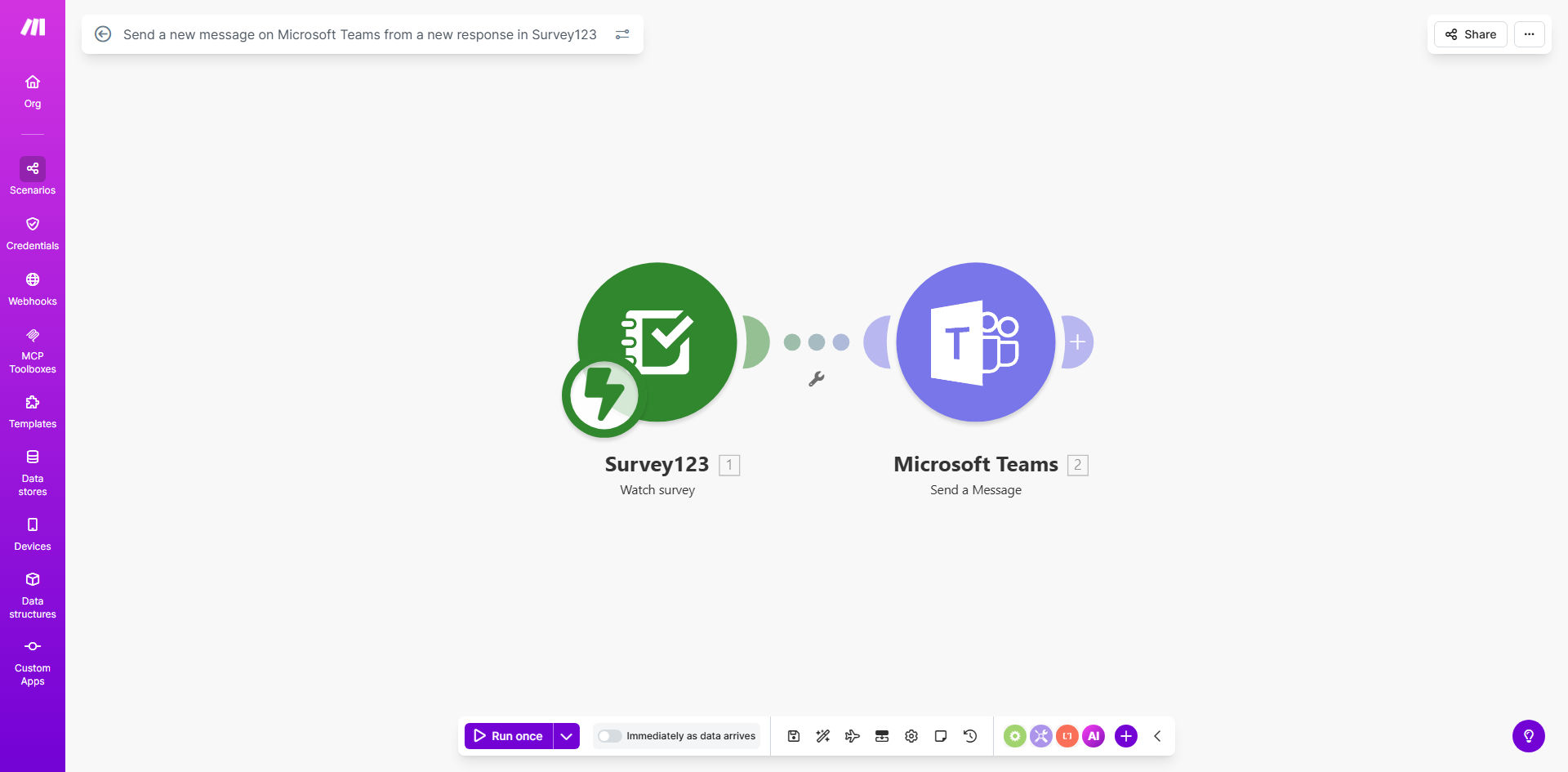
This automated workflow solves that by creating a real-time bridge between Survey123 and Microsoft Teams. Every time a new response is submitted—whether it's a customer describing a problem, an employee reporting a safety issue, or a client providing feedback—a detailed notification is instantly posted to a designated Teams channel. This ensures the right people are aware immediately, turning survey data into actionable team alerts without any manual effort.
Pro tip: Use this for IT support tickets. When an employee submits a problem via Survey123, the IT team gets a Teams message with all details instantly, slashing resolution time.
How It Works
The workflow is triggered by a new entry in your Survey123 form and orchestrates the delivery of that information directly into your team's conversation.
Step 1: Capture the New Survey Response
The automation starts the moment a respondent clicks "Submit" on your Survey123 form. Make.com watches for new submissions via a webhook or scheduled check, capturing the entire response bundle—including answers to questions like name, contact info, and problem description.
Step 2: Parse and Structure the Data
The workflow then parses the raw survey data. It extracts specific answers from the submitted form and structures them into clear, readable variables. For example, it will isolate the "Describe your problem" answer from the "Email" and "Full Name" fields, preparing them for the notification message.
Step 3: Format and Send the Teams Message
Finally, the automation connects to your Microsoft Teams account via a secure connection. It posts a formatted message to your specified channel. This message can include the respondent's details, a summary of their issue, and even actionable elements like @mentions for specific team members or a link back to the full survey response for more context.
Who This Is For
This automation delivers immense value to teams that depend on timely information from forms and surveys.
Customer Support Teams: Instantly route support tickets submitted via web forms into a dedicated support channel in Teams, ensuring no request goes unseen.
Field Operations & Inspectors: When field staff submit inspection reports or safety checklists via Survey123, managers and coordinators are notified immediately in Teams for rapid review and action.
HR & Internal IT: Streamline internal request processes. Employee feedback forms, IT help desk tickets, or facility maintenance requests can trigger direct alerts to the responsible department's Teams channel.
Project Managers & Consultants: Gather client or stakeholder feedback through surveys and have the results ping the project team instantly, facilitating faster iteration and communication.
What You'll Need
- A Make.com account (free tier available) to build and run the automation.
- An active Survey123 form with submissions enabled. You can use an existing form or create a new one.
- Access to a Microsoft Teams team and channel where you have permissions to create incoming webhooks or connect an app.
- The specific questions from your survey that you want to include in the Teams notification (e.g., "Customer Name," "Issue Summary," "Priority Level").
Quick Setup Guide
You can have this automation running in under 15 minutes by following these steps.
- Get the Template: Click the "Get This Workflow" button above to open the pre-built template in your Make.com account.
- Connect Survey123: In the first module, authenticate your Survey123 account and select the specific form you want to monitor for new responses.
- Connect Microsoft Teams: In the Teams module, authenticate with your Microsoft account. You'll be asked to select the specific Team and Channel where notifications should be posted.
- Map Your Data: This is the crucial step. In the Teams "Create a message" action, map the data from your Survey123 response to the Teams message. Replace the placeholder fields (like "Full Name," "Email") with the actual variables from your survey.
- Test and Activate: Run a single test by submitting a dummy response to your Survey123 form. Check that the correct notification appears in your Teams channel. Once confirmed, activate the scenario to run automatically.
Pro tip: Use the "Adaptor" tool in Make.com to easily find and map the correct data fields from your Survey123 response to the Teams message body, avoiding errors.
Key Benefits
Reduce response time from hours to seconds. The moment a customer or employee submits a form, your team is notified. This dramatic speed increase can be the difference between solving a minor issue and dealing with a major complaint, directly boosting customer satisfaction scores.
Eliminate manual data checking and entry. Free your team from the tedious, error-prone task of periodically logging into Survey123 to download and disseminate new responses. The automation handles data transfer flawlessly every time.
Improve team collaboration and accountability. By posting notifications directly into a shared Teams channel, you create visibility and ownership. Team members can discuss, assign, and track issues right where the alert landed, streamlining workflow.
Ensure no critical submission is ever missed. Automated systems don't take breaks, forget, or get distracted. This workflow guarantees that every single survey response triggers an alert, providing 100% coverage for your data collection channels.
Gain a scalable foundation for process automation. This template is a gateway. Once you've connected Survey123 to Teams, you can easily extend the automation to also create tickets in your help desk software, log entries in a spreadsheet, or send SMS alerts—all from the same initial trigger.