Make.com WooCommerce Clover POS Customer Sync Automation

Automatically Sync WooCommerce Customers to Clover POS

Eliminate manual data entry and unify your online and in-store customer profiles with this free, ready-to-use automation template.

Get This Workflow → Make.com · WooCommerce · Free Template
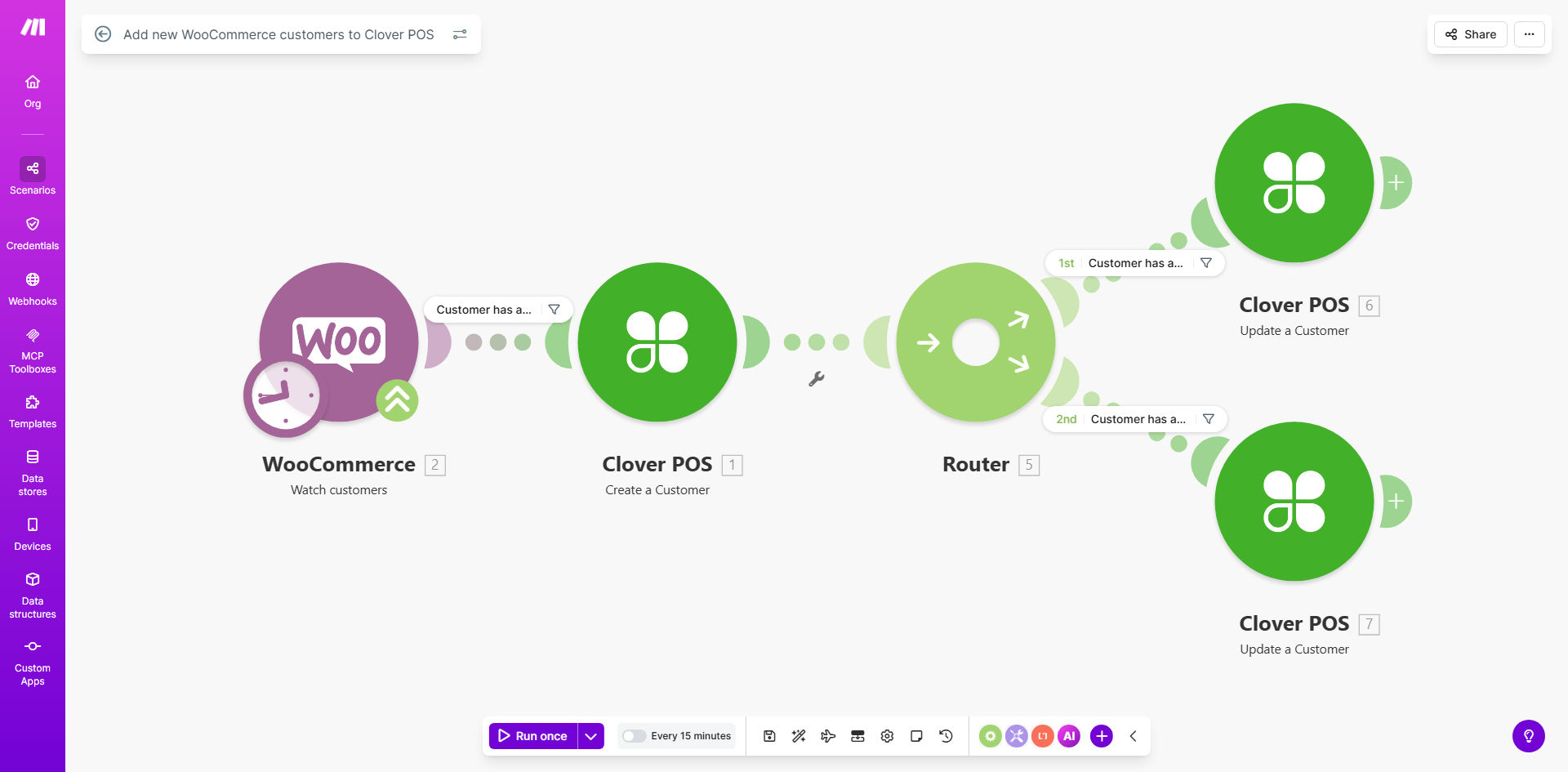
Diagram showing automation flow between WooCommerce and Clover POS for customer data sync

What This Workflow Does

For businesses selling both online via WooCommerce and in-person through Clover POS, managing separate customer databases is a major operational headache. When a new customer shops on your website, their profile is trapped in WooCommerce, invisible to your store staff. This forces manual copying of details, leads to errors, and creates a fragmented view of your customer base, hurting marketing, loyalty, and service quality.

This automation template solves that by creating a seamless, one-way bridge from your WooCommerce store to your Clover POS system. It automatically detects new customer registrations and purchases on your website and instantly creates a corresponding, accurate customer record in Clover. This means your sales team immediately has access to the customer's name, contact information, and order history, enabling personalized service from the very first in-store visit.

How It Works

The workflow runs on a scheduled basis, acting as a diligent assistant that never misses a new online customer.

Step 1: Watch for New WooCommerce Customers

The automation is triggered at regular intervals you set (e.g., every 15 minutes, hourly). It queries your WooCommerce store via its API, searching for any customers created since the last check.

Step 2: Extract and Format Customer Data

For each new customer found, the workflow extracts key details like first name, last name, email address, billing address, and phone number. It then structures this data into the specific format required by the Clover POS API to create a new customer entry.

Pro tip: You can easily customize this step to include additional data points from WooCommerce, such as the customer's first purchased product, which can be added as a note in their Clover profile for personalized service.

Step 3: Create the Customer in Clover POS

The formatted data is sent securely to your Clover POS account via its API. A new customer profile is created in your Clover customer list, complete with all the imported details. The workflow can be configured to log each successful sync for your records.

Who This Is For

This automation is ideal for any retail or service business using WooCommerce for online sales and Clover POS for physical store transactions. It's particularly valuable for:

  • Brick-and-Click Retailers: Businesses with both an online store and a physical location need a unified customer view.
  • Businesses with Loyalty Programs: To track customer spend accurately across channels for rewards.
  • Stores Offering Click-and-Collect: Where online customers come to the store for pickup, staff need their details ready.
  • Small Teams: Where owners or managers are burdened with manual administrative tasks like data entry.

What You'll Need

  1. A live WooCommerce store with administrative access to generate API keys (Consumer Key and Consumer Secret).
  2. A Clover POS account with merchant-level access to generate API tokens.
  3. A Make.com account (free tier available) to deploy and run the automation scenario.
  4. Basic information about your store, such as your WooCommerce store URL.

Quick Setup Guide

You can have this automation running in under 30 minutes by following these steps:

  1. Get the Template: Click "Get This Workflow" to copy the ready-made scenario into your Make.com account.
  2. Connect WooCommerce: In the Make scenario, create a connection to your WooCommerce store using the API credentials from your WooCommerce settings.
  3. Connect Clover POS: Similarly, create a connection to your Clover POS account using the merchant ID and API token from your Clover developer dashboard.
  4. Configure the Schedule: Set how often you want the automation to check for new customers (e.g., every hour).
  5. Test and Activate: Run the scenario once manually to test with a recent customer. Once confirmed, activate the schedule to let it run automatically.

Key Benefits

Eliminate Hours of Manual Work: Save 5-10 hours per week previously spent copying and pasting customer information between systems, freeing up staff for higher-value tasks like customer service and sales.

100% Data Accuracy: Remove the risk of human error from manual data entry. Every customer profile is transferred exactly as provided, ensuring marketing emails reach the right inbox and customer details are always correct.

Unified Customer Experience: Empower your in-store team with immediate access to a customer's online profile. This enables personalized greetings, informed product recommendations, and seamless service that bridges the online-offline gap.

Improved Marketing ROI: Build a complete, accurate customer database in Clover for targeted email campaigns, SMS marketing, and loyalty programs based on total spend across all channels, not just in-store purchases.

Scalable Foundation: This automation provides a reliable backbone for customer data. As you grow, you can easily extend it to sync order history, update existing customer records, or trigger welcome flows in other marketing tools.

Frequently Asked Questions

Common questions about WooCommerce and Clover POS integration

Syncing customer data is crucial for providing a unified shopping experience. When a customer buys online and later visits your store, your staff should have their full purchase history and preferences at their fingertips. This enables personalized service, targeted promotions, and builds stronger customer loyalty by making every interaction feel connected.

Without this sync, you're essentially running two separate businesses. A customer's online behavior remains invisible in-store, and their in-store purchases don't inform your online marketing, leading to missed opportunities for cross-selling and deeper engagement.

Manual management leads to data entry errors, duplicate customer profiles, and significant time wasted. Staff must toggle between systems, copy-paste information, and risk inconsistencies in contact details or order history. This fragmentation prevents you from getting a single, accurate view of your customer, hurting marketing efforts and customer service efficiency.

For example, an email typo during manual entry means a loyalty reward email never arrives. Or, a customer might have two different profiles—one for online and one for in-store—splitting their purchase history and making them ineligible for rewards they've actually earned.

Typically, you sync the customer's full name, email address, billing and shipping addresses, and phone number. This core profile data allows Clover to create a customer record for in-store loyalty programs, personalized service, and future marketing.

Some businesses also choose to sync initial order details to give store staff context for the customer's preferences. The beauty of automation is that you can customize exactly which fields are transferred to match your specific business needs and the data structure in your Clover POS.

Automation creates a single, accurate customer database. This allows for unified email marketing campaigns, accurate loyalty program tracking across channels, and personalized in-store recommendations based on online browsing history. Sales staff can provide better service by knowing a customer's online interests, leading to higher average order values and increased repeat business.

Imagine a customer browses high-end headphones online but doesn't buy. When they visit your store, a sales associate can see this interest and personally demonstrate the product, dramatically increasing the chance of a sale that would have otherwise been lost.

A robust automation can be configured to handle updates. For example, if a customer updates their email or address in their WooCommerce account, the workflow can be designed to find the matching record in Clover and update it accordingly. This ensures your customer data remains current and consistent across all touchpoints without manual intervention.

This requires a more advanced setup, often using a unique identifier like email to find and update the correct Clover record. It's a logical next step after implementing the basic "new customer" sync to achieve full data harmony.

Start by cleaning your existing data in both systems to remove duplicates. Clearly map which WooCommerce customer fields correspond to which Clover POS fields. Set the automation to run at a frequency that matches your sales volume (e.g., every hour). Always test with a few records first, and have a clear process for handling any sync errors or mismatches that the automation flags.

Key steps include:

  • Use API keys with appropriate read/write permissions.
  • Start with a simple field mapping before adding complexity.
  • Monitor the automation logs for the first few days to ensure stability.

Yes, absolutely. GrowwStacks specializes in building custom automations that connect WooCommerce and Clover POS tailored to your specific business rules, data fields, and operational workflow. We can handle complex scenarios like syncing custom fields, applying business logic during the sync, and integrating additional apps like your CRM or email marketing platform.

Our team will work with you to understand your unique process, design a solution that saves you the most time, and implement it reliably. We ensure the automation not only works but also scales with your business, providing ongoing support and optimization.

Need a Custom WooCommerce & Clover POS Automation?

This free template is a starting point. Our team builds fully tailored automation systems for your specific business needs.